
Overview
To enable a user to check whether parts issued to a workshop job have previously been
invoiced, how often and how long ago against the vehicle associated to the job.
Summary
Workshop Issues
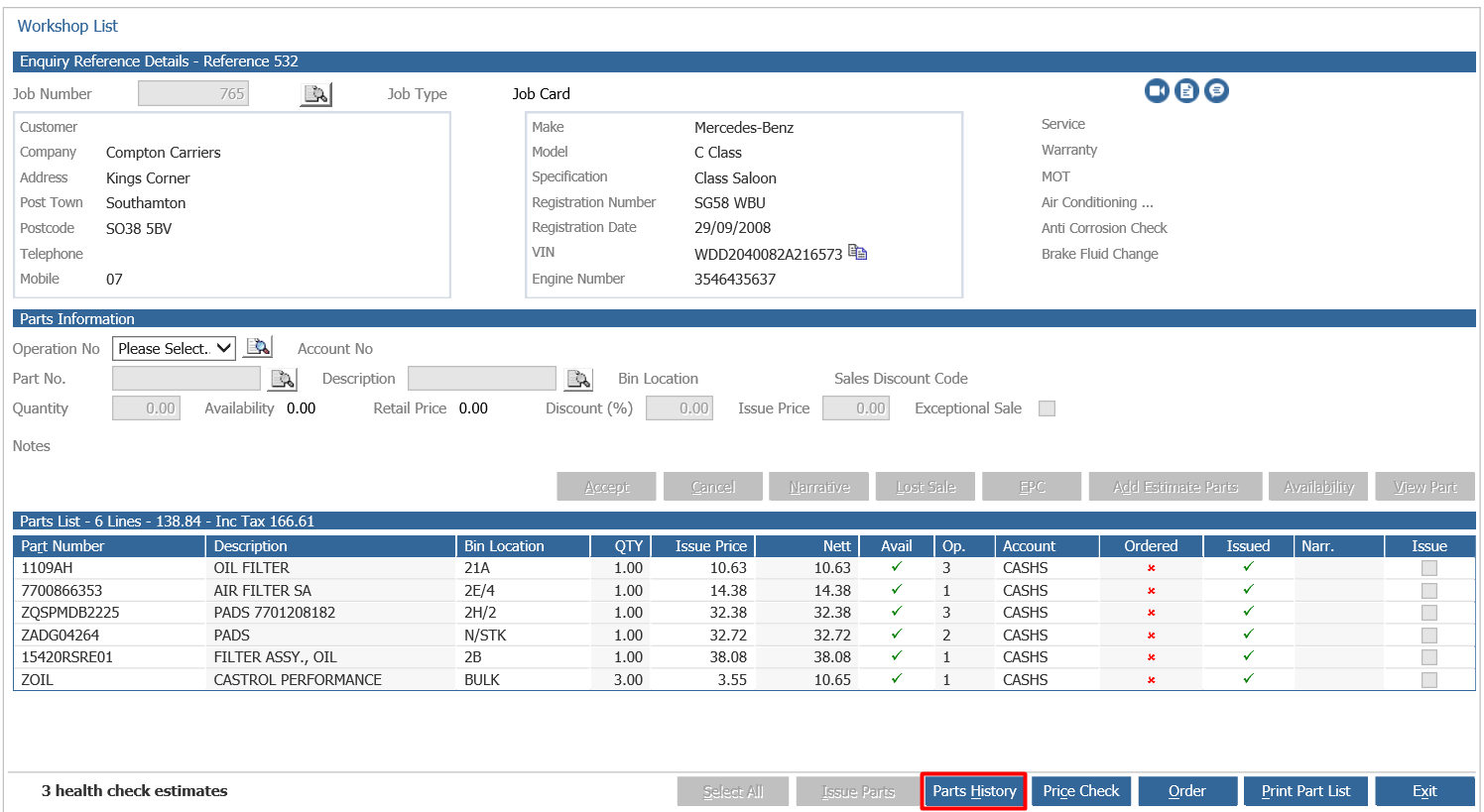
The ‘Parts History’ button is located on the Parts > Sales > Workshop Issues screen only.
When issuing parts against a job a Parts History button is now available, this button is locked
until a part is added to the job. Once a part is added the button can be found on the screen
as shown below:
Clicking the button displays the following pop up:
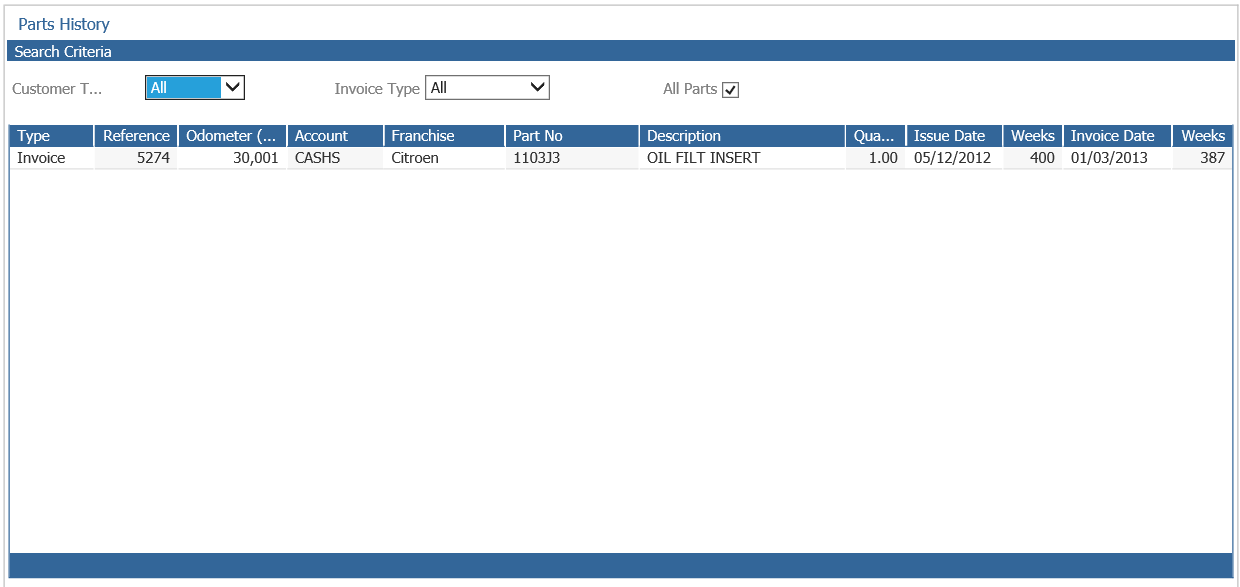
By default the pop up shows any parts currently added to the job that have previously been
invoiced against the vehicle associated with the job. These part lines display in red to
highlight they are a matching part.
If there are no matching parts the pop up will load with no parts displayed. Clicking on the All
Parts check box will display all parts regardless of whether they match parts on the job. Again,
matching parts will be displayed in red, non-matching parts will be displayed in black text.
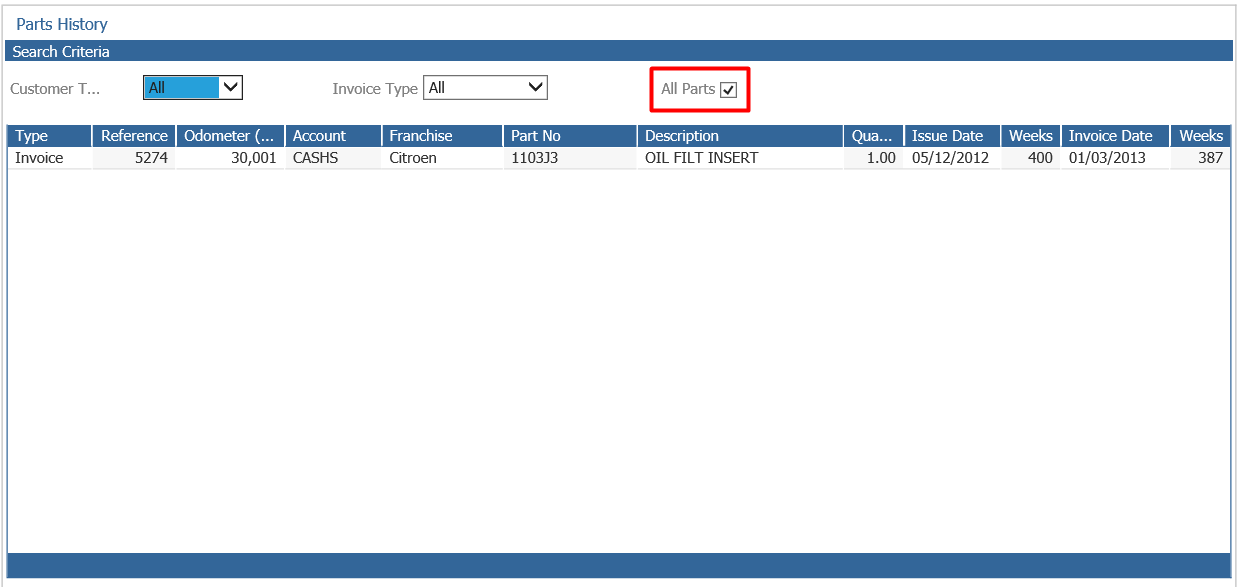
There are also the options to filter between the customer types, and whether the issue was an
invoice or a credit. In the report the number in the brackets indicates the amount of weeks
since the part was invoiced or credited.
If a part that is a supersession is added to the job, any of the superseded parts in
the supersession chain that may have been previously invoiced against the vehicle will be
highlighted red as a matching part.
From the Previous Parts popup the user will be able to drill in to each part line which will
display the associated invoice or credit note.