
Question
How do I add a letter contact to a customer?
Answer
The following steps detail how to add a letter contact to a CRM record.
From the Contact Diary, select the customer to whom the letter is to be sent – alternatively
search for the customer via CRM and Enquiry on the left hand menu. Once the Contact Tab
has been selected, click 'Add Contact History', select a relevant contact category and contact reason, then select a contact type of ‘Letter’ from the drop down menu when adding
today's contact.
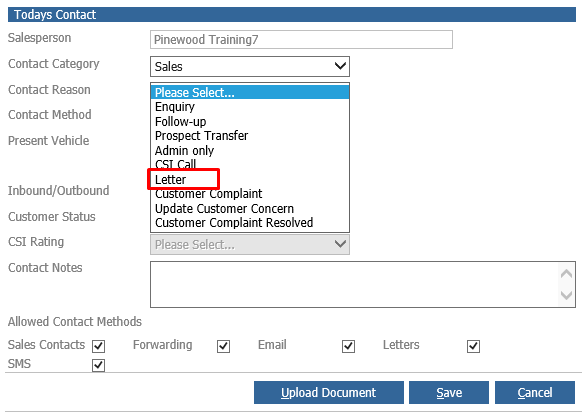
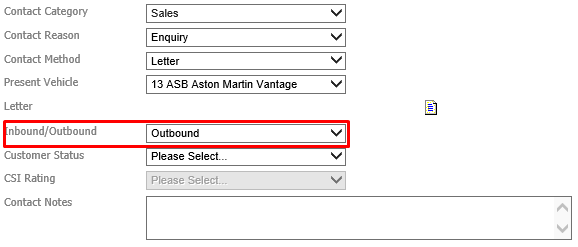
If a contact type of ‘Letter’ is selected, the Inbound/Outbound box must be set to ‘Outbound’ for
the following screen to be displayed.
The letters that appear as available for selection are driven by the letter library.
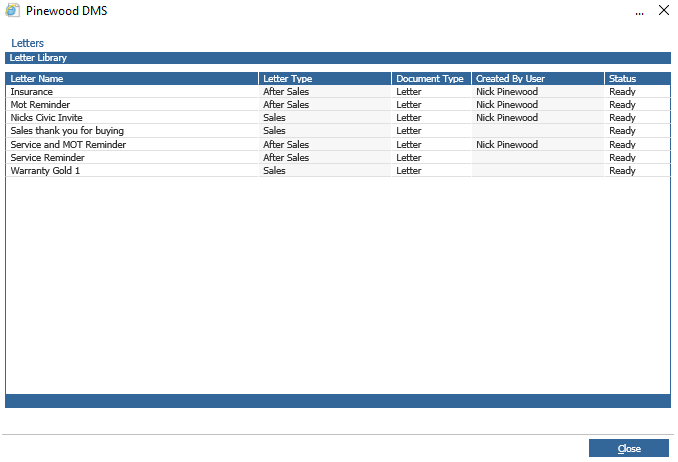
Double click on the letter required – if the letter required does not exist within the letter library, the “New Letter” option (within the Letter Library) may be selected to allow the user to create a new letter and store it on the Pinewood DMS system. The process for this is covered in another guide.
Once the letter required has been selected, the contact tab displays the below.

Upon saving the Contact History, the letter will now be sent to the ‘Letters for Printing List’ and will be printed in the next letter run. The contact history of the customer now displays a line showing that a letter has been sent.

It is also possible to specify a future contact as a letter to be sent on a particular date – in this
scenario, complete the Contact Details as normal, and then select ‘Letter’ as the contact type
when completing the Future Contact. Providing that the ‘Future Contacts Generate Letters’
parameter has been enabled, the letter to the customer will automatically flag on to the ‘Letters
For Printing List’ on the required date.