
Within the Parts Module, Product Groups will be used for various mappings.
All parts must belong to a product group, this will determine the analysis codes used to record parts purchases and sales within the nominal ledger. It is essential that these product groups be created prior to using the system (e.g. Franchise Parts, Non-Franchise Parts). Each part must be allocated a Tax Code. These codes must be created prior to using the system. Refer to the Accounts Guide for information on the creation of product groups and tax codes.
All Parts will have Product Groups set against their Part Records;
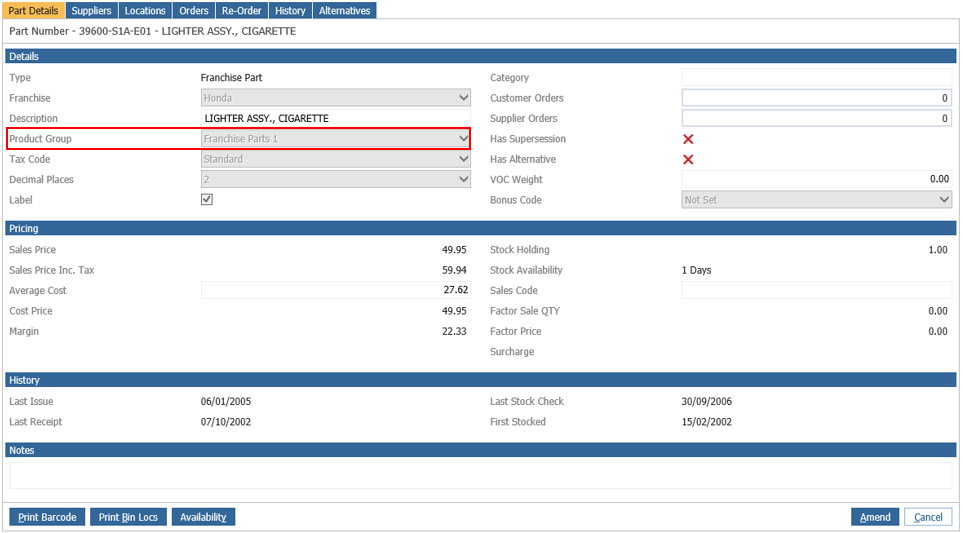
If postings are hitting the incorrect Nominals, we would always advise to check what has been entered within the Product Groups at both Parts department and also Workshop Department for back counter sales.
Product Groups
The divisional product groups must be mapped to the nominal. There are 2 levels that must be mapped, Division and Branch.
To access the Product Groups for mapping, double click the option from the left hand menu within Nominal Ledger > Ledger Parameters and click through the company structure on the right hand side of the screen.
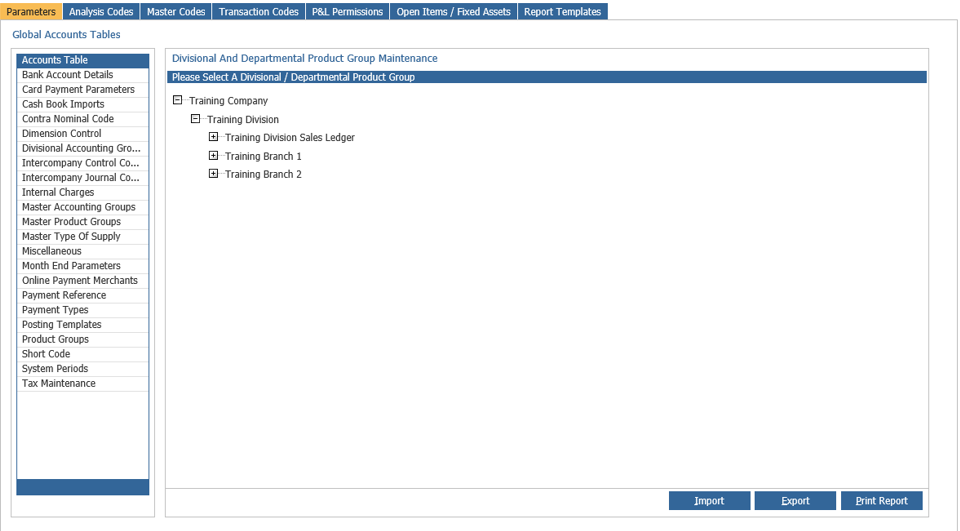
Division Level - Double click on the Division Sales Ledger to see all the Master Product Groups created.
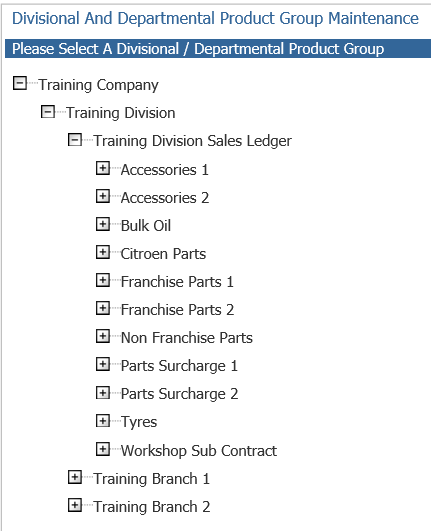
Divisional Product Groups can be used for posting Sales Ledger Misc. Invoices directly to a product group instead of coding the transaction to selected nominal codes.
To code the Divisional Product Groups, double click on a product group to select it. This will open up the mapping screen.
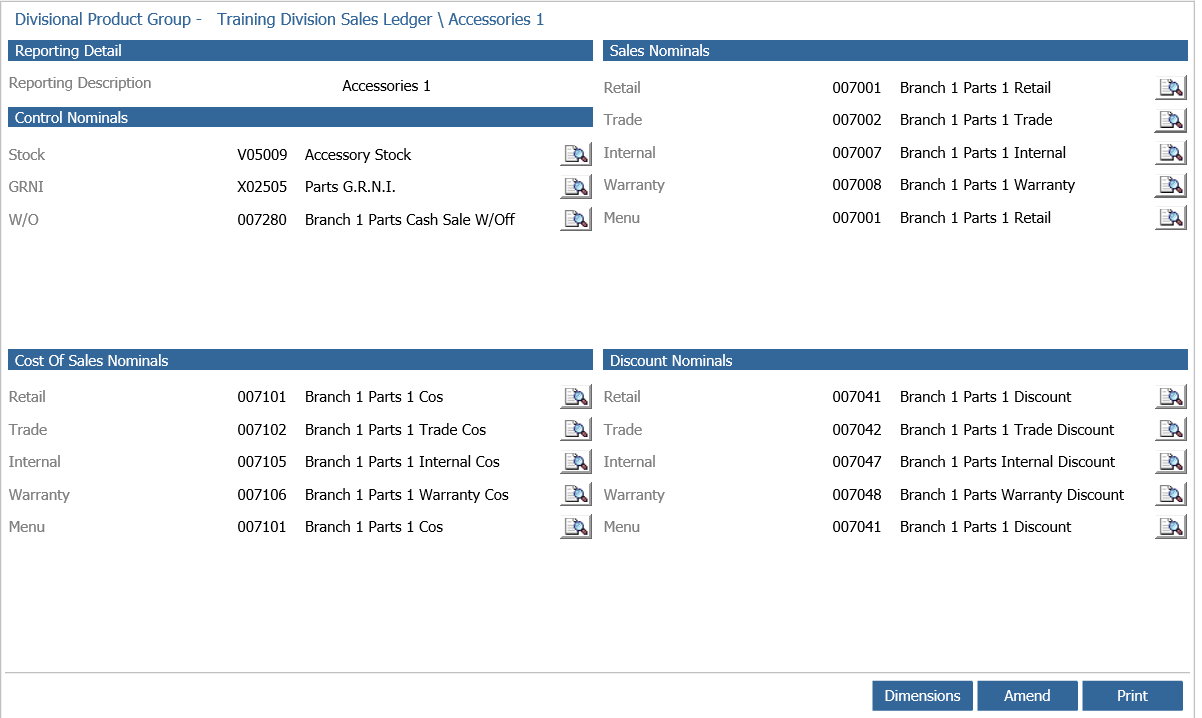
The stock, GRNI and Write Off nominal fields must be populated.
Branch Level - Once the divisional product groups have been mapped, the branch level should be completed.
Access the branch through the product group company structure.
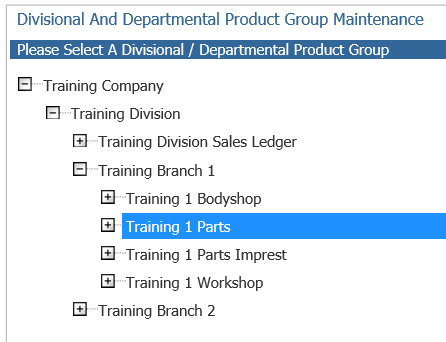
Select the department to be mapped.
Parts department is for the analysis of parts front counter sales.
Workshop department is for the analysis of parts back counter sales to the workshop.
Any additional parts or workshop departments that have been created will need to be mapped accordingly.
To open the mapping screen, click on the required department to see a list of all the product groups and double click on the product group description.
The mapping screen will appear.
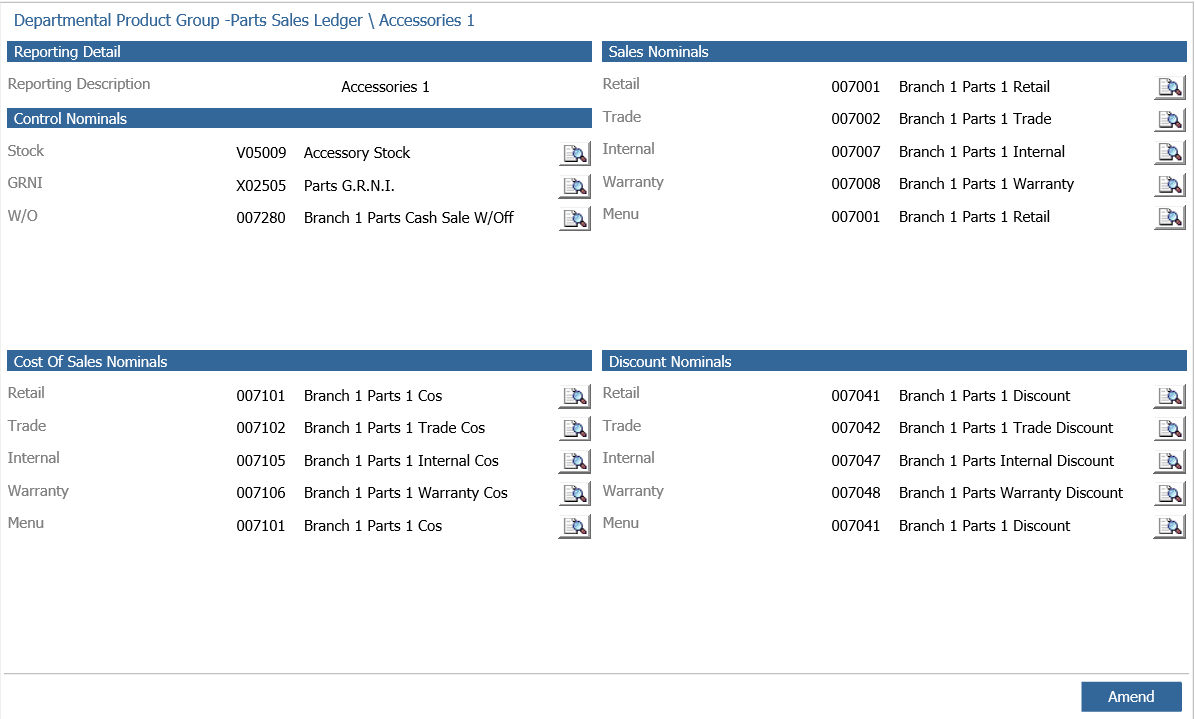
Click ‘Amend’ in the bottom right hand corner to access the nominal code fields.