
Question
How would I update the Aftersales Diary, after making contact with the customer?
Answer
To begin the process of contacting and updating the customer, double click on the customer
line required to open a new screen.
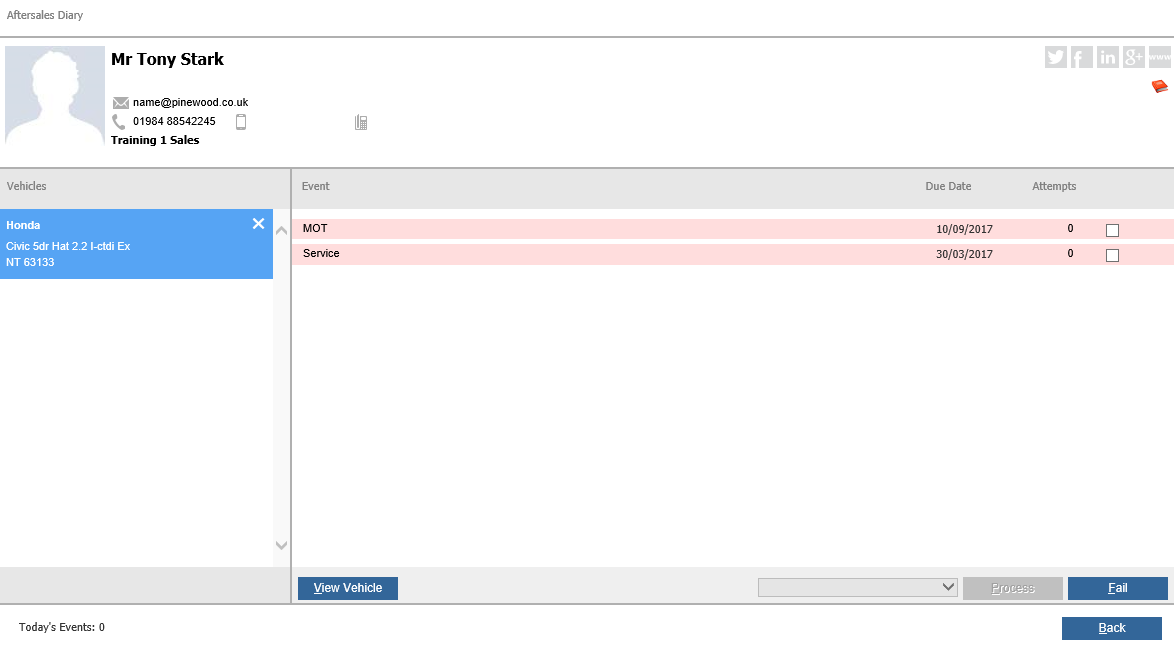
When processing Aftersales Diary Events, if the reminder is for a single event, such as Service, then the check box to process the event is automatically checked with the correct processing options.
There are brief details of the customer at the top, including email address and phone numbers.
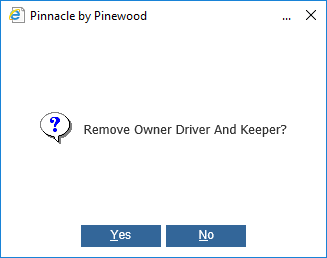
Below are vehicle details. The “X” next to the vehicle details is used to allow rapid detachment of customer and vehicle if it is discovered that the CRM data is now out of date. A pop up as below will appear to do so.
The "View Vehicle" button allows a user to view the CRM record of the vehicle and customer. This page will open initially on the Vehicle tab of the CRM record, but the other tabs can be clicked through to view extra information.
The next section displays the contact status – in the case of the contact illustrated above, several contacts are outstanding. The date these items were due is also displayed - if the due date has elapsed, the contacts are displayed in red (as above). The number of attempts to contact is also displayed. Select the contact required by ticking the box adjacent.
The third quarter of the screen now opens to allow for various scenarios to be recorded. It is
possible to update all of the outstanding contacts within a single process by ticking all of the
boxes if required. You have the option to Fail a contact, of which there will be a maximum number of attempts before the customer is removed. Or you can select one of the below and process if the contact was successful.
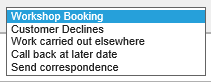
Each option is described below:
Workshop Booking: this option would be used in the event of the contact made to the customer results in a request for a workshop booking. This will then open up the workshop booking page for the user to enter in the booking in the normal process. This will remove the customer from the Aftersales Diary upon completion of the booking.
Customer Declines: in the scenario that the customer is contacted successfully but declines the offer of a workshop booking, the Customer Declines option should be selected. Once selected the final quarter of the screen will populate and allow the user to update customer and service history.
Work Carried Out Elsewhere: if a customer has had the work required on the vehicle done elsewhere, it is possible to record the reason for work done elsewhere, type of work done and ensure that the service history and miles is entered against the record for future reference.
No Further Reminders: if a customer has requested for no further Aftersales reminders then No Further Reminders will need to be selected - this will update the contact history for the customer.
Call Back At Later Date: if a customer requests to be contacted at a later date, this option can be used. It will prompt the user to enter in a date to contact the customer. The customer will then appear back in the Aftersales Diary on the specified date to contact them again.
Send Correspondence: if you wish to process the contact by sending the customer a letter this option can be selected. The letters available to select will be from the letter library - select the letter required and click Accept. Once selected this will then appear in the 'Letters for Printing' list to go out in the next printing run.
Not Reached Mileage: this will appear if you are processing a Service date ONLY - this can be used if the vehicle has not reached the mileage required for a service.
All of the above in bold are hard coded and unable to be amended.