Question
How do I create a letter mailshot?
Answer
The process of creating a letter mailshot places the letter into the Letters for printing tab within
Pinewood DMS, from where letters can be downloaded, merged and printed – at the same time the contact history for each CRM record involved can be automatically updated. The process for
completing a mailshot is explained below – a process flowchart is also included at the end of
the guide.
Existing saved selections are displayed as lines on the screen – the selections displayed can
be filtered by the department against which they have been run if required by selecting a
department from the drop down menu that appears at the top of the screen.
To create the mailshot, go to: CRM > Processing > Letters - Mailshots tab and first choose the saved selection containing the details of the customers required.
Once the selection required has been selected, attach it to the letter to be sent using the letter
options at the bottom of the screen:
Click on the search icon – a new screen opens displaying the letters available for attachment
to the selection:
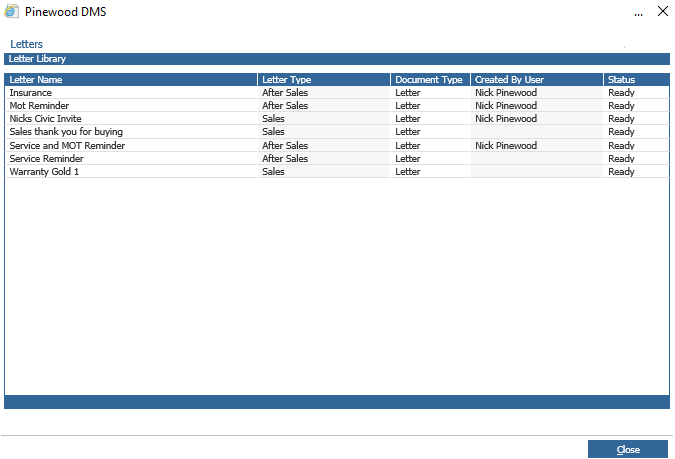
Double click on the letter required – the screen then displays the detail of the attached letter:
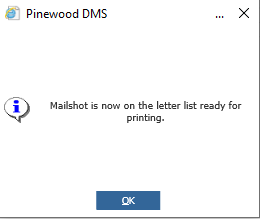
Select the “Create Mailshot” option at the bottom of the screen – the screen displays another
pop up to confirm that the letters are available for printing.