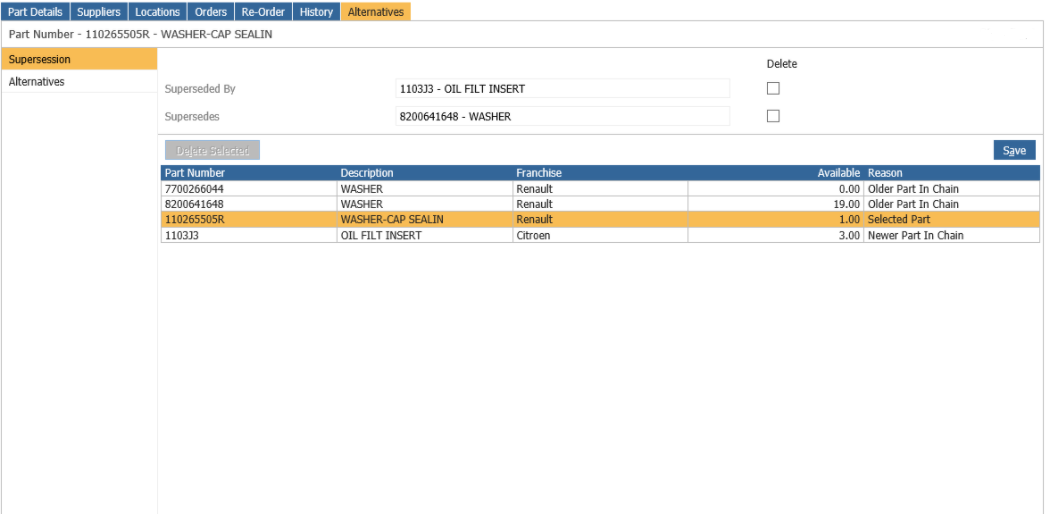
When a part is superseded, it is replaced by a part at a later level, the later level number is to be inputted in order to supersede the original part.
This field is maintained automatically when the new part is created and the old part number entered in the Supersedes field. The supersession’s window will be displayed at the point of issue.
To apply or amend a part number to supersede a part, bring up the part card in:
Parts > Maintenance > Create/Amend and enter the part number or description into the option boxes
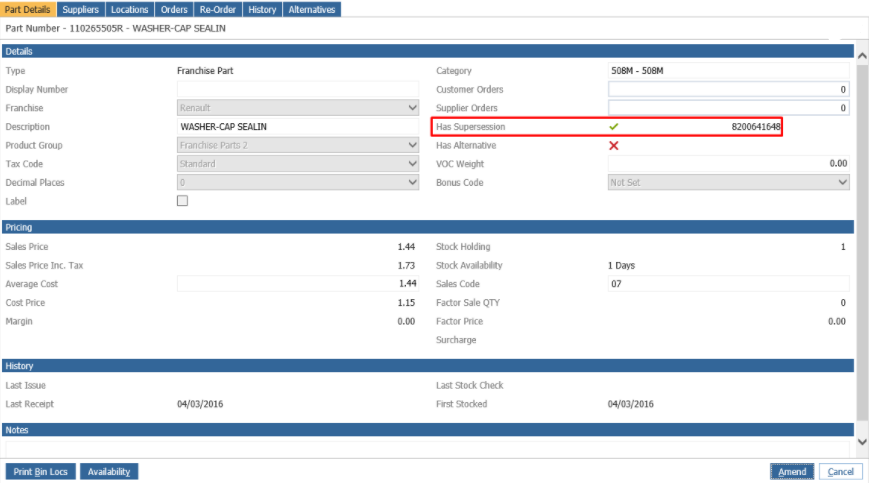
When you bring up the part card, there are two locations to view Parts Supersessions. It will display the supersession in the 'Has Supersession' section:
You can also view supersessions by clicking the Alternatives tab:
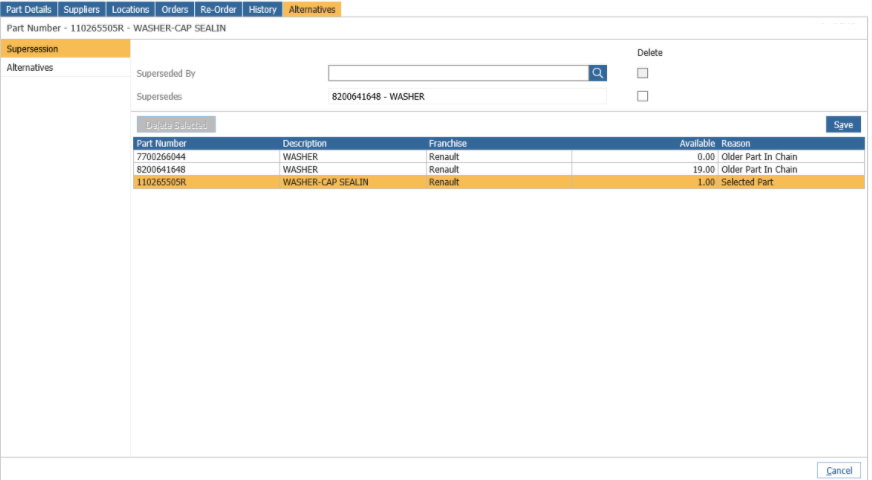
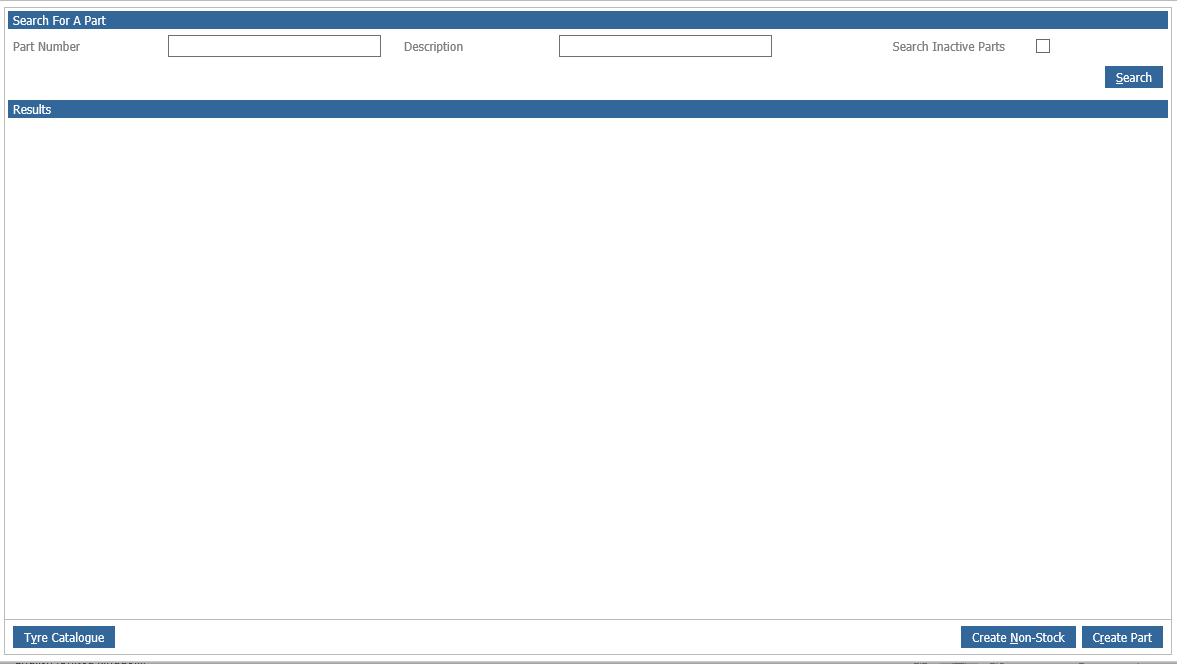
To input your a new supersession part click the search icon in the Alternatives tab and search for the part:
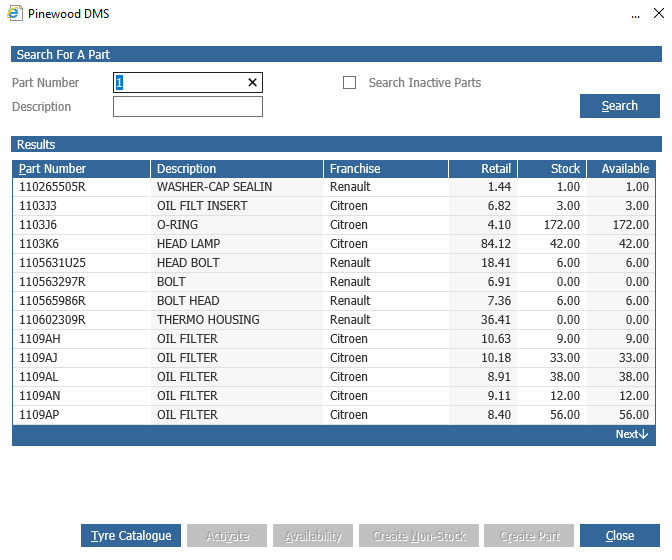
Once the part has been chosen, click save to add this part as a supersession. This will then add the part to the list: