
Question
How do I create a selections report for all Customers who were last contacted before a certain date?
Answer
You can create a Selection to show all Customers who were last contacted before a certain date To do so go into: CRM > Selections > Search.
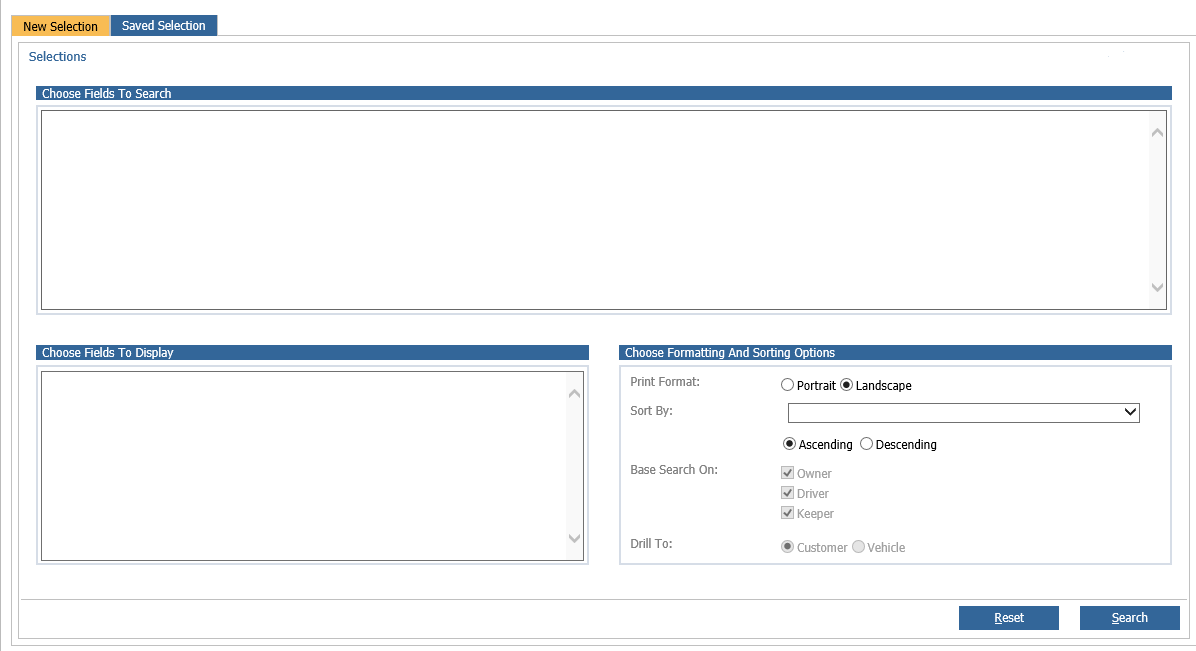
Click into the 'Choose Fields To Search box' and select the 'Last Contact Date' expanding list. In here, select 'Last Contact Date'. This will pull this result over to the right hand side of the screen. Click on this and From here you can specify the criteria to search for. Single click on it and select 'Less Than' from the top drop down. Then, you will be able to specify the date that you would like all the customers to have been contacted before.
You can choose the level you would like the Selection report run at in the Company Structure box.
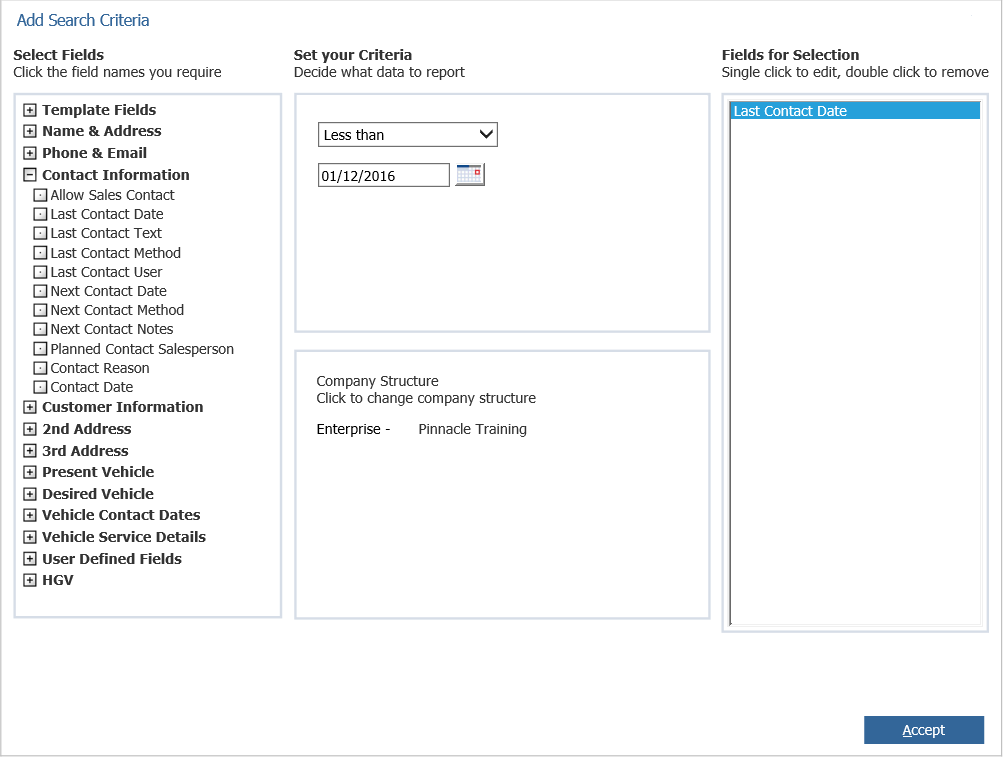
After you have chose all of your search criteria, click 'Accept'
In the 'Choose Fields To Display' box, you can select the fields that you want to show when you have created the Selection report. To select these, click into the box and choose the fields that you would like to show on the report from the expanding lists. You can choose as many of these fields as you would like. If you choose one by mistake, just double click onto it on the right hand side and this will delete the field.
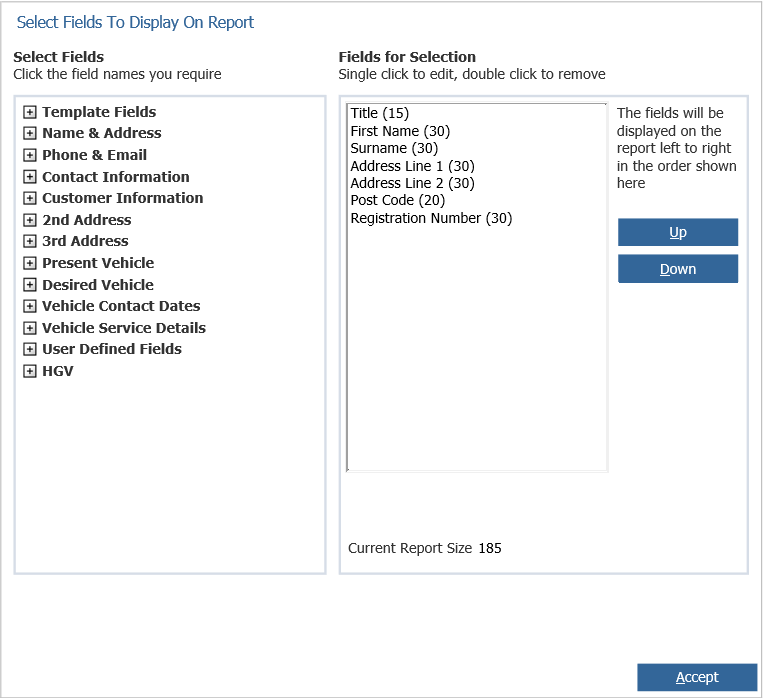
After you have selected these, click 'Accept'.
Then, click 'search' and your selection report will have been created.
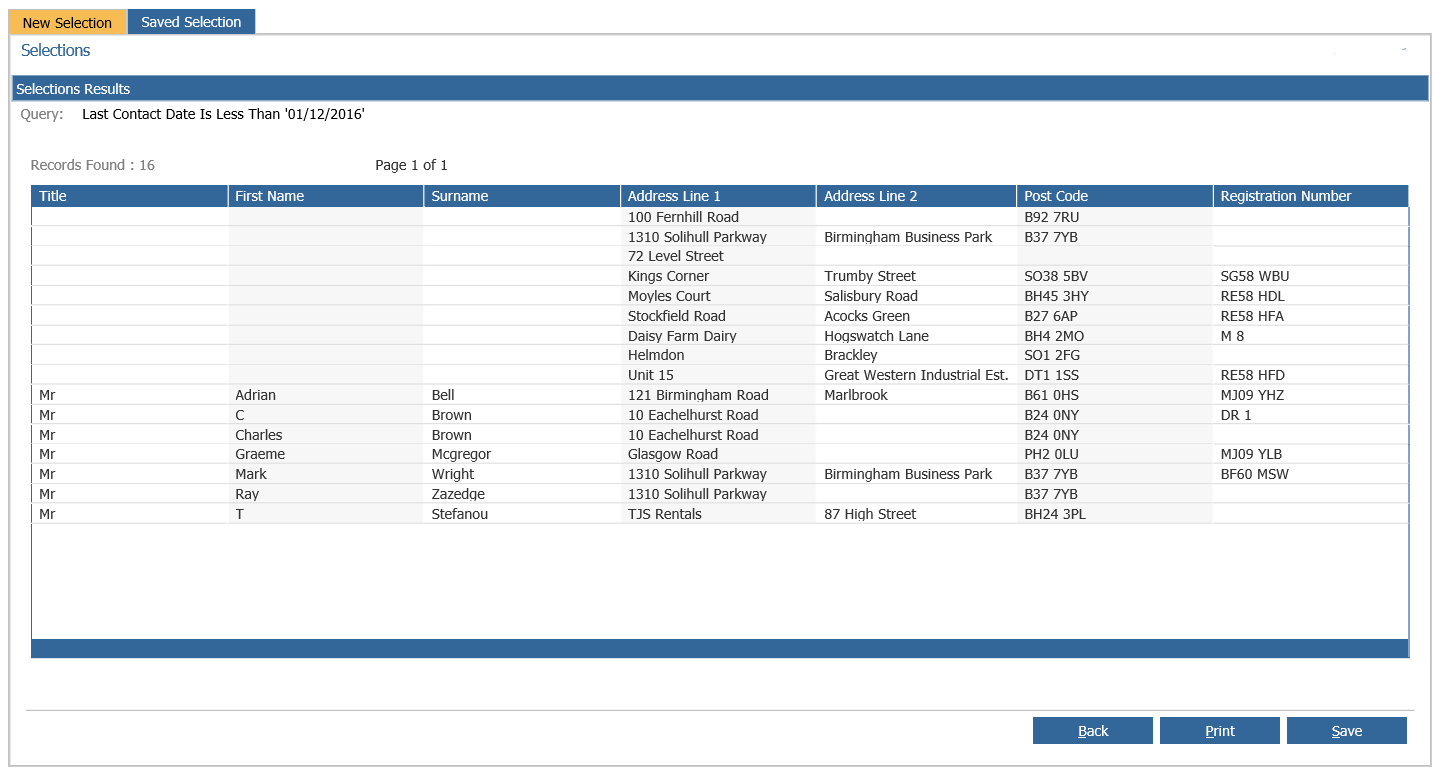
You will then be able to 'Print' the selection report, or 'Save' which will allow you to Export the report from 'Saved Selections', or delete the customers.