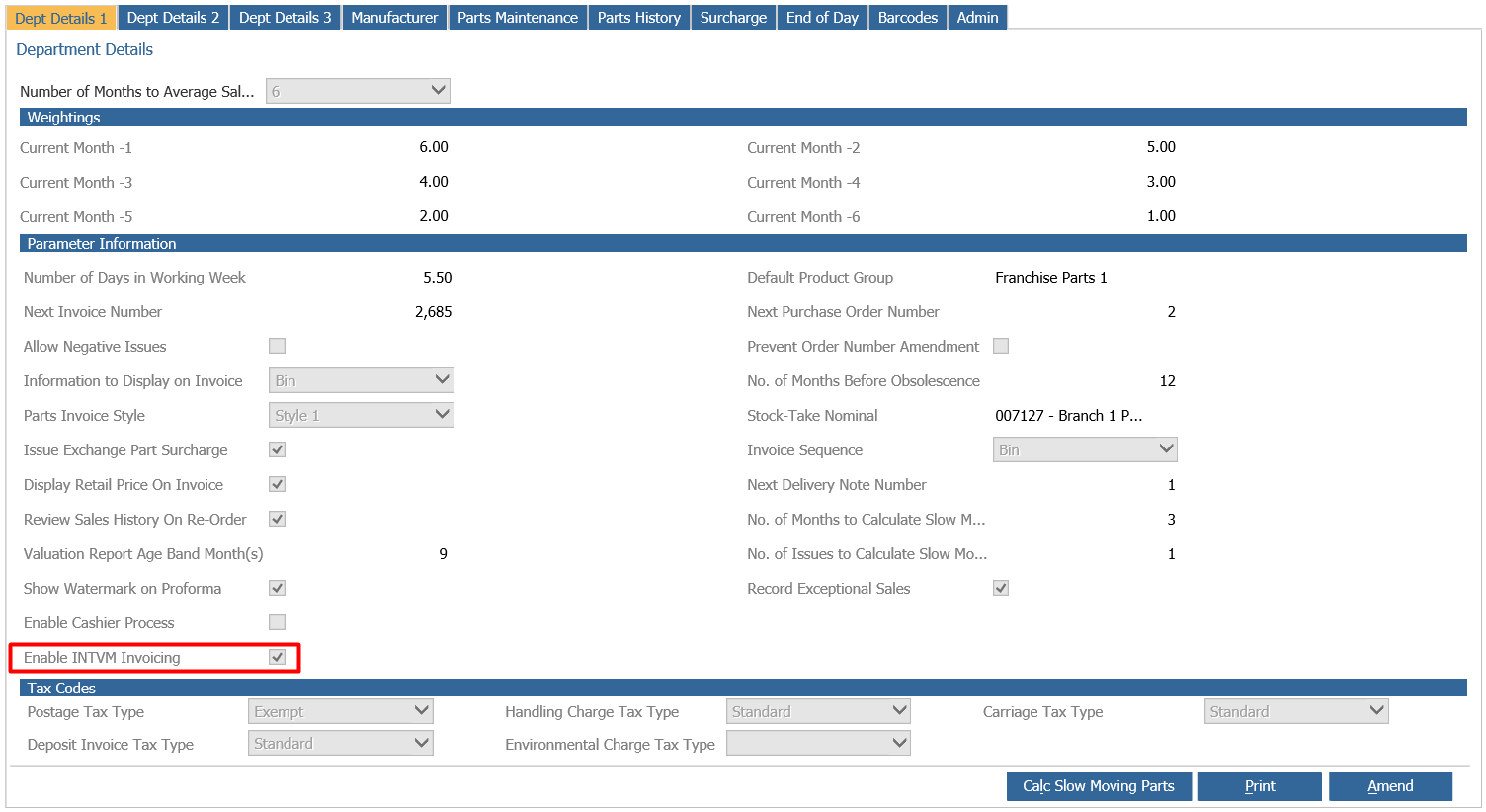
INTVM Invoicing is dependent on a parameter being enabled within Parts > Parameters > Department Details > Dept Details 1 – Enable INVTM Invoicing.
Once ticked, this allows invoicing of parts directly to a vehicle stock card
Go to: Parts > Sales > Invoice
When entering INTVM account code into the account number field, a stock search pop up is displayed. A stock number, VIN number, order number or registration number can be entered to search.
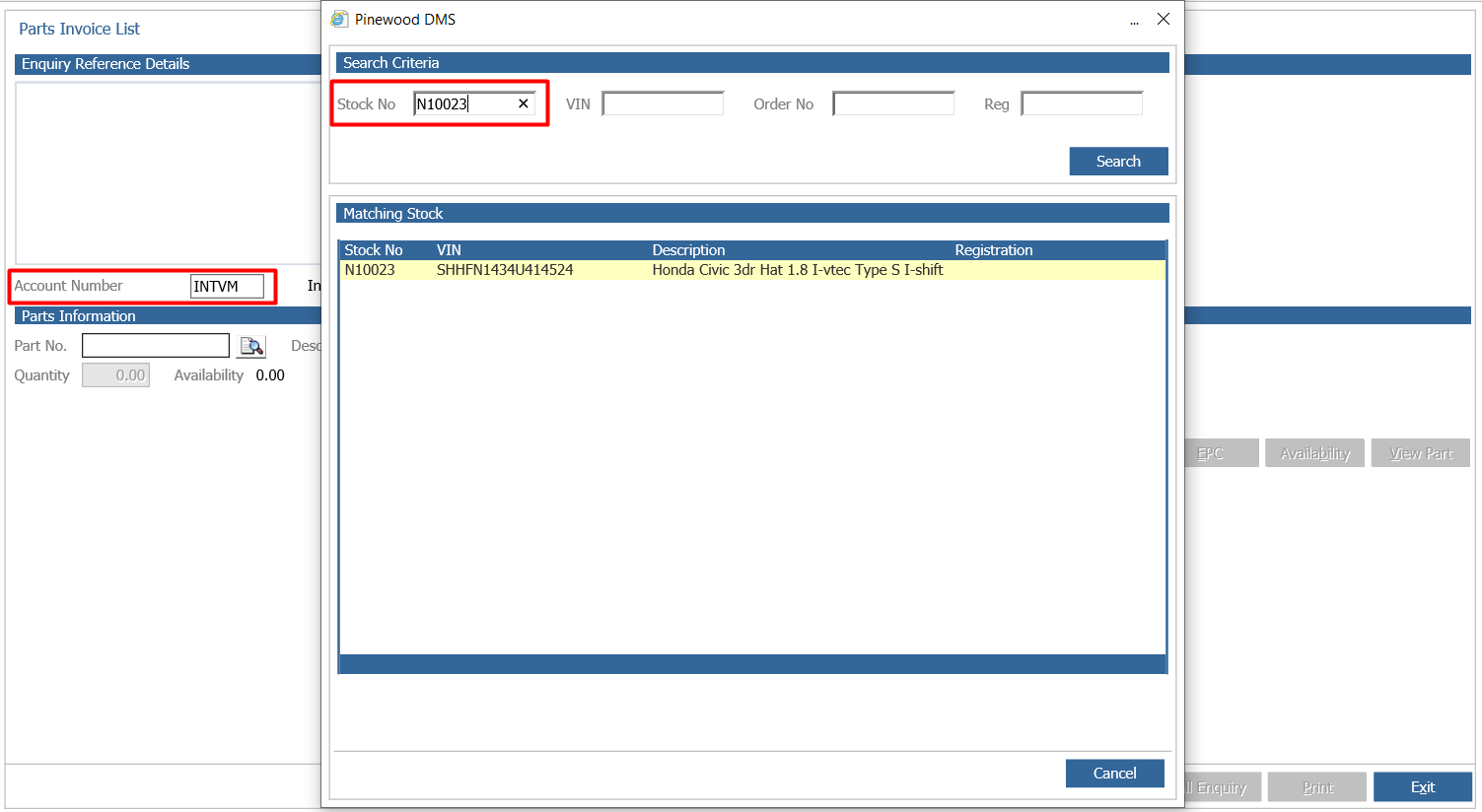
Note: Only vehicles not finalised will be available to select
Then enter a part number into the part number field, press enter and the part information will display.
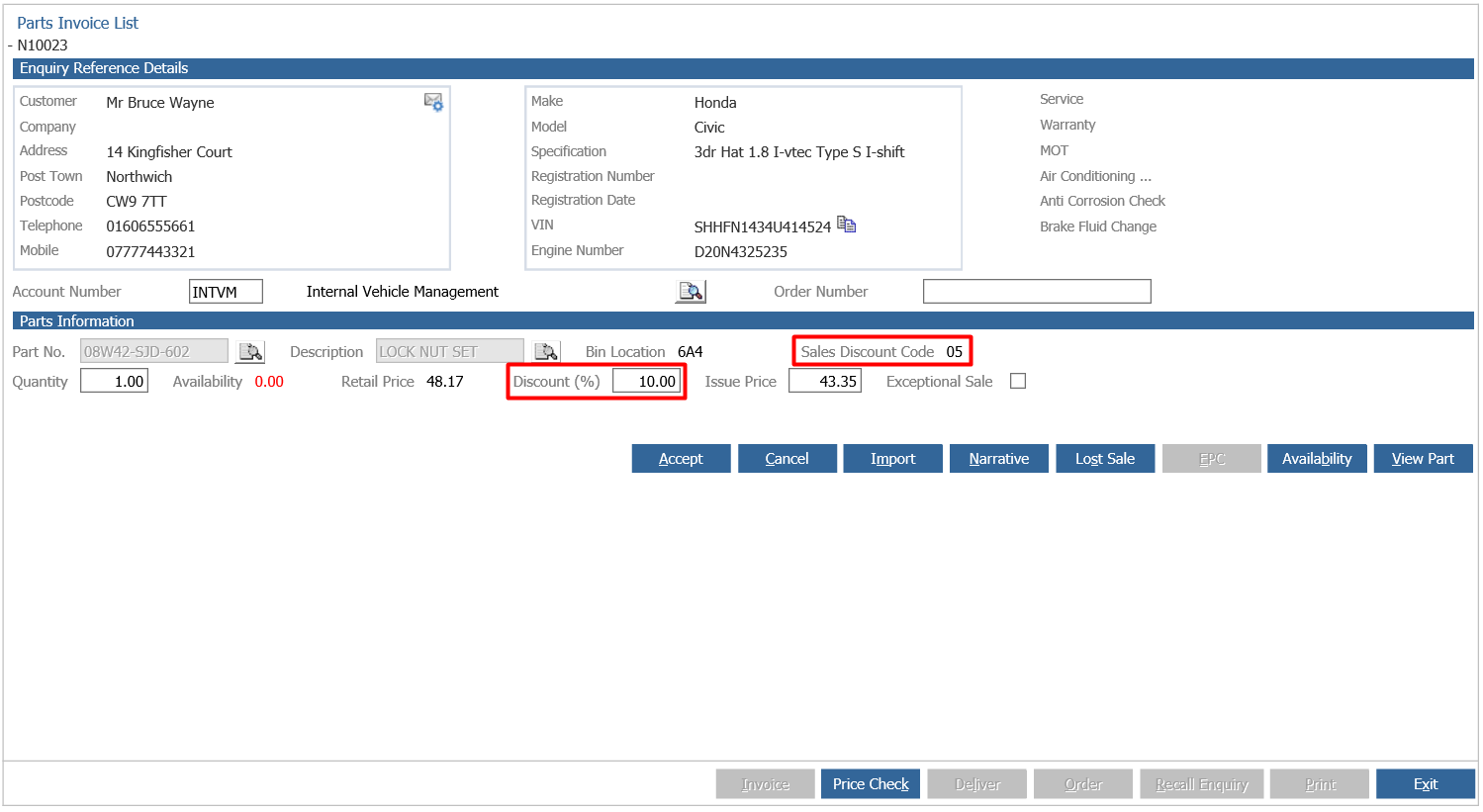
Depending whether the sales ledger account is in the sales discount table within the parameters it will show the relevant discount. This can be over-typed and amended along with the issue price.
Then select ‘Accept’ to add to the parts list. Once added & the part is ready to be invoiced. Select the ‘Invoice’ button & a final check is done to ensure the selected stock number has not been finalised. If the vehicle has been finalised the invoice wont be produced and you will get a pop to advise.
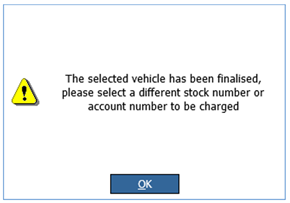
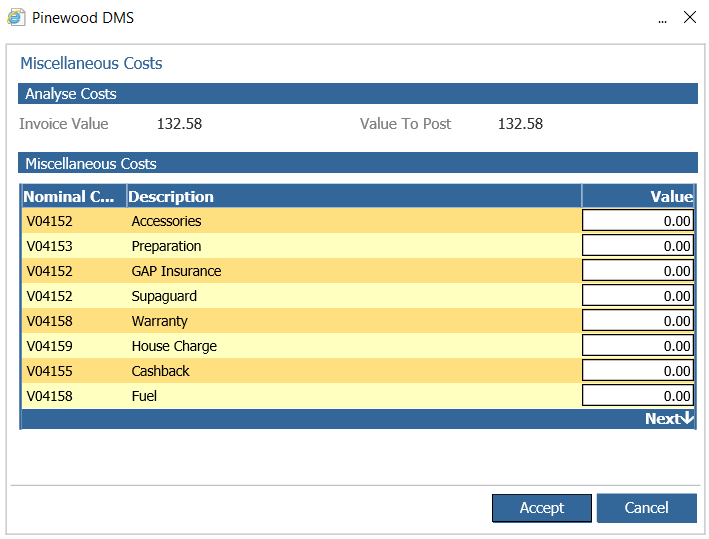
However if a stock number is valid & not finalised the miscellaneous costs table is displayed to then post the value against the relevant nominal.