Question
How do I delete an open opportunity?
Answer
There are multiple ways to delete an open opportunity. If a customer has an Open Opportunity you will see an icon ( ) next to the customer name in the CRM record.
A dealership may want to remove an open opportunity for a customer for a number of reasons, including: losing a sale to a customer or deleting a customer from their CRM database (Pinewood DMS will not allow you to delete a customer with an Open Opportunity). Below we're going to go through a couple of methods to delete an open opportunity.
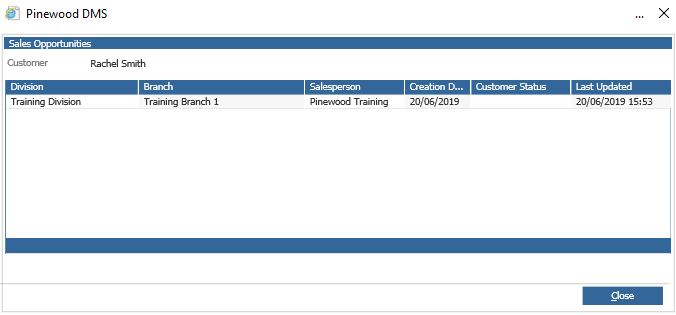
If you wish to find the date of a specific open opportunity, drill into the customer and click on the open opportunity icon as specified earlier. This will display the following screen which will show you the date the open opportunity was created.
Method 1
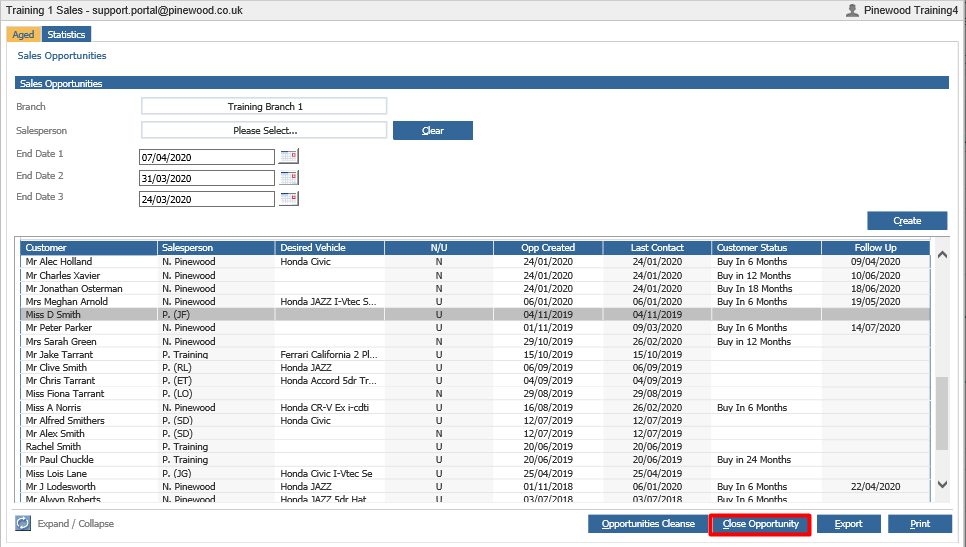
Within CRM > Sales Reports > Activity > Sales Opportunities. You will be displayed with the screen below.
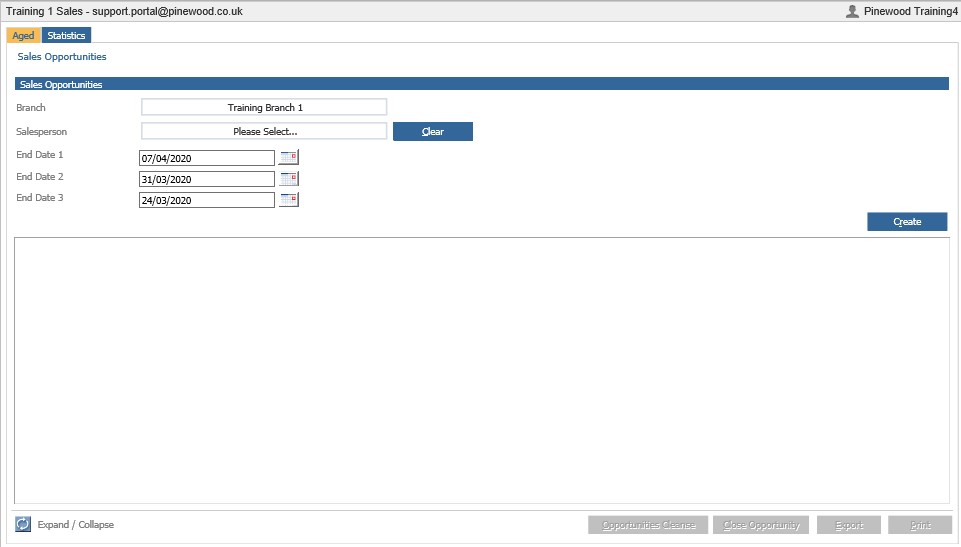
Enter the 3 periods in which you would like the report to split date ranges between. For example, if you would like to see results shown from today's date to 1 month ago then enter today's date in 'End Date 1' and the date from the previous month in 'End Date 2'. If you would then like to see the split from 1 month ago to 2 months ago, in 'End Date 3' enter the date from 2 months ago and that will produce the split, which will look like below.
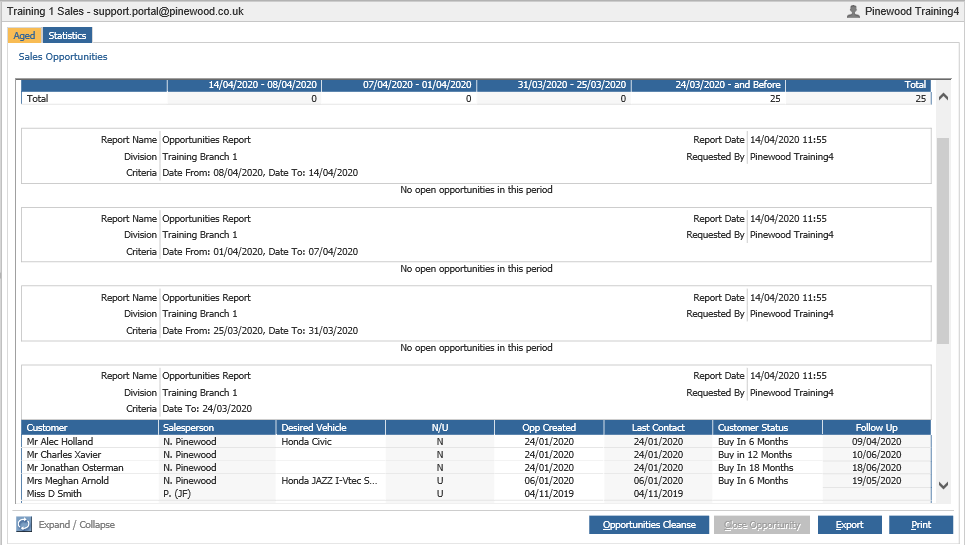
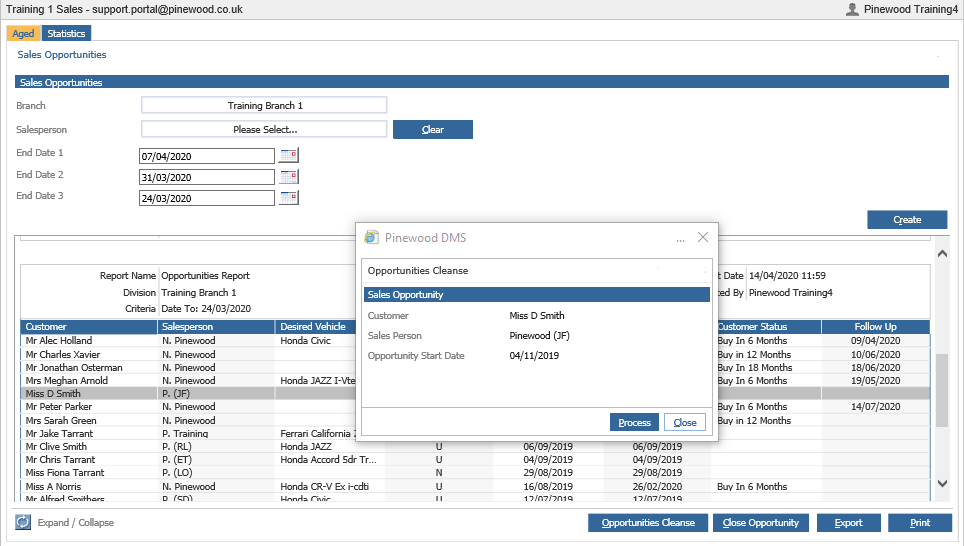
To then close the opportunity, if you highlight and select the specific opportunity you wish to close and in the bottom right corner, if you choose 'Close Opportunity' you will be prompted with the screen which asks you 'Are you sure you want to close this opportunity'. Select Yes, then your opportunity will be closed.
Method 2
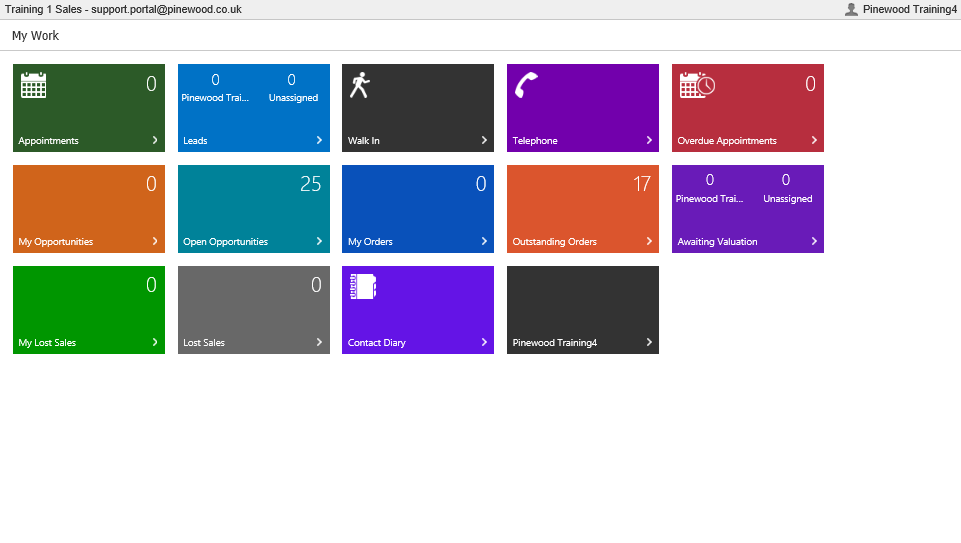
Another way to close an open opportunity is to 'Lost Sale' via the Showroom. Go into Showroom, select your branch and click 'Open Opportunities'.
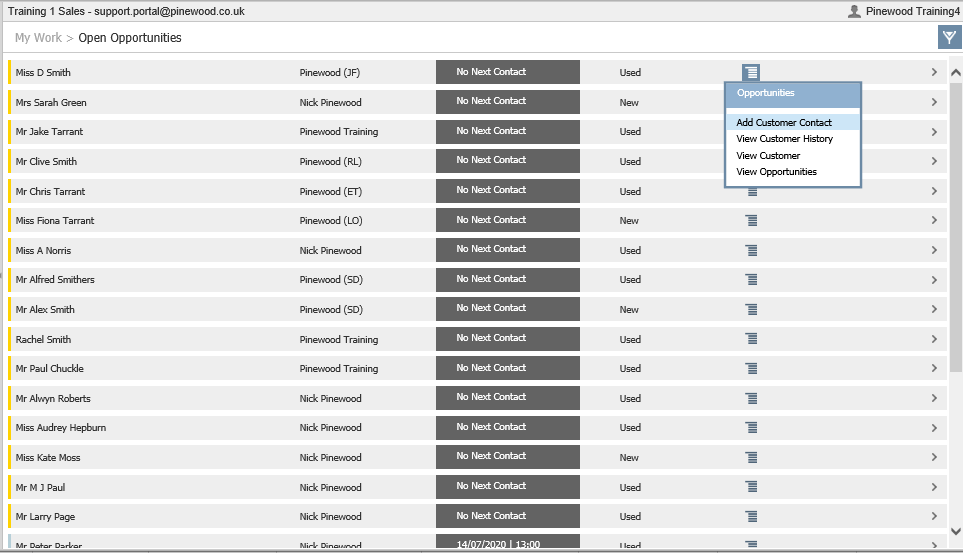
Once in Open Opportunities, click on the contents bar and click 'Add customer contact' as shown below.
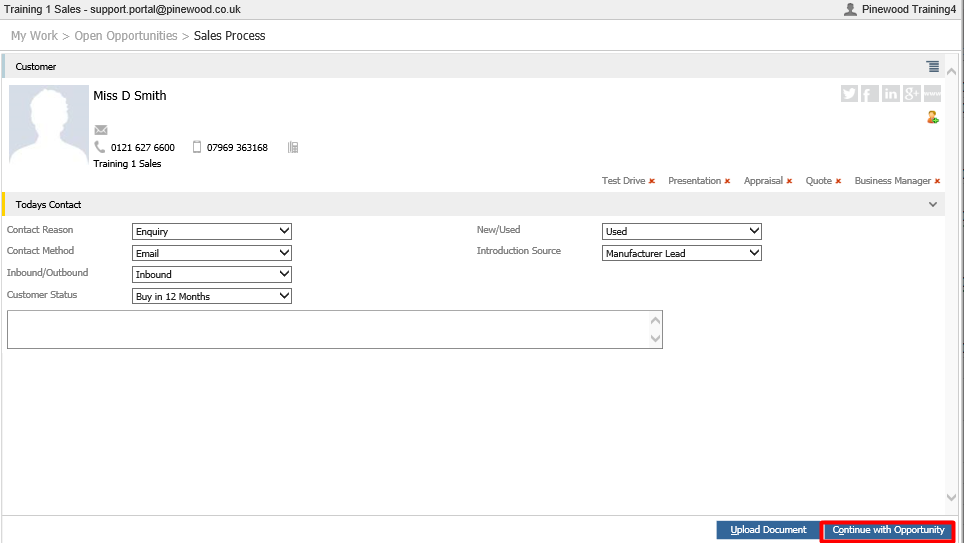
Next, you will need to fill out all the Today's Contact fields with whatever is required. After everything has been filled in, in the bottom right corner press 'Continue with Opportunity' and that will take you to the next screen.
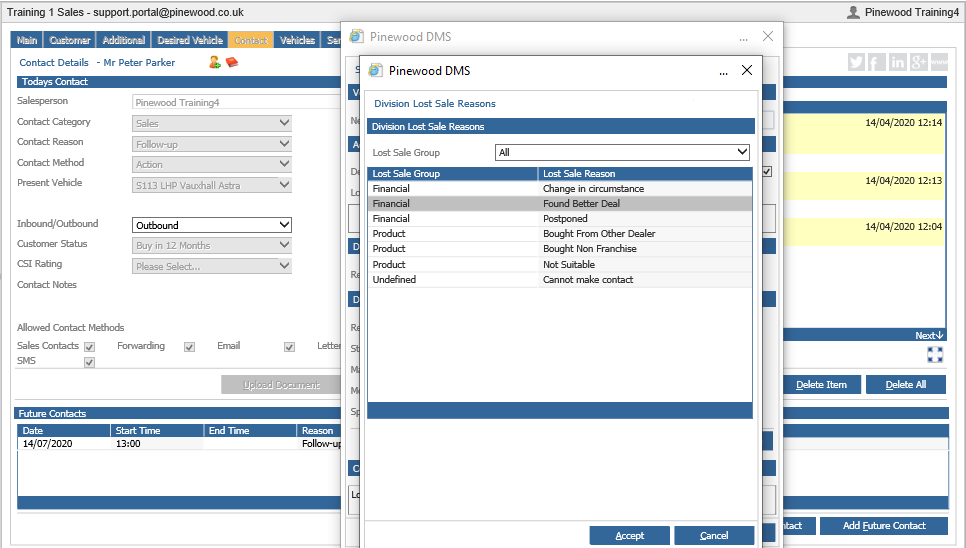
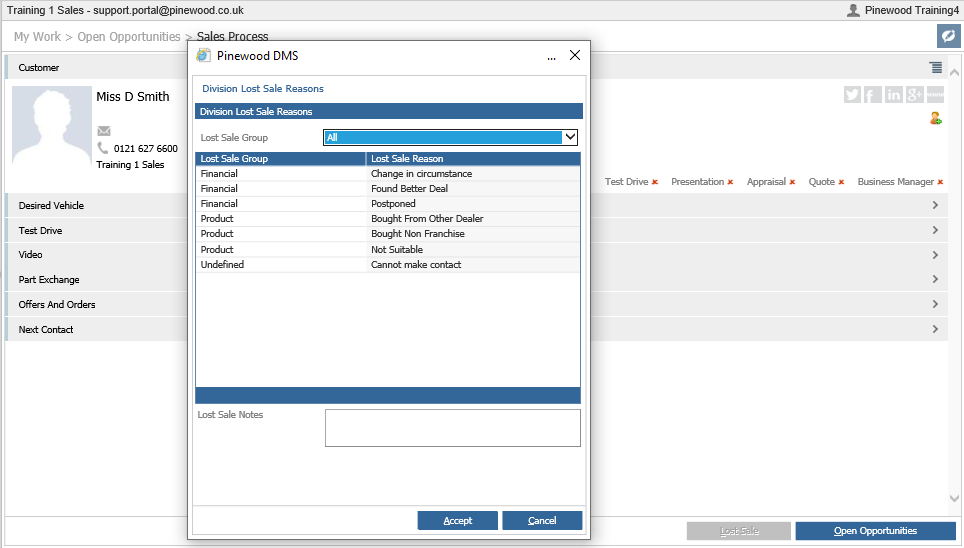
You will then be displayed with the screen below. If you press the 'Lost Sale' button in the bottom right corner (highlighted in red) then it will load up the screen as showed. Choose a Lost Sale Group, a Lost Sale Reason and leave some notes at the bottom as to why this was a Lost Sale and click Accept. This will then remove the open opportunity attached to the customer.
Method 3
Method 3 is similar to Method 2 in the fact that you lost sale in order to remove the Open Opportunity however this requires you to go through the CRM module and the process of doing so is slightly different. Within CRM > Enquiry. Find the customer you wish to remove the Open Opportunity from. Double click into the customer to bring up their CRM record.
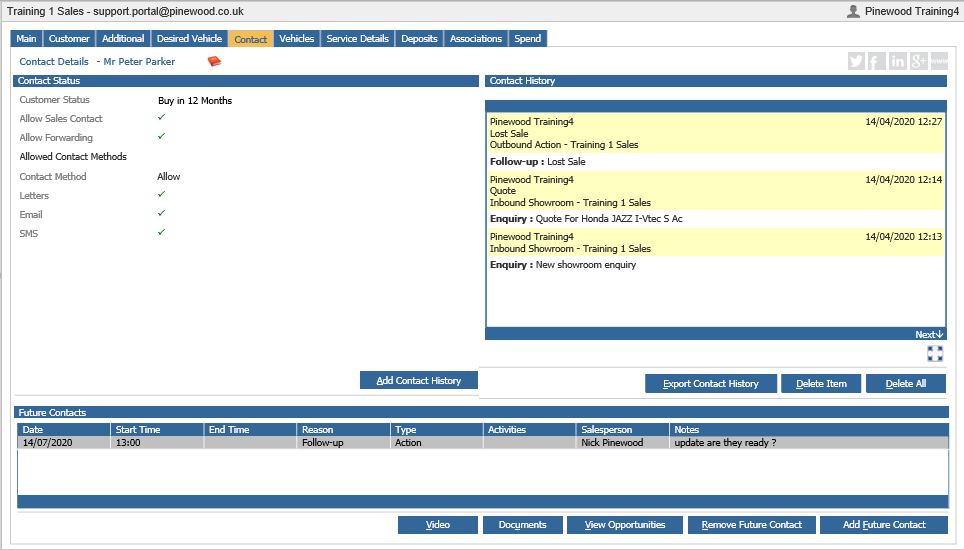
Once there, click into the 'Contact' tab and click on 'Add Contact History'. Choose your contact details as appropriate. Once done, press 'Save'.
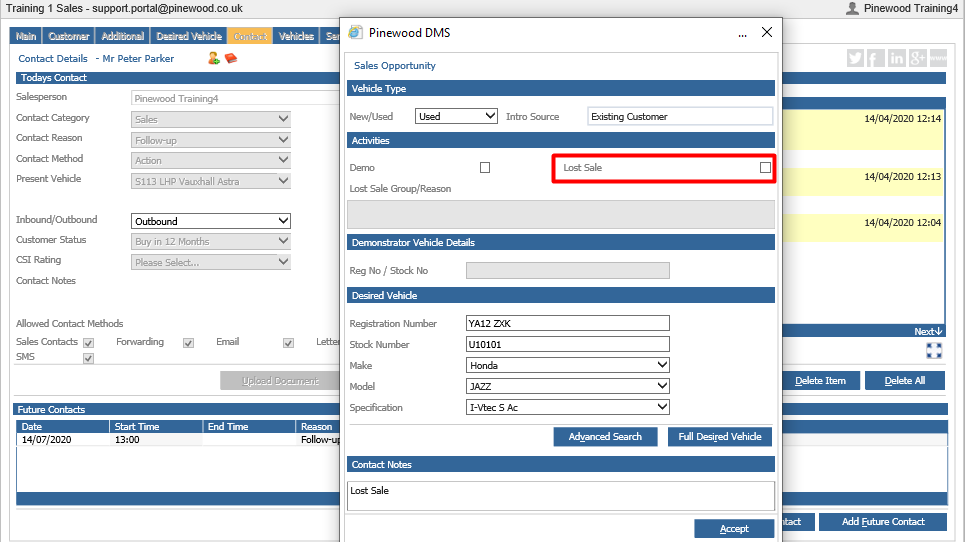
You will then have the 'Sales Opportunity' pop-up box appear. In here, you will see a button that you can tick called 'Lost Sale'. Tick that, and it will bring up another pop-up box asking for your Lost Sale reason and group.
Select the appropriate reason/group and click accept to return to the Sales opportunity box. Make sure the rest of the details are filled out as appropriate, then hit 'Accept' at the bottom of the page. It will then ask you to choose a 'customer status', again choose as necessary. Click accept and then you will be prompted to add a next contact for the customer.