
The process to generate an SMS Mailshot has not changed. The process will still begin with a saved selection.
In the below example, see 3 customers have generated;
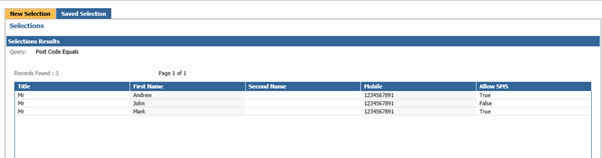
This shows the current allowable contact methods for these customers for SMS.
2 customers appear with SMS as an allowable contact method, 1 does not allow this method.
You can then also click into the customers individually to view their permissions.
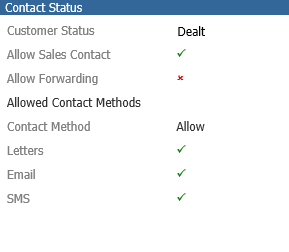
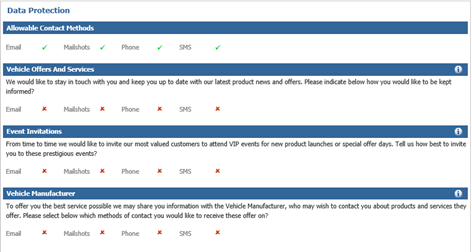
Within the contact tab, you can see the below example customer has given permissions for SMS as an allowable contact method.
Our next customer, has Allow SMS as false, so if we look at their contact record;
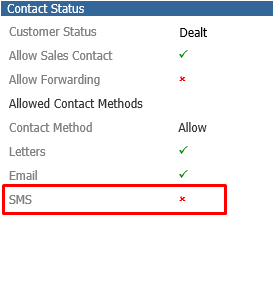
See SMS is set as false for their allowable contact methods and also that the customer has given no consent for any Marketing Permissions;
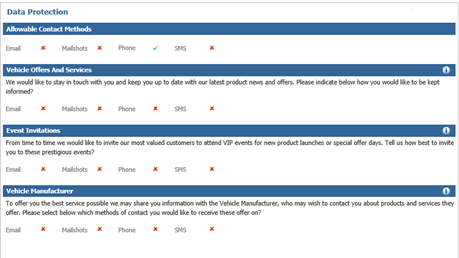
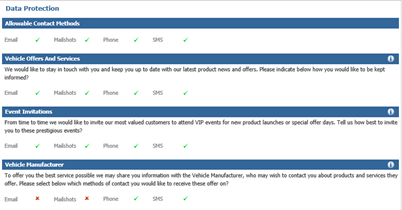
Our final customer example, shows that the customer has SMS as an allowable contact method;
However, when we click to view the customers Marketing Permissions, the customer has not consented to receive Marketing Contact for the method of SMS for the Vehicles Offers and Services.
When generating the SMS Mailshot, as previous, select the Selection required and select the SMS Mailshot Button;
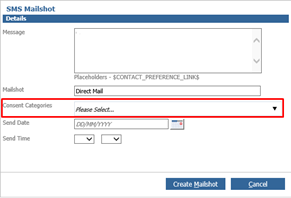
A new drop down present is the Consent Categories dropdown box. This dropdown allows you to specify permissions associated to that Mailshot.
In the Consent Categories drop down, you can then manually specify if any consent preferences need to be taken into account for the Mailshot to be generated;
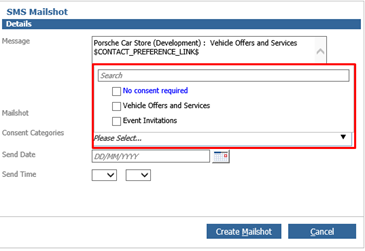
In this example, the selection generated will be for Vehicle Offers and Services, so the SMS will then only send to anyone who has agreed to receive this form of communication.
Proceed with creating the Mailshot as per the usual process.
Within the SMS Mailshot Pending Tab, you can view, of the 3 customers we viewed in the above examples, only one appears here;
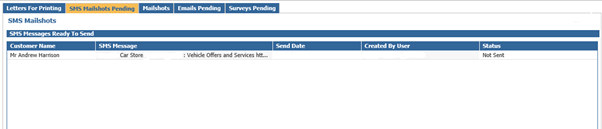
This is because this customer is the only customer who gave the right levels of consent for this form of marketing contact.
The process is still the same and this will remain as scheduled until sent. A further check is made before the scheduled SMS is sent should any further changes have been made to the customer’s contact permissions.
In the below example we will view sending a Mailshot using the option of ‘No Consent Required’.
Once the Mailshot is then generated;
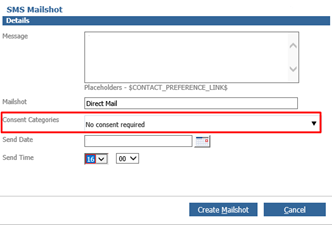
See the below results for the SMS Mailshots Pending results;

Two options now appear. This is because with our examples we had one customer who would allow SMS as an allowable contact method and also had SMS as a permission for the Vehicle Offers and services. The other customer had SMS as an allowable contact method, but not for the Vehicle Offers and Services however with the Consent Category set as No Consent Required, this customer will now appear and will receive this method of contact.