
Question
Once an offer has been made, how can I generate a quote?
Answer
After an Offer has been created and added, you will need to generate it. To view any existing Offers, go to the Offers and Orders panel within Showroom, expand it down and click on the Green Plus button (see below).

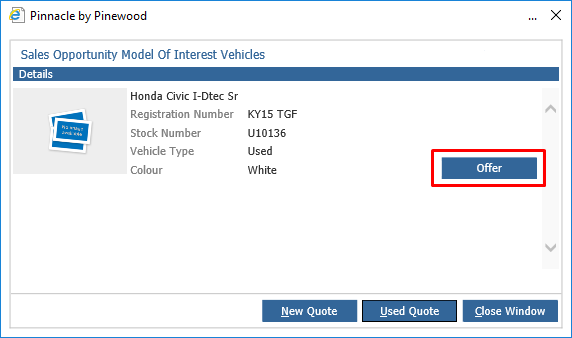
If an Offer exists, this will display as below. Hit the button highlighted to view the Offer.
You will see a large screen which holds Financial Information, as well as the customer and Vehicle details. See below.
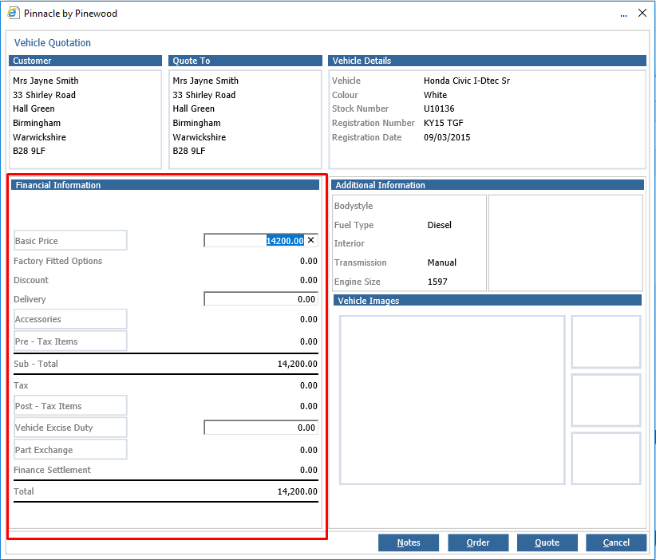
The financial detail of the quote being provided is displayed in the ‘Financial Information’
section on the bottom left hand side of the screen. The figures here will default with
information from the vehicle price list in the case of a new vehicle and from the stock card if
the vehicle is used. These figures can be manipulated to reach the final Total value of the
quote to the customer.
A breakdown of the Financial Information and their purpose is shown below:
Factory Fitted Options - Factory fitted options (new vehicles only) can be viewed by clicking in the link field on the left hand side of the screen. In the case of a stock vehicle, these options will have been selected when the vehicle was brought into stock, therefore cannot be altered at this point. If the options are incorrect the vehicle will need to be reversed out of stock and amended
(something that will need to be done by vehicle admin).
Special Allowance (Discount) - The Special Allowance field (new cars only) should be completed with the pre-VAT value of any discount being given to the customer. This field is hard coded to represent a negative figure, therefore only a positive value should be entered into this field.
Delivery - The Delivery field should be completed with any delivery cost (pre-VAT) that is being passed to the customer on the sale of the vehicle.
Accessories - Accessories can also be added to the quote at this point – via selection of the
Accessories link field on the left hand side of the screen. Once this link field has been accessed, a window displaying the accessories stored on the vehicle price list is displayed.
Pre and Post Tax Items - Pre and Post Tax Items are both added by clicking on their respective field links on the left hand side of the screen. In here, you will select any Pre/Post Tax item's held against the Make in the Vehicle Price List.
VED - The VED value field should include the Road Fund Licence amount plus any first registration
fees or extra weeks of VED that may be applicable.
Part Exchange - Please see Showroom - Adding a Part Exchange to a Vehicle Quote for more information on how to add this.
Settlement - Will populate with the P/ex adding if relevant.
The Total of the quote should now be displaying as required. To complete the vehicle quote
process, hit the 'Quote' button. This will now process the Quote and show in the Orders and Offers panel