
The supplier orders report option, allows orders created and waiting to be receipted into stock to be viewed or printed.
To view this you can go to:
Parts > Reporting > Stock > Supplier Orders
The following will be displayed.
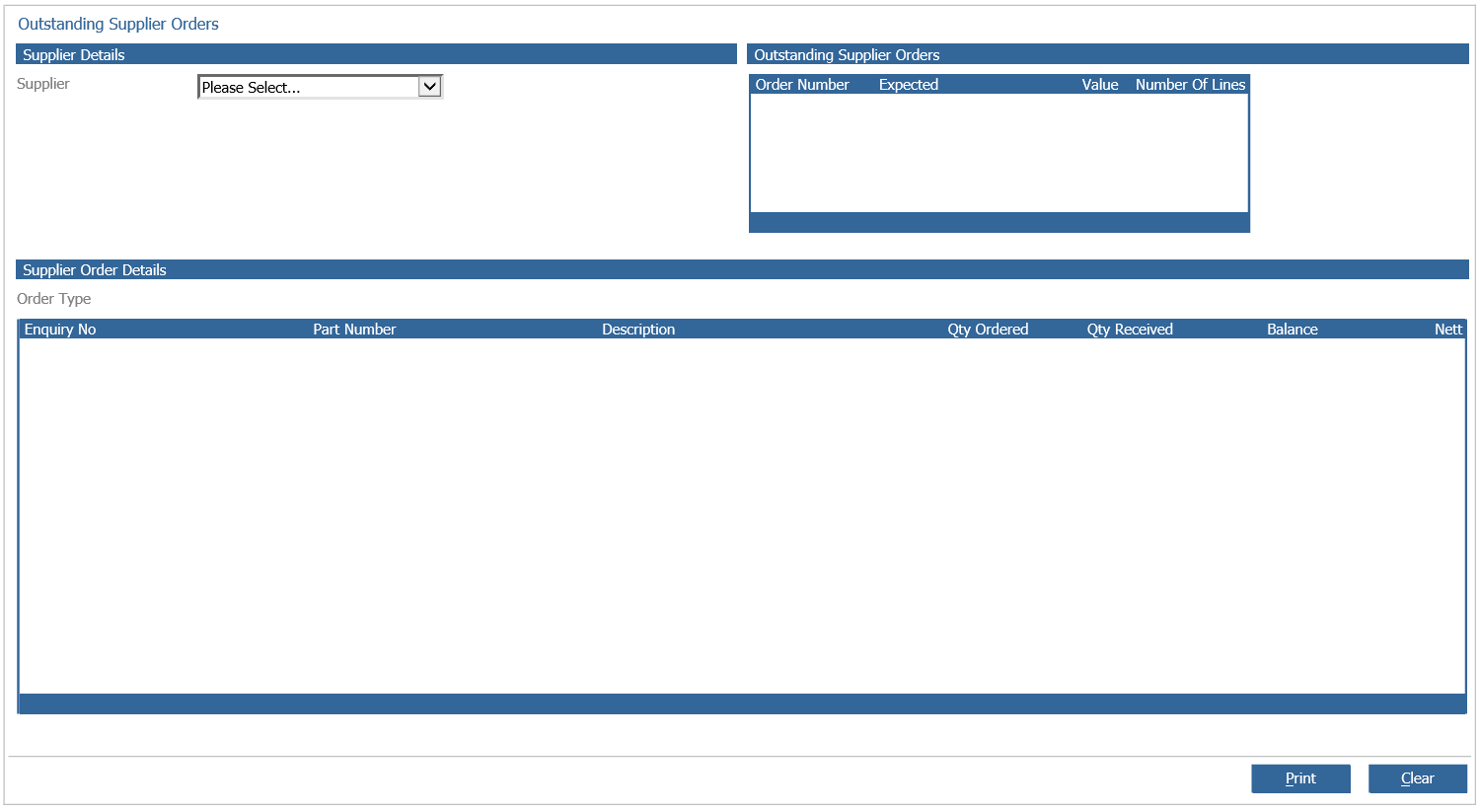
You can choose your supplier from the drop down and on the right hand side any outstanding orders will be displayed.

If you double click on an outstanding order, the following will be displayed.
The order type; the parts that on that order with the enquiry reference, description, quantity ordered, quantity received, balance and Nett value.
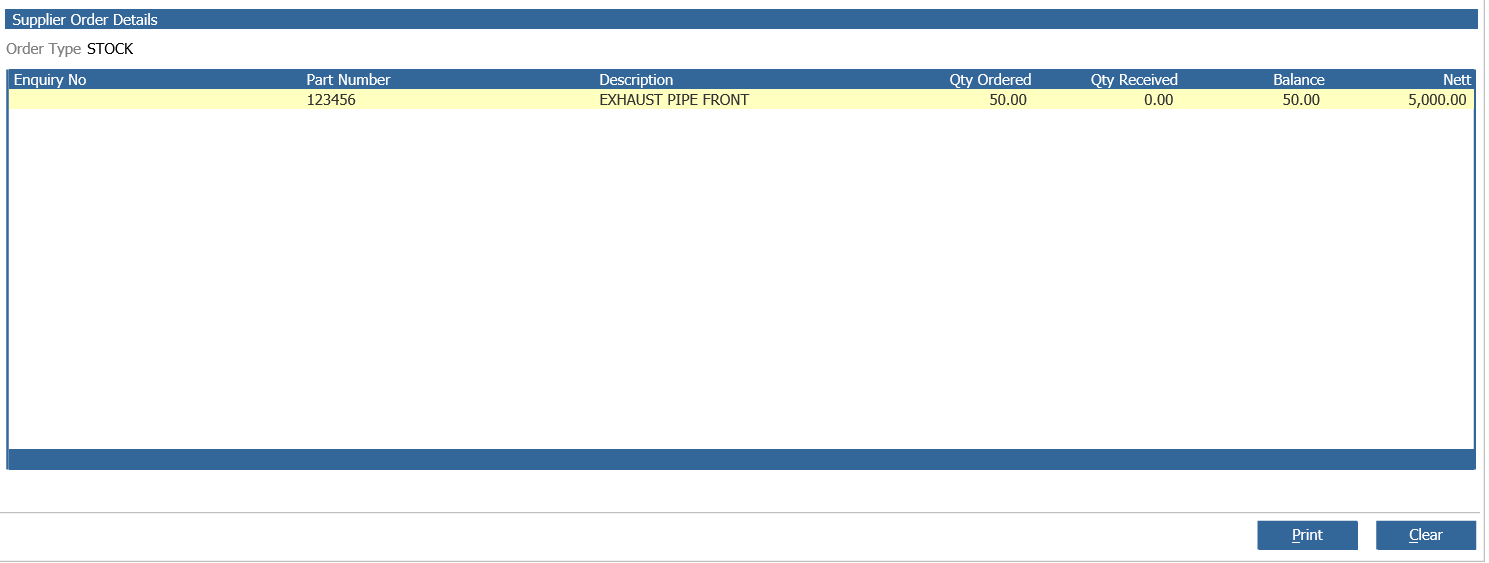
You have the option to print this if wanted, if you want to check another order and supplier you can select clear to start again.
Supplier Back Orders
There is a report that will also display parts that are marked on back order.
This can be found by going to; Parts > Reporting > Stock > Supplier Back Orders.
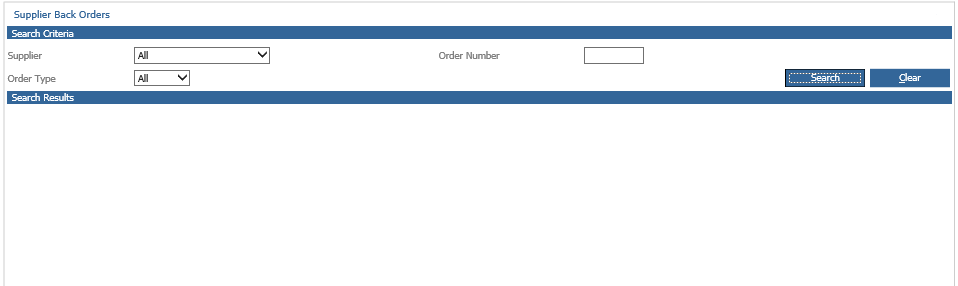
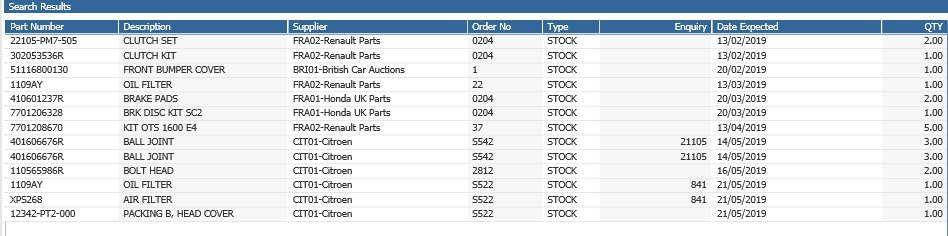
You can select search and this will display any supplier and any any order type on back order.
If you want to be more specific on this report you can use the filters. You can choose the supplier, order type and even the order number if known.
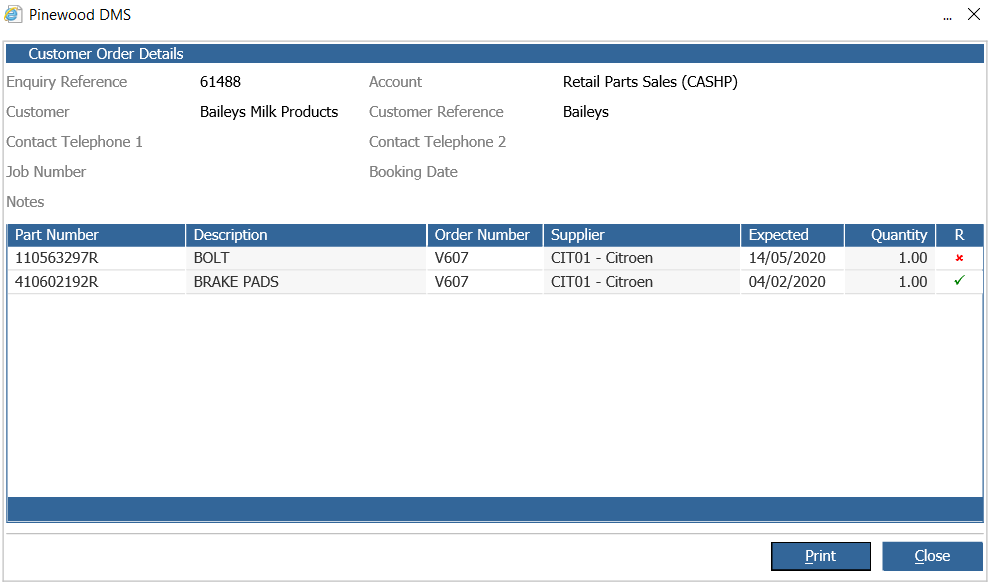
You have the option to print this report and export. You also have the option to view the details. this will only become available if you single click a line. Selecting view details will display the customer order details.
Back on to the report, double clicking a part will take you to that part record.