
Special pricing allows specific part numbers, parts with specific sales or purchase discount codes and parts within specific categories to have a special price within a given date range.
The special prices created can either be global or account specific.
To turn on special pricing you need to go to: Parts > Parameters > Department Details 2.
Once enabled, special pricing is available to set up
You can set this up under: Parts > Parameters > Special Pricing
Search
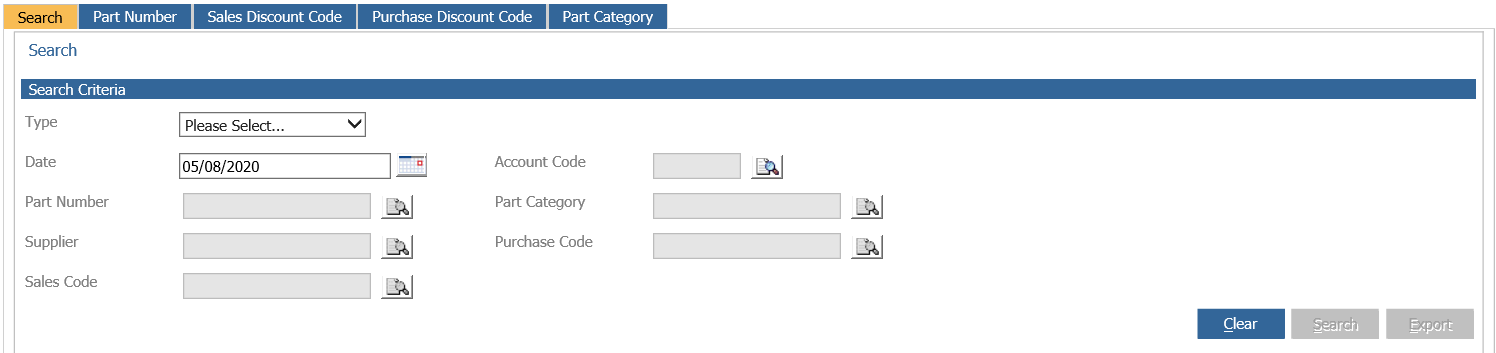
The search page is initially displayed allowing a search of all the special prices created.
Firstly, the special price order type must be selected from the drop down. Only after a type has been chosen the other fields can be selected.
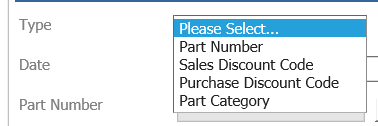
Part Number Search
With the type set to part number without a number selected, the search results will show all parts with special prices that are not account specific. A part number can be selected. The search results will show special prices for the part number chosen that are NOT account specific.
For account specific part numbers special prices, the account must be specified before searching, either with or without a part number.
Sales Discount Code Search
With the type set to Sales Discount code without a code selected, the search results will show all codes with special prices that are not account specific.
A sales discount code can be selected. The search results will show special prices for the code chosen that are not account specific.
For account specific sales discount codes special prices, the account must be specified before searching, either with or without a code.
Purchase Discount Code Search
With the type set to Sales Discount Code without a code selected, the search results will show all codes with special prices that are NOT account specific.
For a Purchase Discount Code specific search, the supplier must be selected. The search results will show special prices for the code chosen that are NOT account specific.
For account specific Purchase Discount Code special prices, the account must be specified before searching, either with or without a code.
Part Category Search
With the type set to Part Category without a code selected, the search results will show all codes with special prices that are NOT account specific.
For account specific Part Category special prices, the account must be specific before searching, either with or without a code.
All searched completed can be exported into a CSV file for manipulation within Excel.
It is also possible to double click a line of the search results and amend the offers from within the initial screen.
Part Number
The part number tab shows all created special price part numbers, including the date range and special price:
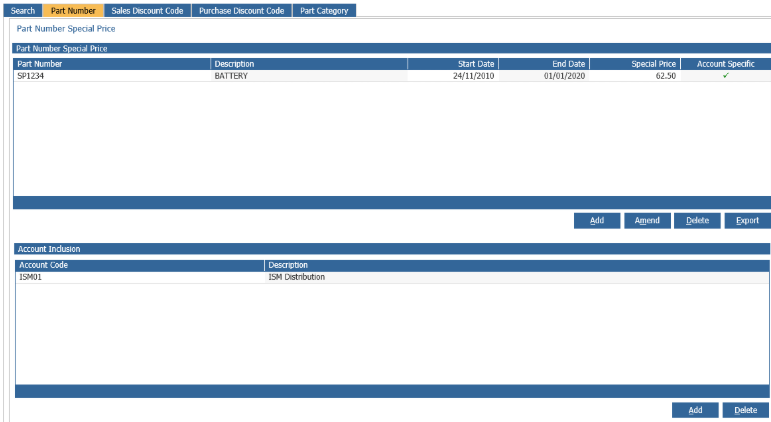
If the special price is account specific this will be shown with an  against the part. Single clicking the account specific line will display the accounts in the lower half of the screen.
To create a new part number special price, select 'Add' in the upper half of the screen:
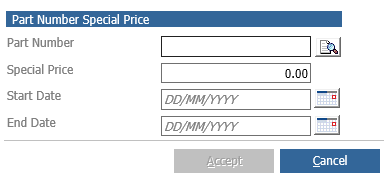
The part number can be selected and the special price added. A date range must also be selected. Select 'Accept' to save any changes.
If the special price is to be account specific, single click the special price in the top half of the screen and select 'Add' in the lower half of the screen.
The account search window will be displayed where the relevant account can be selected.
When the part number is selected within the invoice or workshop issues screen, the special price option is displayed:
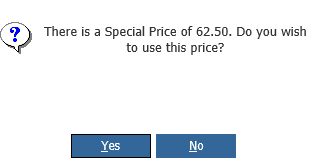
Selecting 'Yes' will update the issue price with this special price.
Sales Discount Code
The sales discount code tab will show all created special price sales discount codes, including the date range and special price:
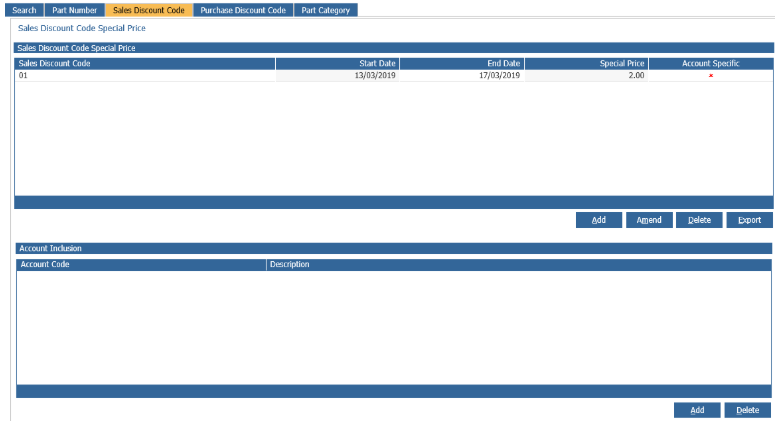
If the special price is account specific, this will be shown with an  against the code. Single clicking the account specific line will display the accounts in the lower half of the screen.
To create a new discount code special price, select 'Add' in the upper half of the screen:
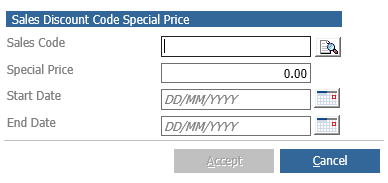
The sales code can be selected and the special price added. A date range must also be selected.
If the special price is to be account specific, single click on the special price in the top half of the screen and then select 'Add' in the lower half of the screen. The account search window will be displayed where the relevant account can be selected. More than one account can be added by selecting 'Add' again.
When a part is selected with the sales code within the invoice or workshop issues screen, the special price option is displayed.
Purchase Discount Code
The purchase discount code tab will show all created special price purchase discount codes, including the date range and special price:
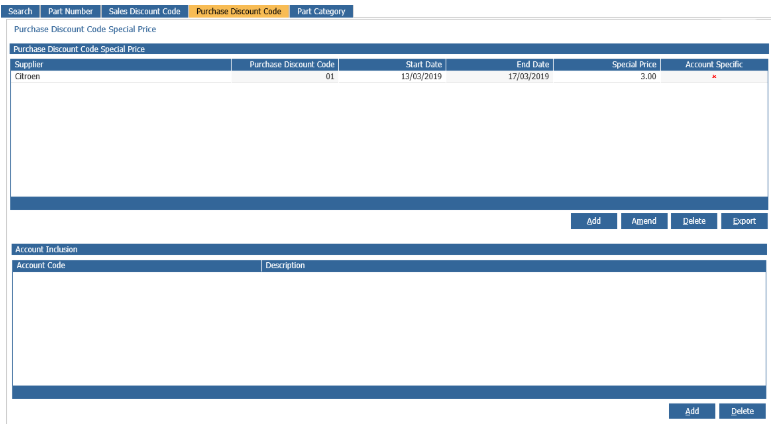
If the special price is account specific this will be shown with an  against the code. Single clicking the account specific line will display the accounts in the lower half of the screen.
To create a new discount code special price, select 'Add' in the upper half of the screen:
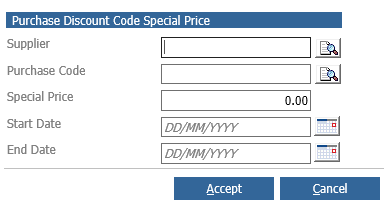
The supplier and purchase code can be selected and the special price added. A date range must be selected.
If the special price is to be account specific, single click on the special price in the top half of the screen and then select 'Add' in the lower half of the screen. The account search window will be displayed where the relevant account can be selected. More than one account can be added by selecting 'Add' again.
When a part is selected with the sales code within the invoice or workshop issues screen, the special price option is displayed.
Part Category
The part category tab will show all created special price part category codes including the date range and special price:
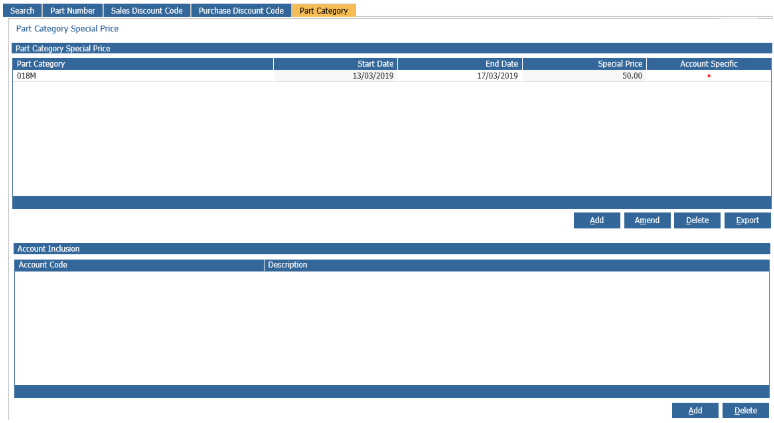
If the special price is account specific this will be shown with an against the code. Single clicking the account specific line will display the accounts in the lower half of the screen.
To create a new discount code special price, select 'Add' in the upper half of the screen:
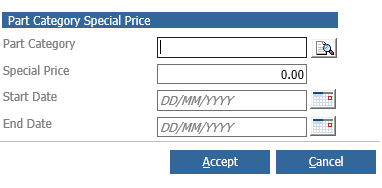
The category code can be selected and the special price added. A date range must be selected.
If the special price is to be account specific, single click on the special price in the top half of the screen and then select 'Add' in the lower half of the screen. The account search window will be displayed where the relevant account can be selected. More than one account can be added by selecting 'Add' again.
When a part is selected with the sales code within the invoice or workshop issues screen, the special price option is displayed.