
Price Uplift allows the MRRP held on the price file to be uplifted to a higher value.
The uplift will only take place at the point of invoice or issue and all part records will retain the MRRP on the part stock card.
If needed, the price uplift can be applied to all parts and then using the sales discounts table, a discount can be given off the newly uplifted price.
To view these parameters go to: Parts > Parameters > Price Uplift.
Price Uplift
By default, you are presented with the Price Uplift tab:
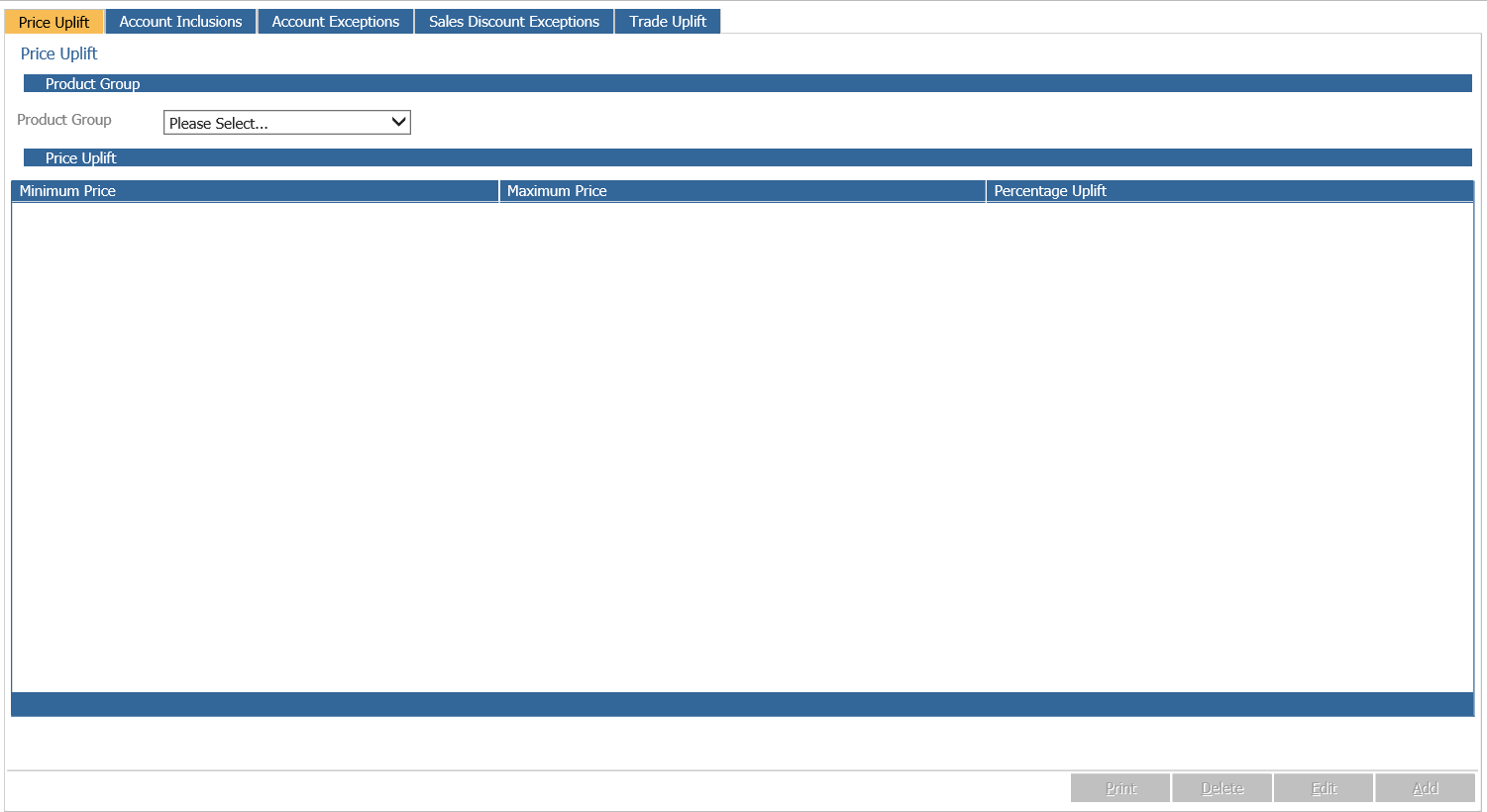
Within this tab you will be able to select a product group from the dropdown menu and all the price uplifts previously set will be displayed in the bottom half of the screen. Alternatively, you can select the 'Add' button which will display the following window:
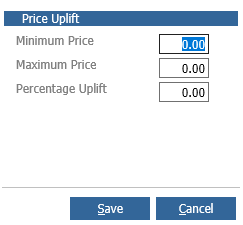
The minimum price, maximum price and percentage this range will be uplifted by must be specific. Once complete, select 'Save'. The screen will then be updated to show the uplifts added.
Account Inclusions/Account Exclusions
The account inclusions/exclusions tab will list the accounts that the price uplift will be applied or not applied to. A decision needs to be made as to whom the price uplift is going to be applied to.
Both tabs have very similar screens, where the bottom half of the screen will display any account codes that have been added:
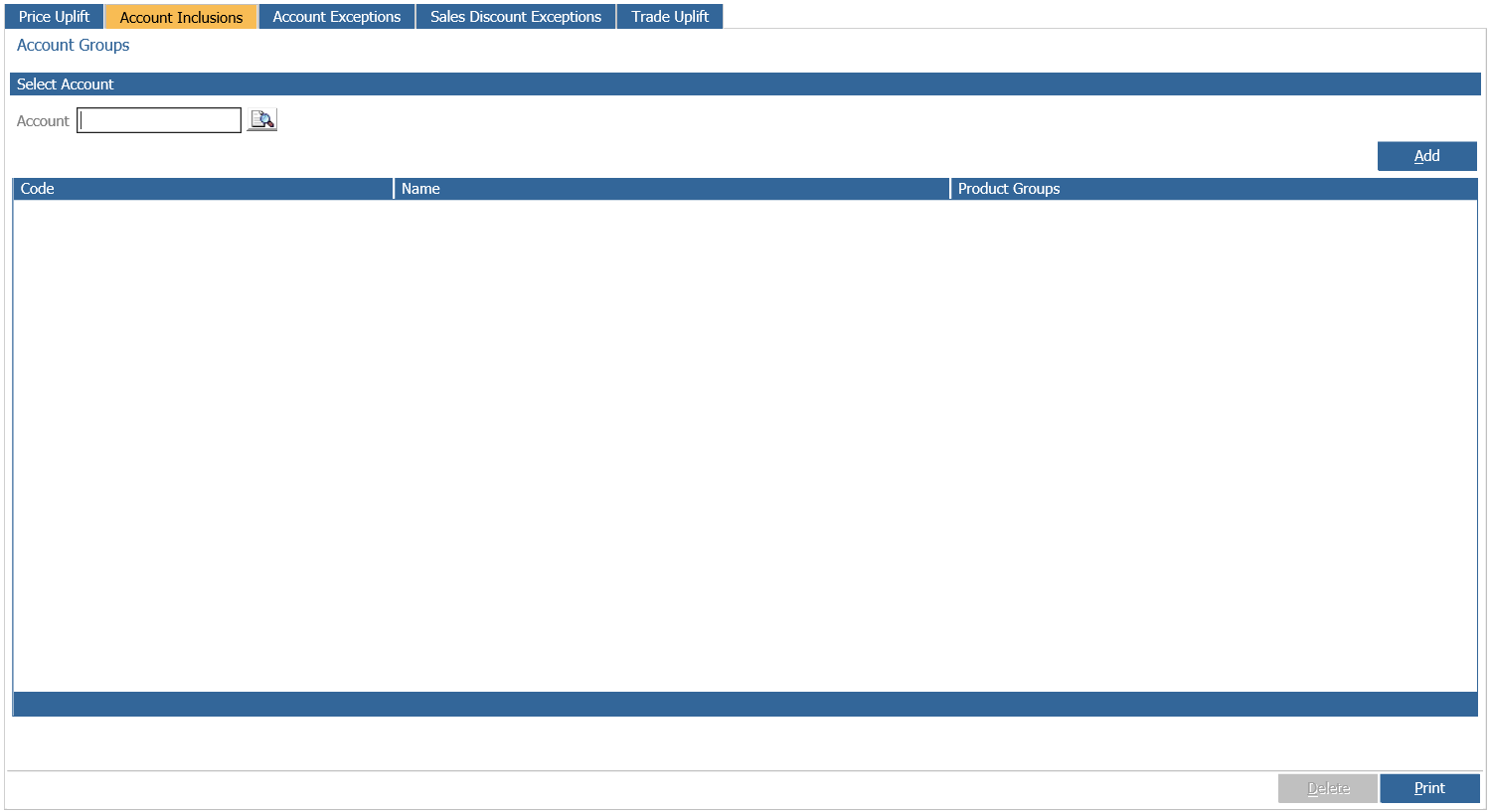
You can make the decision of whether the uplift is going to be applied to all accounts except those in the exclusions list, or to only the accounts held within the inclusions list. If entries are made into both, only the accounts in the inclusions list will have the uplift applied.
Within the account inclusions or exclusions tab select the account code and select 'Add'. When an account is being added to either the inclusions or exclusions, the product group selection window is shown:
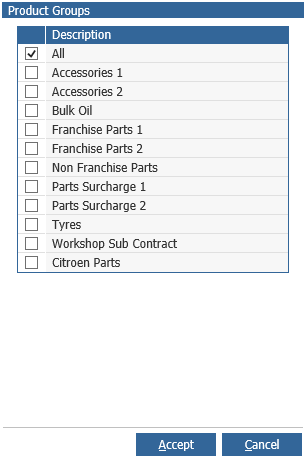
From here you will be able to select all the product groups that can be included or excluded from the uplift. This allows the exclusion of certain groups of parts from being uplifted. By default this will be set to 'All'.
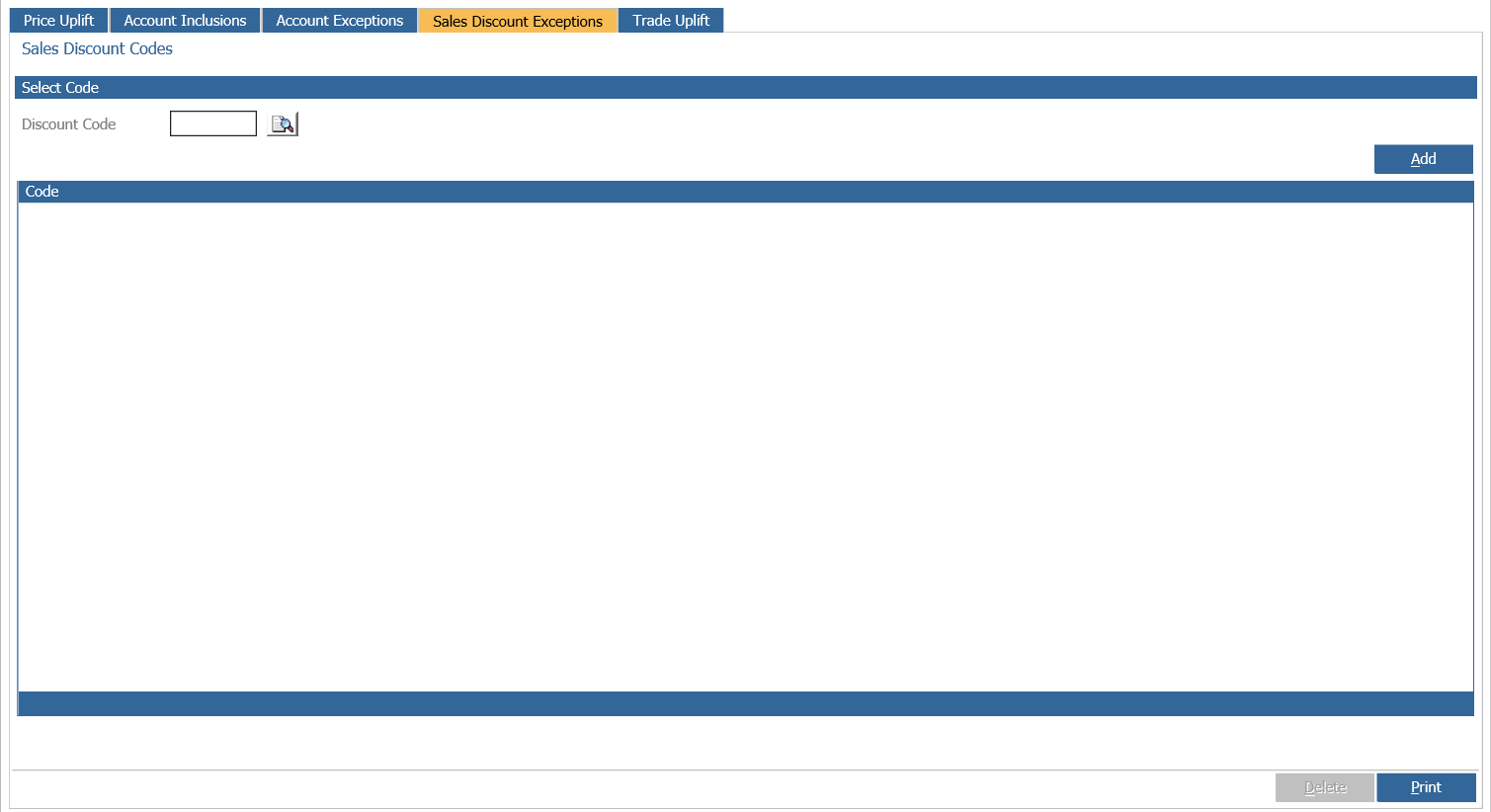
Sales Discount Exceptions
Individual sales discount codes can also be excluded from any price uplift:
When in the invoice or workshop screen and the account being used is within the uplift parameters, the uplifted price will be displayed on the screen. If the part record is viewed this will display the MRRP.
If the Display Retail Price on invoice parameter in Department Details 1 is turned on, the uplifted retail price will be printed on the invoice.
Trade Uplift

When this is set to active, your current Price Uplift settings will be applied against parts when they are issued to a sales ledger account set to use the parts trade price.