
To view the parameters related to Promotions go to: Parts > Parameters > Promotions.
General Promotions
By default you will be presented with the General Promotions parameters, where you will be able to view a list of any previously created promotions:
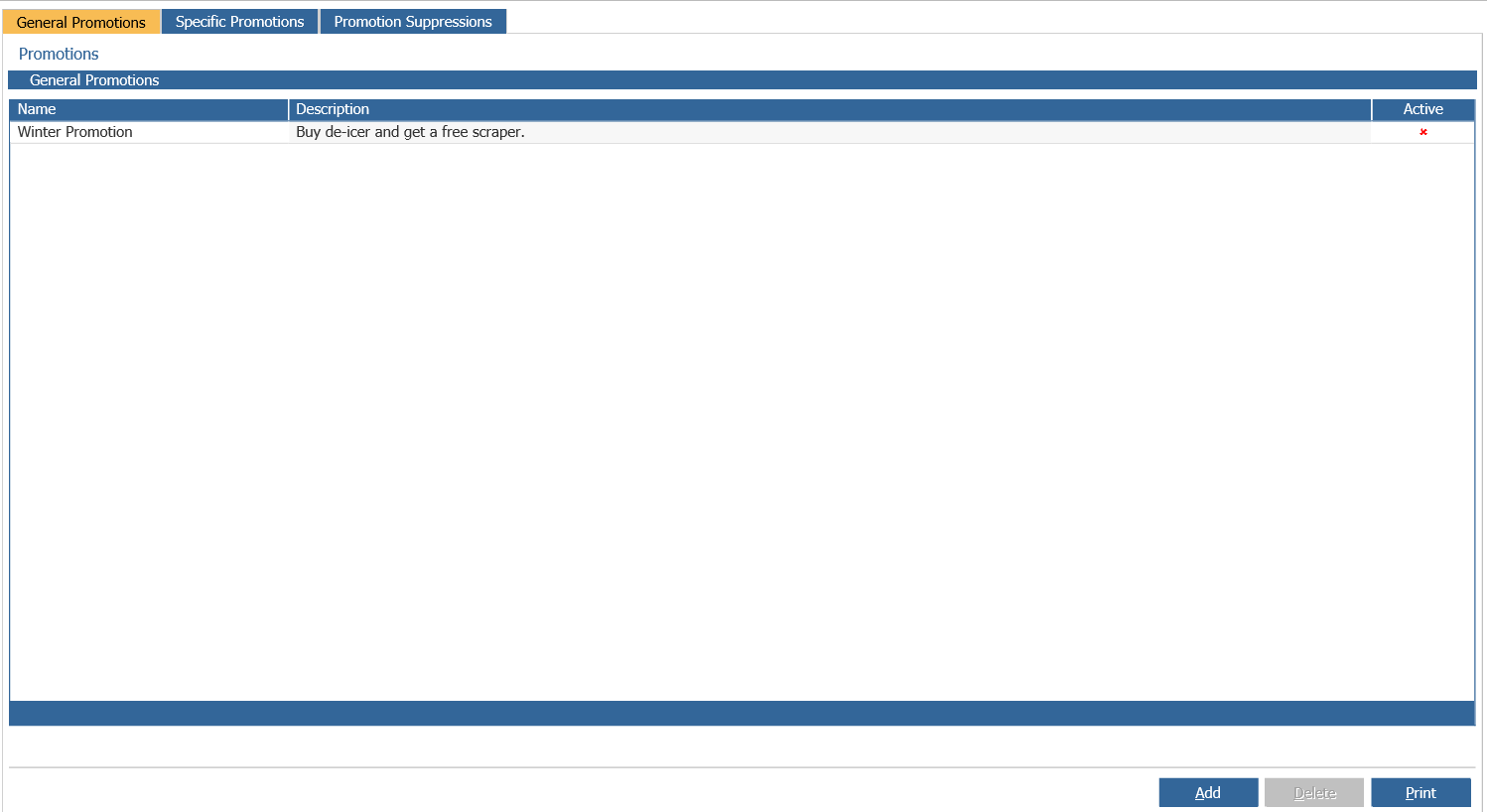
To create a new promotion select 'Add' and the window below will be shown:
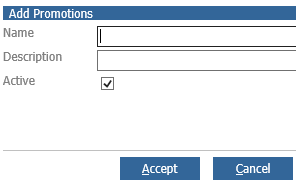
The promotion name will form the heading and the promotion description will be what the promotion is for. When the promotion is created, the screen will update to view the newly created promotion.
Numerous promotions can be created however only three can be active at any one time.
Within the invoice screen, after selecting the 'Invoice' button, the promotions window is displayed:
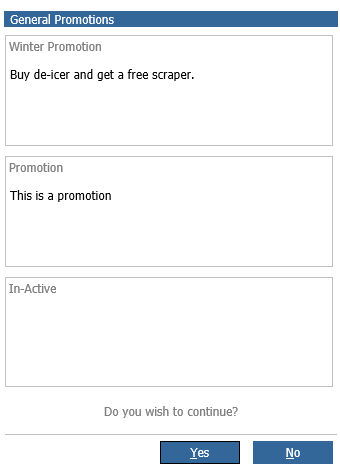
As you can see up to three promotions can be displayed at once. The option to continue with the invoice is available by selecting 'Yes' and selecting 'No' will return the screen to the parts list, where additional parts can be added.
Specific Promotions
The promotions listed within this tab are part number specific.
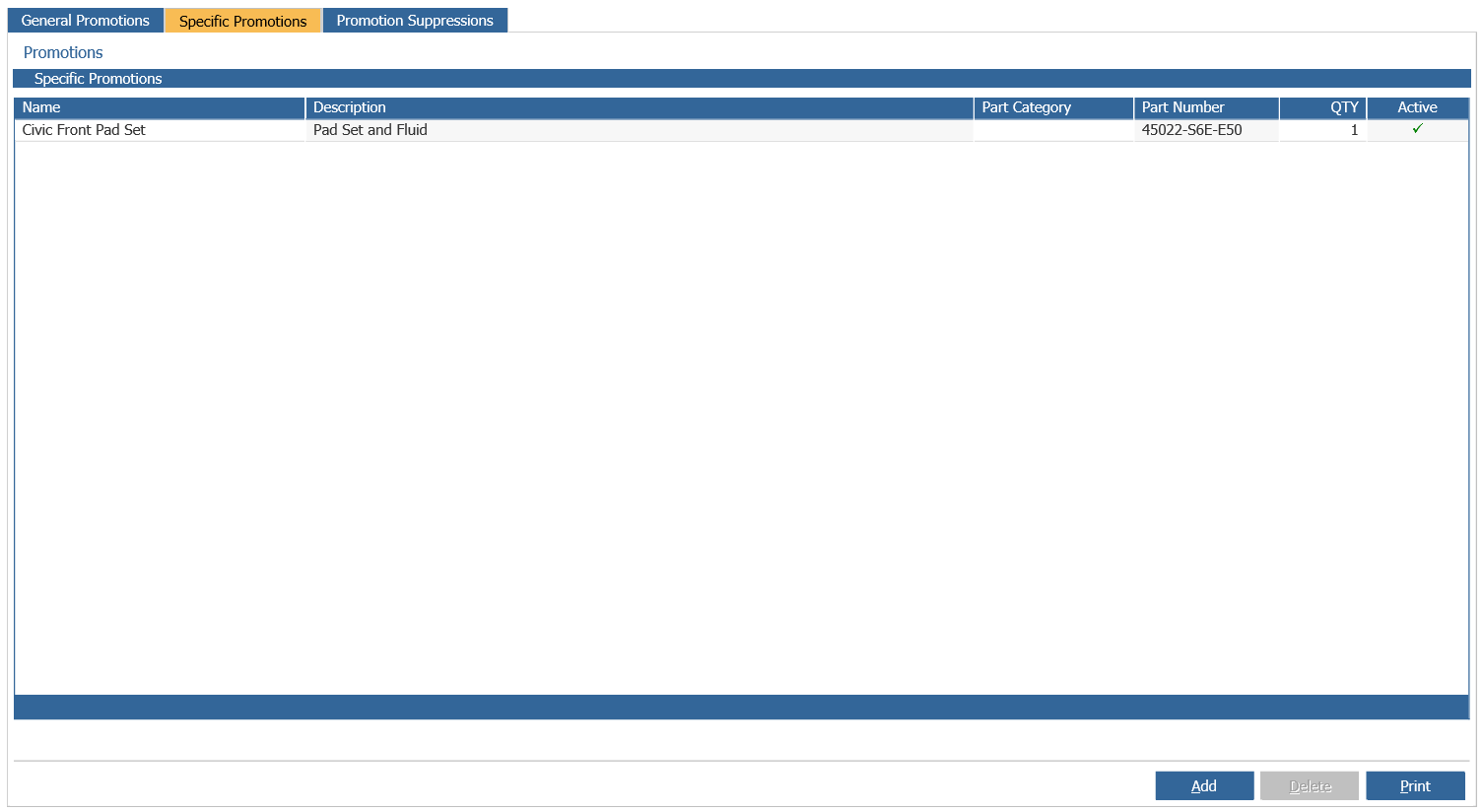
These will be displayed when selecting the parts in the invoice screen.
To create a promotion select the 'Add' button and the window below will be shown:
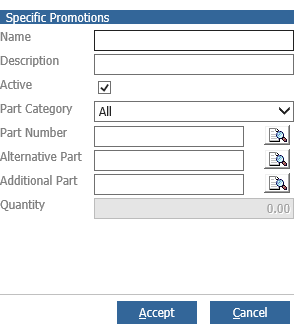
The promotion requires a name and description. For category promotions, an existing part category must be selected. When a part linked to the chosen category is selected, an additional part and quantity can be specified.
Select 'Accept' to save any changes.
Within the invoice screen, upon selecting a part attached to the category chosen, the below window is displayed:
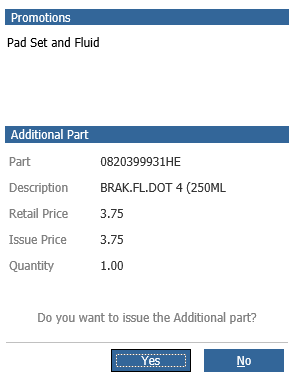
Selecting 'Yes' will issue the alternative or additional part shown and selecting 'No' will issue the originally selected part.
Promotion Suppressions
The Promotion Suppressions tab will display a list of accounts which are to be omitted from any promotions:
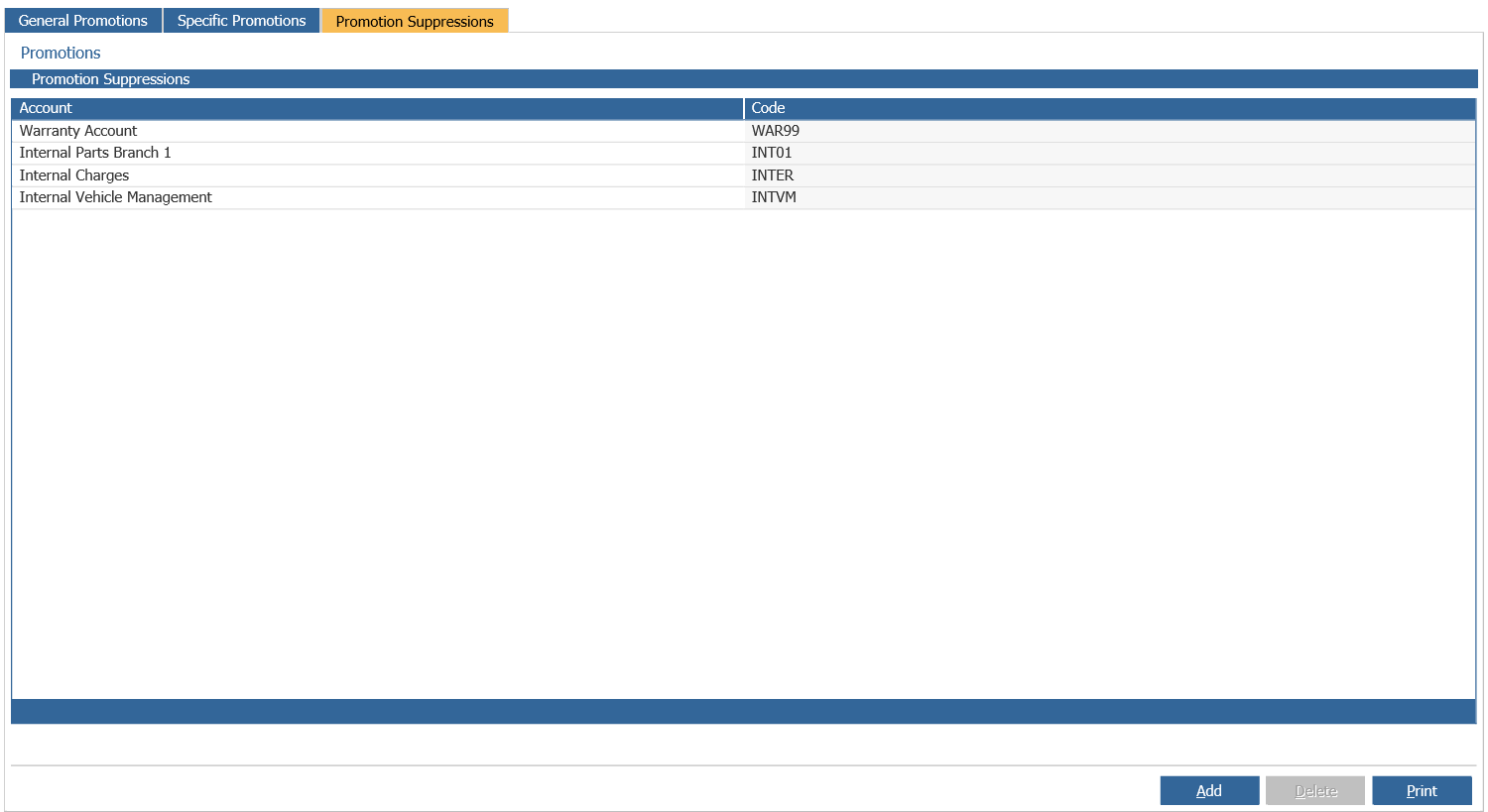
To add an account to this list simply click on the 'Add' button and the following window will be displayed:
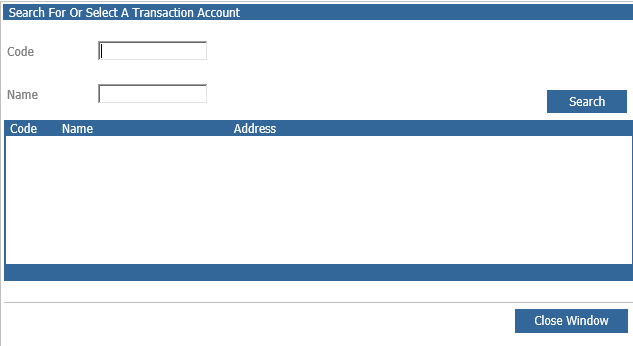
In here, you can search for the account using an Account Code or an Account Name.