
If required, additional costs can be receipted against parts suppliers.
To do this go to: Parts > Parameters > Purchase Costs.
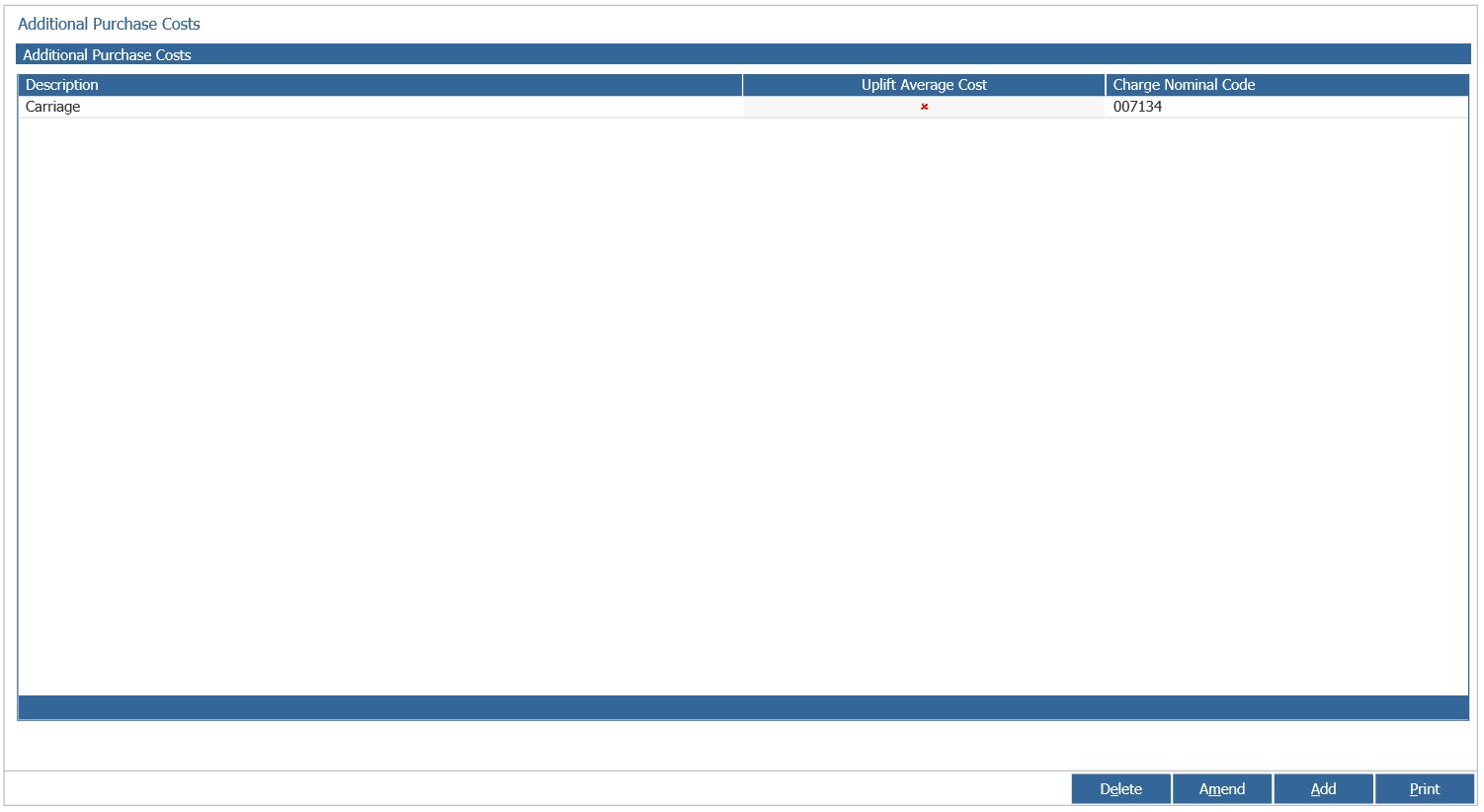
When adding an additional cost the following screen will be displayed:
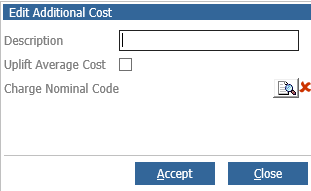
The description and nominal to be charged must be selected. When amendments have been made, select 'Accept' and the list will be updated to show the new purchase cost.
Once the cost has been created, it must be linked to the relevant supplier.
To do this go to: Parts > Maintenance > Supplier Maintenance > Suppliers.
Once you've double clicked onto the supplier listed, the following screen will be displayed:
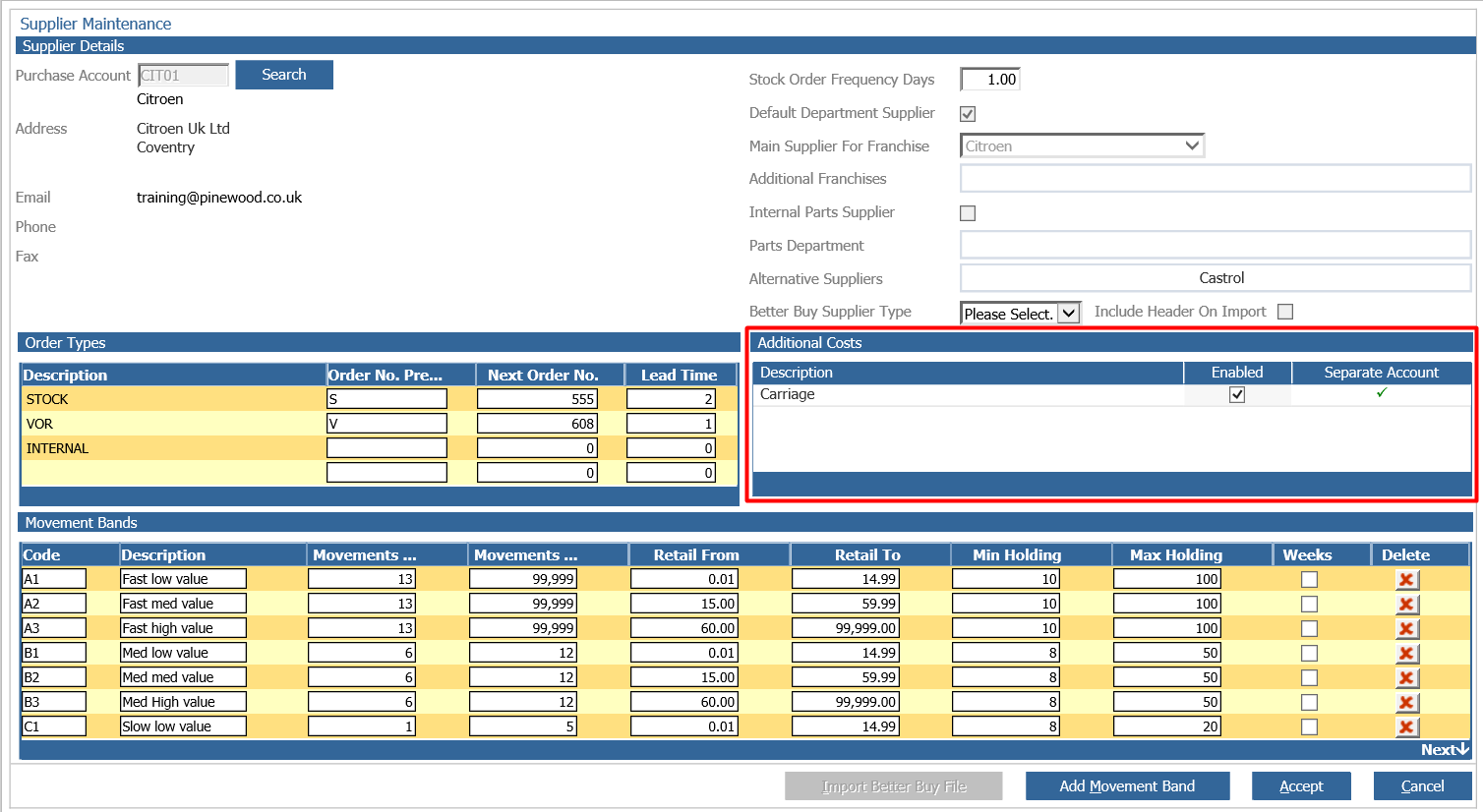
The relevant section is the 'Additional Costs' section highlighted in red. Within this field you can select the additional costs which are to be available when receipting against this supplier. Select 'Accept' to save any changed.
With the set up complete, the additional charges can now be receipted in against the supplier.