
Parts > Customer Orders > Customer Orders > Quick Allocate.

This will show a list of all parts you have on customer orders that have yet to be allocated to a
supplier.
On this screen you will able to see a list of all parts that need ordering and who the
main supplier is for each part, you can select the order type and then select all of the lines
you want to order and press the accept button.
This will then raise multiple supplier orders at the same time for each supplier. When using quick allocate if a supplier order already exists that hasn’t been submitted for one of the suppliers you are ordering from the quick allocate routine will add the additional parts onto the outstanding supplier order with the same order type.
You also have the ability within the quick allocate screen to select one or more orders
and select the change supplier option that will allow you to order these parts from a different
supplier.
You also have the ability within the quick allocate screen to select one or more orders and select the change supplier option that will allow you to order these parts from a
different supplier.
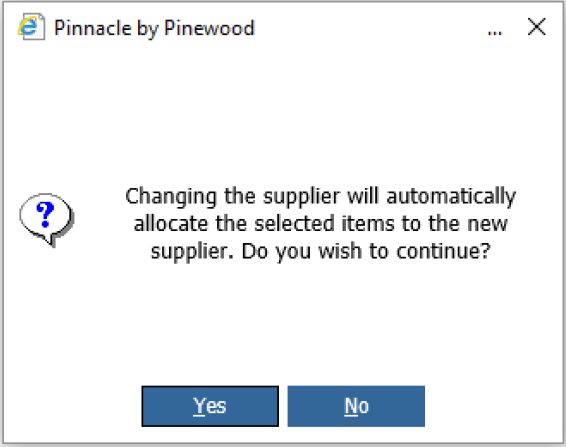
On selecting yes, a list of suppliers will be displayed.
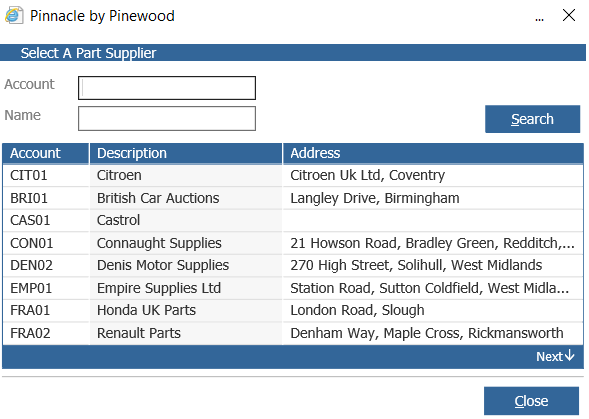
Selecting your new supplier will create a new supplier order or add the parts to an existing
unprocessed supplier order.