
Parts > Distribution > Delivery
All deliveries due today will be displayed.
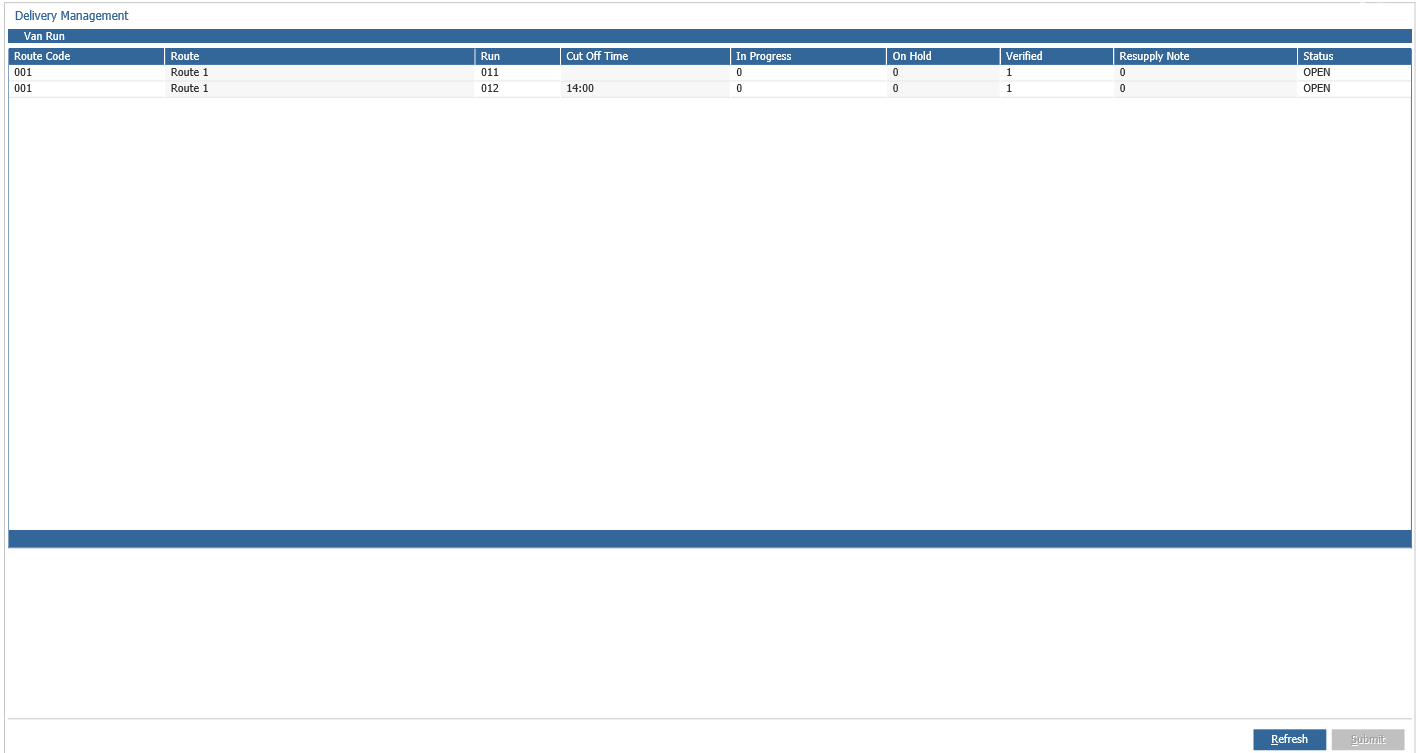
A delivery cannot be processed until all enquiries on it have been verified. From the example
shown above one run has a status of Closed and one run with an Open status.
Delivery Management Statuses:
Open: The van run is still open to accept additional enquiries. It can only be processed when
the cut off time has been reached.
Closed / In Progress: This Van run cannot be processed, the van run cut off time has been
reached, but not all enquiry’s have been verified.
Closed / Ready: This Van run can be processed, all enquires are completed and the van run
cut off time has been reached.
Invoiced: The van run has been completed and all enquires invoiced.
To process a van run, double click to select. All enquiries should have a status of verified and
the van cut off time must have passed before the van can be processed.
If a van has been set up without a cut off time, it can be processed at any time.

Select the ‘Confirm’ button; Pinnacle will prompt to select the Driver and Vehicle details.
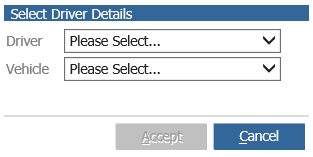
Selecting ‘Accept’ will open the Print window.
Two prints will be produced; the first will be all invoicing / delivery notes.
The second will be the Delivery List.
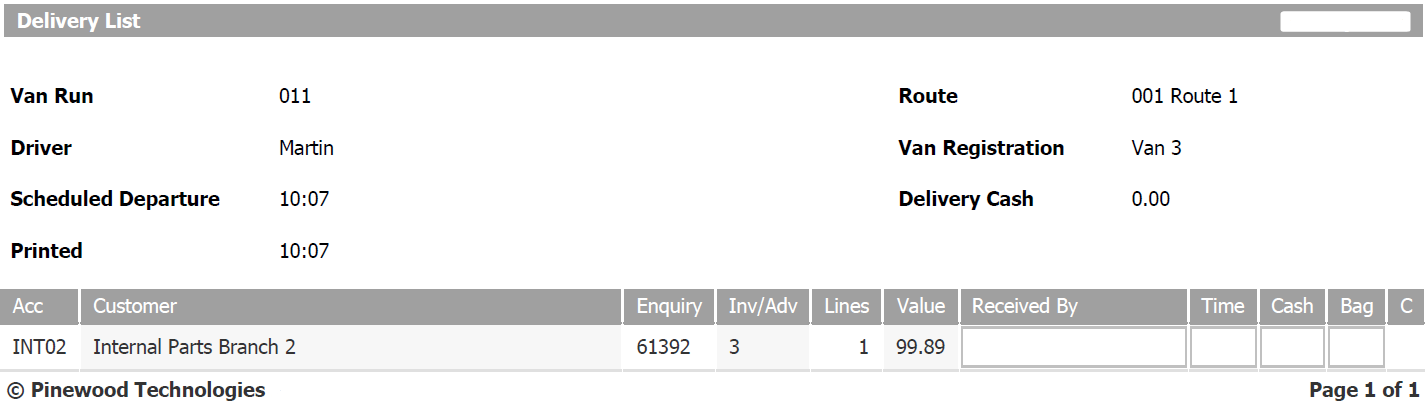
If the cash on delivery option has been selected this will be indicated with a Y in the collect
column.
After each print Pinnacle will prompt, the user if a reprint is required.
The screen will return to the Delivery Management screen and the status of the processed
van run will be Invoiced (Timed Vans Only).