
Question
How can I lost sale multiple sales opportunities?
Answer
You first must allow the system to be able to lost sale multiple sales opportunities. To do this, go to: CRM > Parameters > Enquiry Defaults and double click the Lost Sale Description.
Enter the Contact Reason and Contact Method for the sales opportunities you wish to lost sale.
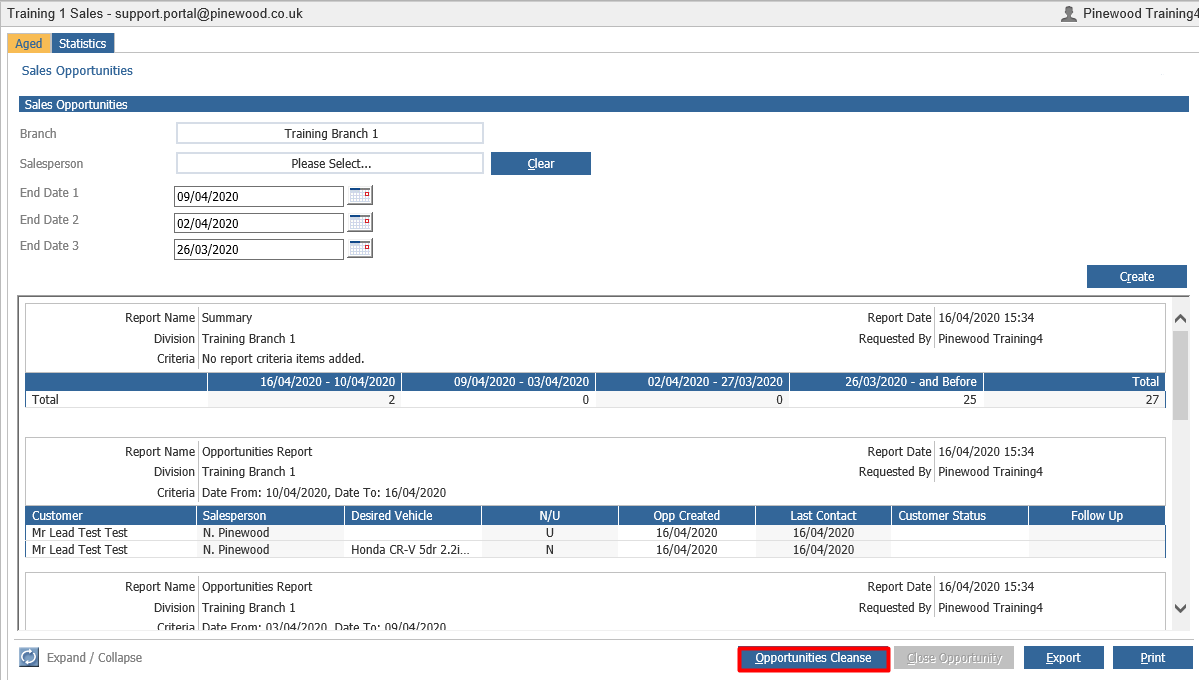
To begin to lost sale multiple sales opportunities at once, go into CRM > Sales Reports > Activity > Sales Opportunities.
To close multiple sales opportunities, click the ‘Opportunities Cleanse’ button:
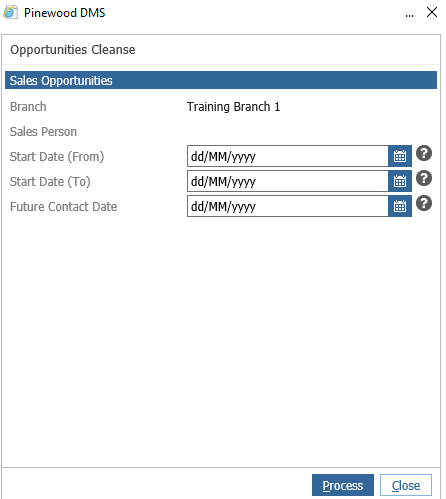
The system will then display a pop up asking for you to enter the dates for which you want to cleanse opportunities. Note: the date range has a maximum of a 31 day period, however you can cleanse opportunities from any previous time period. The Start Date (from) and Start Date (To) is the filter for the date range you wish to cleanse. The future contact date is optional, and is used if you wish the system to ignore certain Sales Opportunities with an active future contact.
Once entering the dates and clicking proceed, you will receive a pop up detailing how many opportunities are within this date range, and asking you to confirm you want to close these opportunities.
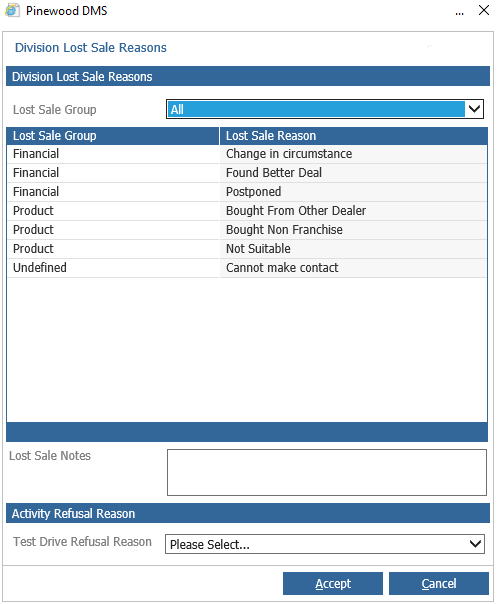
The next pop up (as shown above) asks you to choose a lost sale group and reason, as well as to enter any lost sale notes. If the opportunities you wish to cleanse have had test drives refused, then there is also a test drive refusal drop down option.
Once you have clicked proceed, the system will confirm the process is complete and the opportunities will have been cleansed.
Please Note: Users with an access level below the Lost Sale access level in CRM > Parameters > Dealer Parameters will not have access to this feature.