
Payments must be initiated from the system and can be created from any of the processes where payments can be taken today. The system process is identical, so the details below focus on the Pay+ app.
Create an invoice or a vehicle deposit or Sales Ledger payment (Allocate Cash), as you normally would, selecting ‘Card’ as the payment method.
Example: Go to CRM > Enquiry > Search for a customer > Deposits tab:
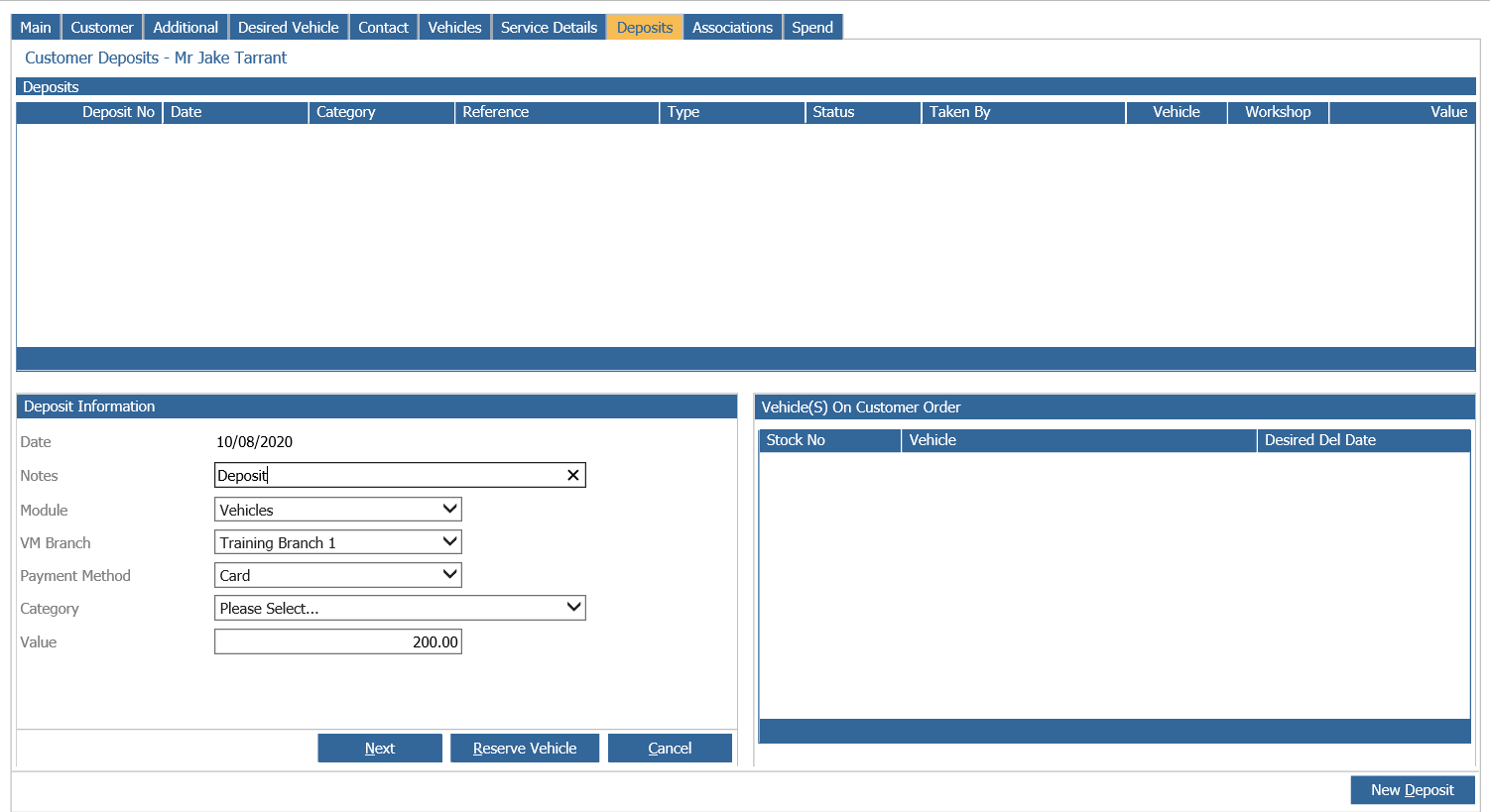
The process of initiating a card deposit remains as is today. By clicking next, you will be presented with the following window:
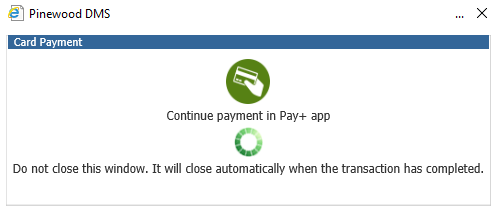
This directs you to continue in the Pay+ App.
Please note: This pop up does not timeout so it will stay there until the payment has been taken.
To continue, open Pinewood Pay+ app and via Main Menu navigate to the Payments section. By default this will take you, a screen headed ‘My Payments’ which contains a list of pending payments created by you. In most instances, there will only be one entry in this list for you to select. Select the payment and more options will become available at the bottom of the screen.
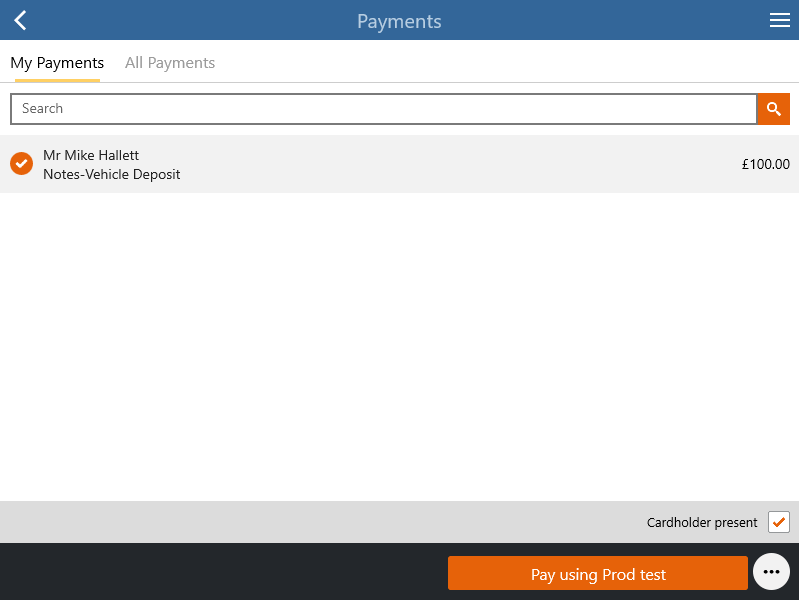
To process the payment, tick it and continue by clicking ‘Pay using…’ button. By default, the app treats each payments as that cardholder present. However, if you are processing a cardholder not present (CNP) payment, then untick the box located at the lower right corner of the screen ‘Card Holder Present’.
Pay+ will try to take the payment using your default terminal, if you wish to select another because your default terminal is unavailable select the Manage Terminals button on the home screen to select another terminal.

This will show you which terminal is currently the default, and also the other available options.
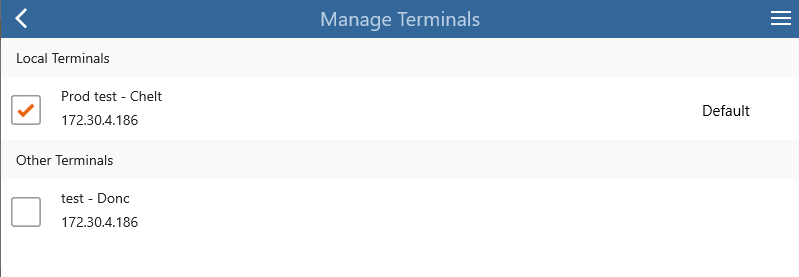
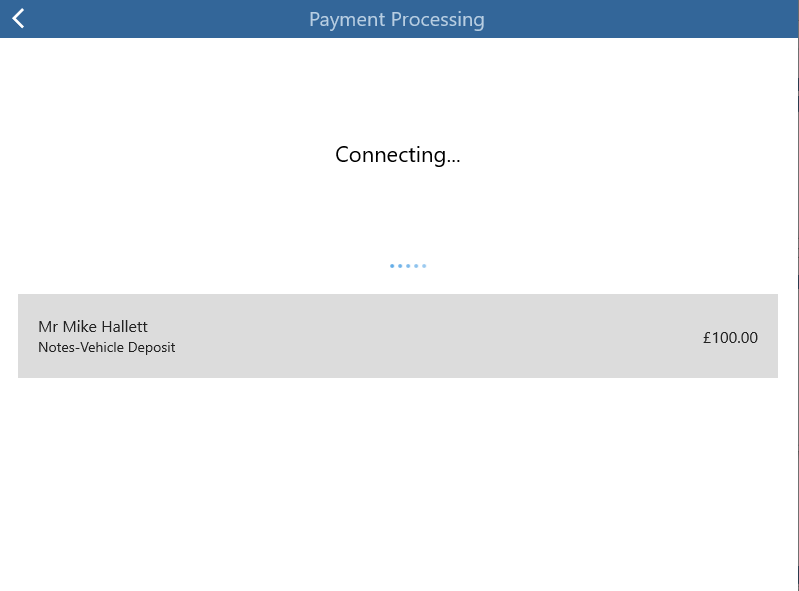
Once you have decided which terminal you wish to use you click on ‘Pay using...’ button and the app will automatically start connecting to the chip & pin machine and send selected payment details:
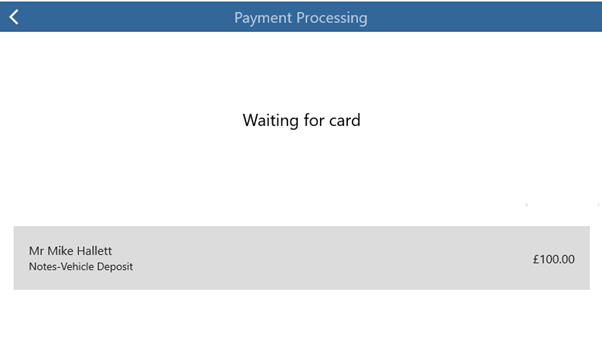
When login is complete and device is ready to take the payment from the customer, the app will display the following message as it waits for the card:
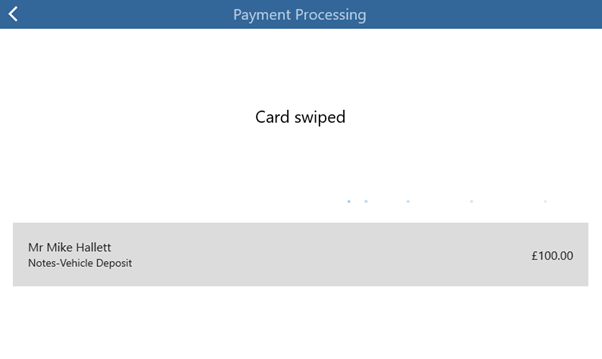
If the card has been swiped and authorised, the following screen will be shown:
The card terminal will then send update back to the Pay+ app describing the progress of the transaction. The app will log on to the Vx680 terminal and initiate a payment transaction and will prompt you for your customer to enter their card, PIN, and so on.
As the customer is completing the payment, these are the following status messages presented on the app:
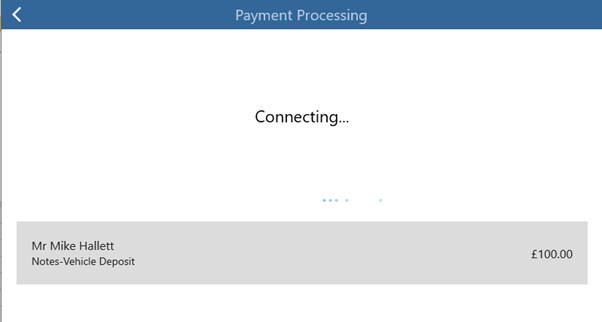
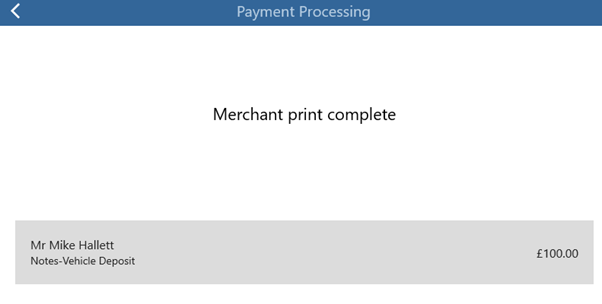
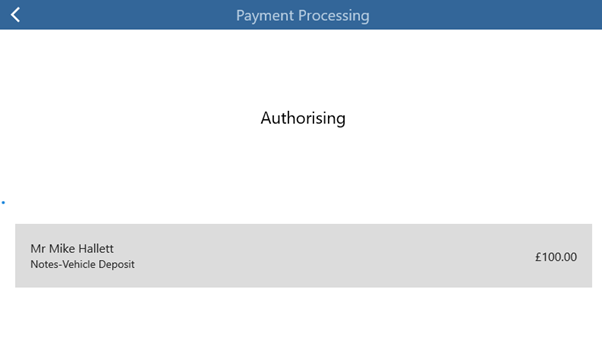
Follow the instructions on the VX680 terminal, this will generally involve tearing the customer print of a receipt and pressing the enter key to continue. If you have swiped a non-Chip and PIN card, then you will also be asked to confirm that the signature on the customer’s card matches the signature provided on the receipts slip.
If payment is successful, then the below will be displayed:
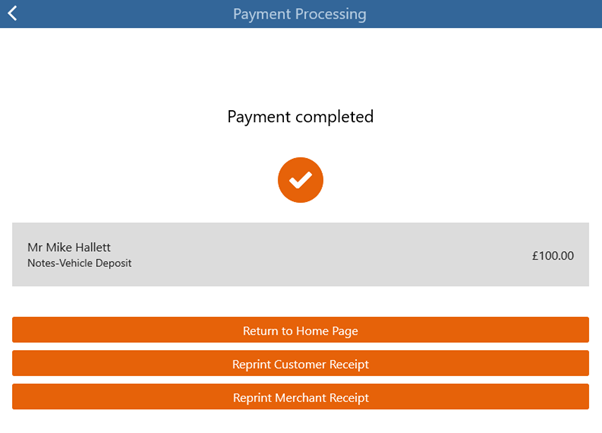
At this point, information from the app is sent back to the system, updating the appropriate screen. An invoice is generated automatically. If a referral is required, instructions for this will be shown on the screen of the VX680 Terminal with a message showing ‘voice referral’ being displayed in the Pay+ app.
There are a number of reasons why a transaction may not complete or may be declined, for instance if the VX680 terminal is left on the ‘Waiting for card’ screen for too long, then the terminal will automatically cancel the transaction and the app will update, giving you the option to retry.
A transaction could be declined for a number of reasons, an incorrect PIN or a decline from the bank.
If a payment is declined, then the below will be displayed:
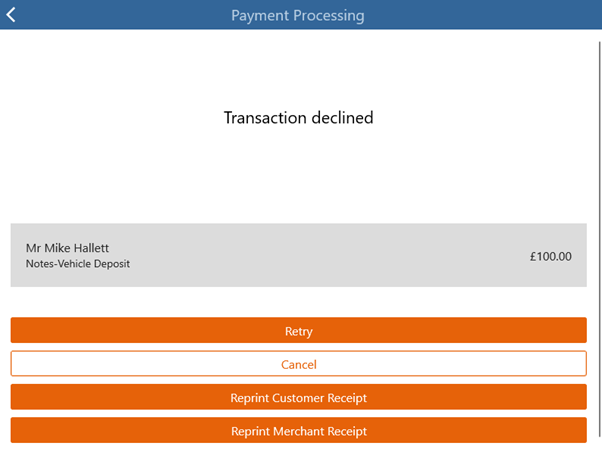
You will have the option to retry taking the payment, as above.
You can click on reprint option to print the last receipt details:
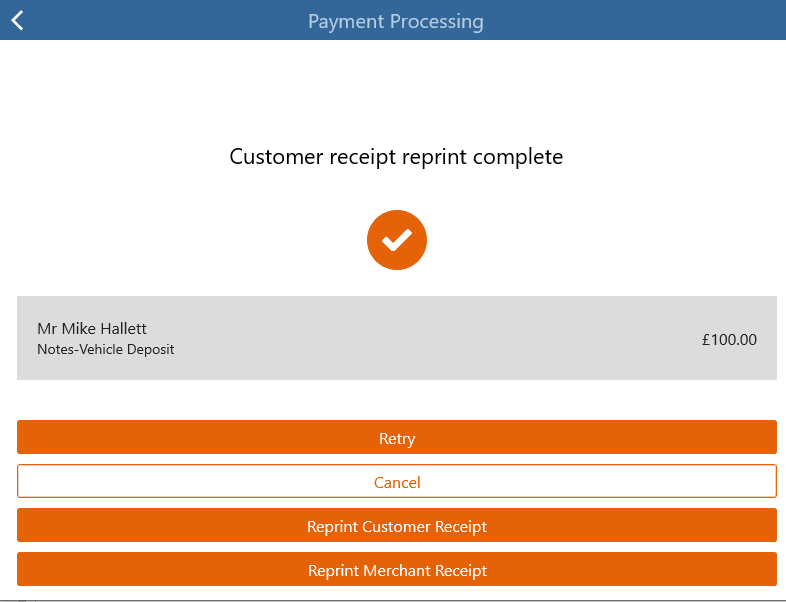
If you click Retry, then the same payment is initiated and information is sent to the chip & pin device. If you click Cancel, then the payment is removed from the Payments list on the app.
You are then sent back to the Pay+ home page.