Parts > Reporting > End of Day
The end of day reports will detail financial movements within the parts department since the last end of day, week, month or year.
None of the reports print automatically. Reports will only be printed if the ‘Print’ button is selected on each report screen.
The reports can be viewed and printed at any time of day, giving the ability to see the performance of the department in real time. All reports must be viewed before the end of day, week, month or year process can be run.
Daybook
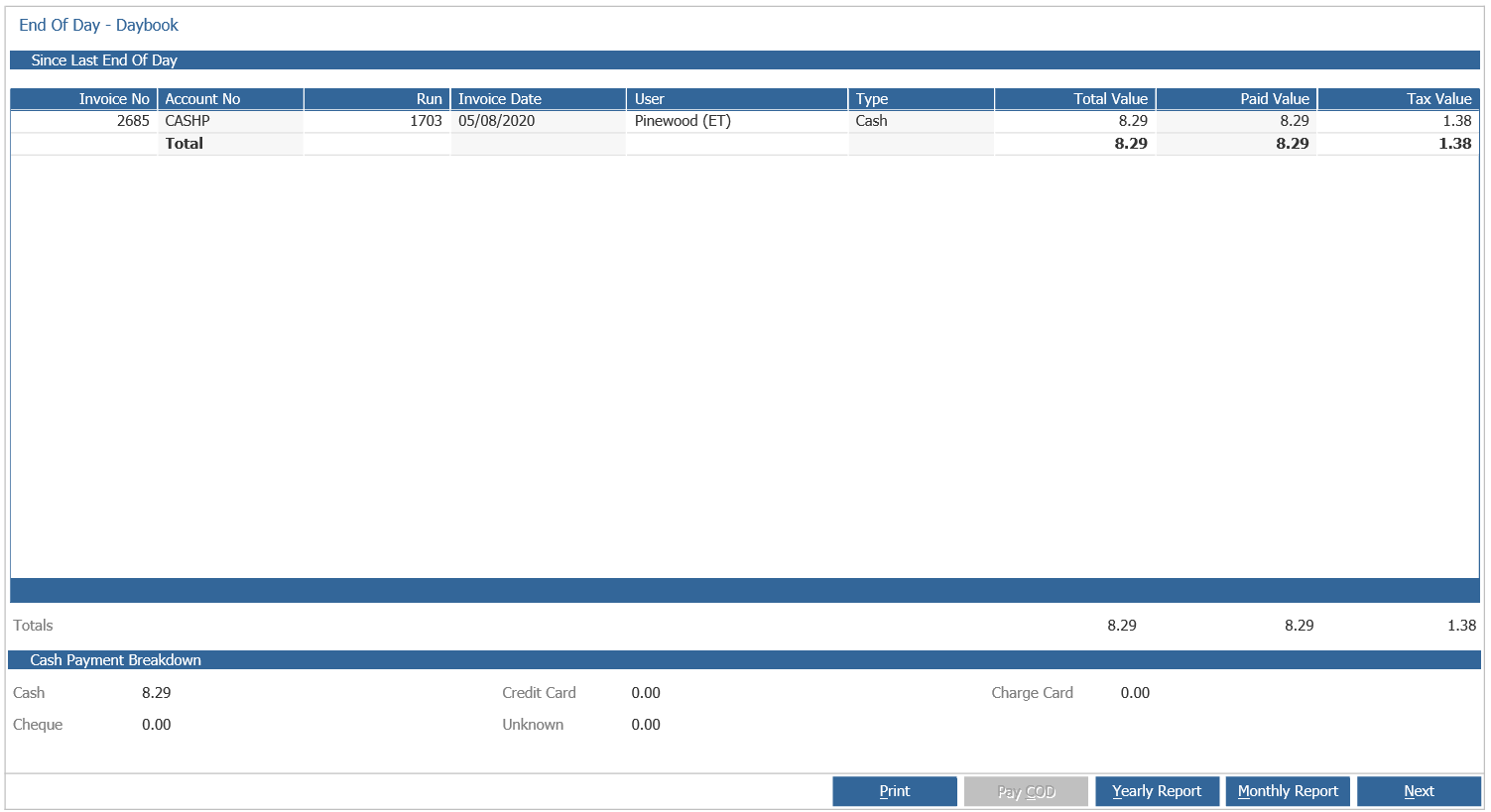
This report will detail ALL invoice transactions since the last time the End Of Day process was run.
Cash accounts / invoices will start at the top in alphabetical order and then all other accounts invoiced will be shown, again in alphabetical order.
At the bottom of the screen the Cash Payment Breakdown details the different amounts taken against each payment type.
Individual invoices on this report can be double clicked to view the archive invoice.
Select ‘Monthly Report’ to view a report detailing transactions since the last end of month.
Select ‘Yearly Report’ to view a report detailing transactions since the last end of year.
Once all required reports have been printed the ‘Next’ button can be selected.
**Please Note: The ‘Pay Cash On Delivery’ option is only available with Distribution and Delivery activated.**
Daybook By User
This report details the same information from the first daybook but displays it by user.
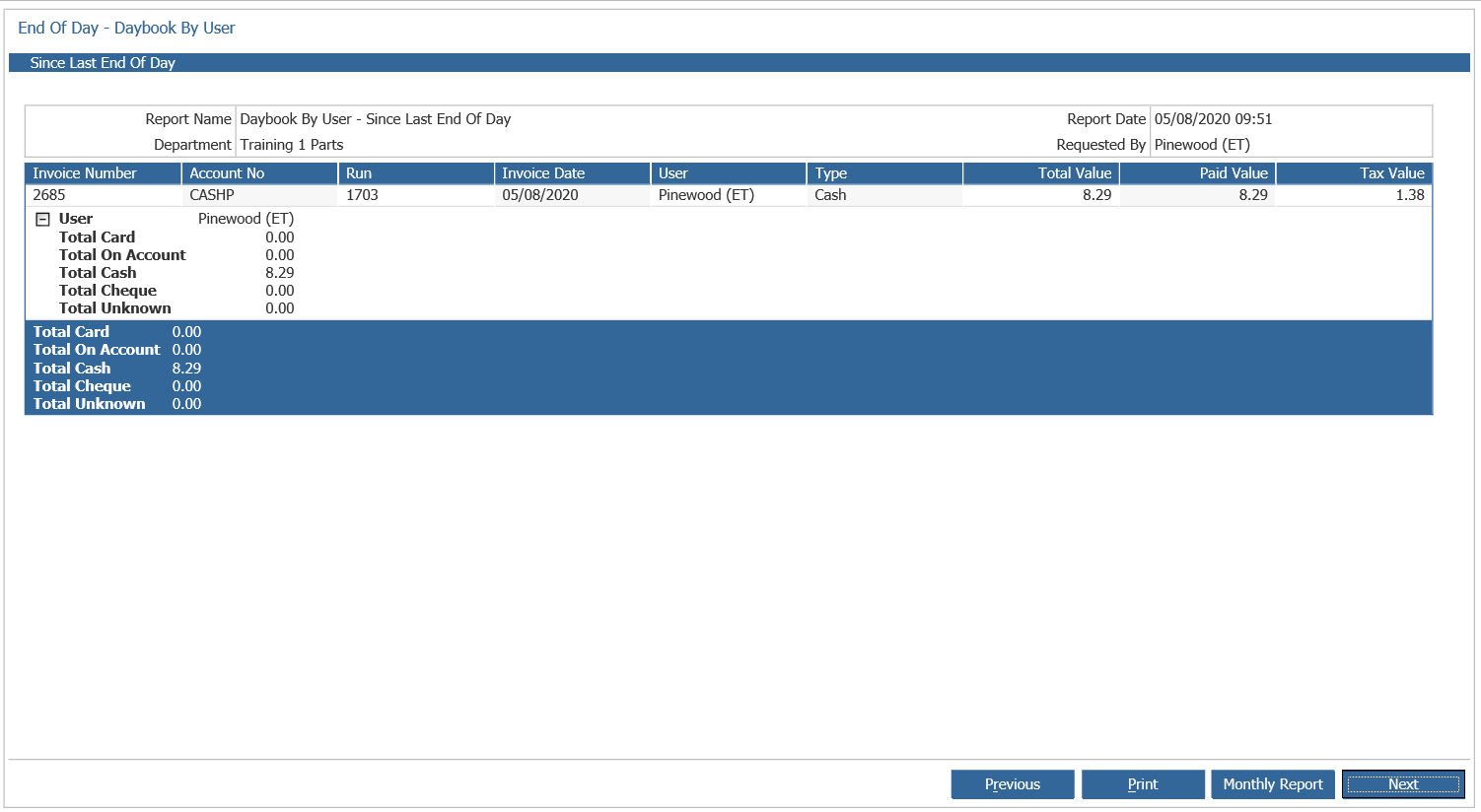
The report is broken down detailing amounts per payment type, per user.
Individual invoices on this report can be double clicked to view the archive invoice.
Select ‘Monthly Report’ to view a report detailing transactions since the last end of month was processed.
Once all required reports have been printed the ‘Next’ button can be selected.
Purchase Analysis
This report details purchase per supplier information since the last End Of Day.

Select ‘Monthly Report’ to view a report detailing purchases since the last end of month.
Select ‘Yearly Report’ to view a report detailing purchases since the last end of year.
Once all required reports have been printed the ‘Next’ button can be selected.
Returns Analysis
This report details any returns to supplier information since the last End Of Day.

Select ‘Monthly Report’ to view a report detailing returns since the last end of month.
Select ‘Yearly Report’ to view a report detailing returns since the last end of year.
Once all required reports have been printed the ‘Next’ button can be selected.
Invoice Totals Analysis
This report shows the amount of invoices generated for retail, trade and internal sales since the last end of day, month and year.

Once the report has been printed the ‘Next’ button can be selected.
Fixed Price Reports
When fixed pricing has been activated and used within workshop, invoicing entries will be written to this report detailing the information.
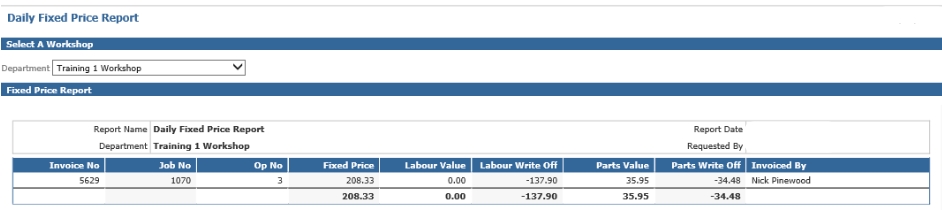
The reports detail the Job Number, Operation Number and write off values. A minus write off indicates a gain.
Once the report has been printed the ‘Next’ button can be selected.
Pressing ‘Next’ displays a weekly report and then a monthly report.
Counter Sales Report
The counter sales report shows a breakdown of the product groups that have been invoiced since the last end of day, month and year.
The report shows in detail per product group, the value of sales, cost of sale, discount and profit to the different sale types.
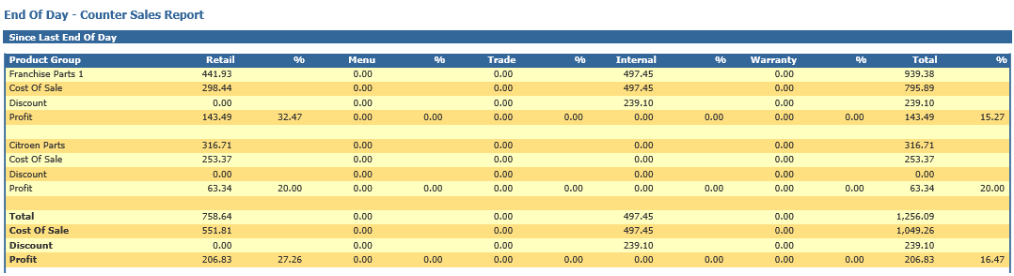
Select ‘Monthly Report’ to view a report detailing invoice transactions since the last end of month.
Select ‘Yearly Report’ to view a report detailing invoice transactions since the last end of year.
Once all required reports have been printed the ‘Next’ button can be selected.
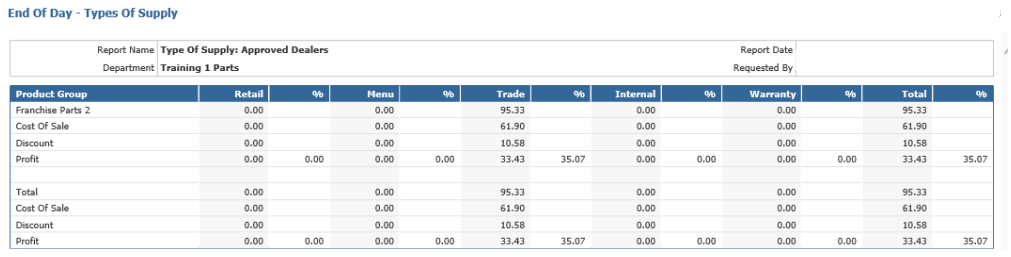
Types of Supply Reports
Please refer to Parameters > Type Of Supply

Workshop Issues Analysis
The workshop issues analysis report shows a breakdown of the product groups that have been issued to the workshop since the last end of day, month and year.
The report shows in detail per product group, the value of sales, cost of sale, discount and profit to the different sale types.
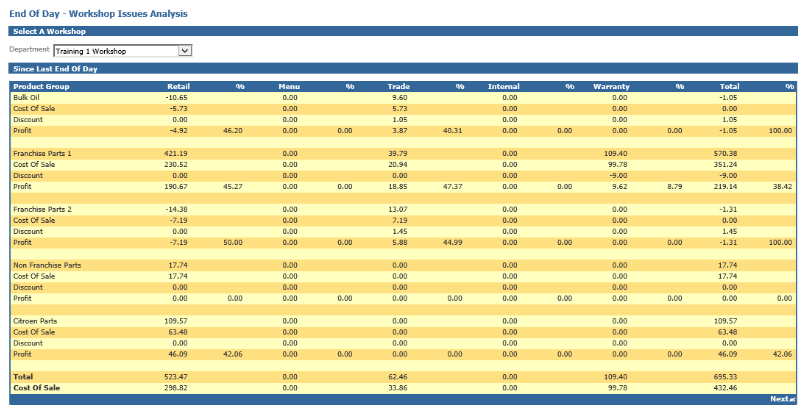
Select ‘Monthly Report’ to view a report detailing invoice transactions since the last end of month.
Select ‘Yearly Report’ to view a report detailing invoice transactions since the last end of year.
Once all required reports have been printed the ‘Next’ button can be selected.
Combination Issues Analysis
The combination issues analysis shows a breakdown of the product groups that have been invoiced or issued to the workshop since the last end of day, month and year.
The report shows in detail per product group, the value of sales, cost of sale, discount and profit to the different sale types.
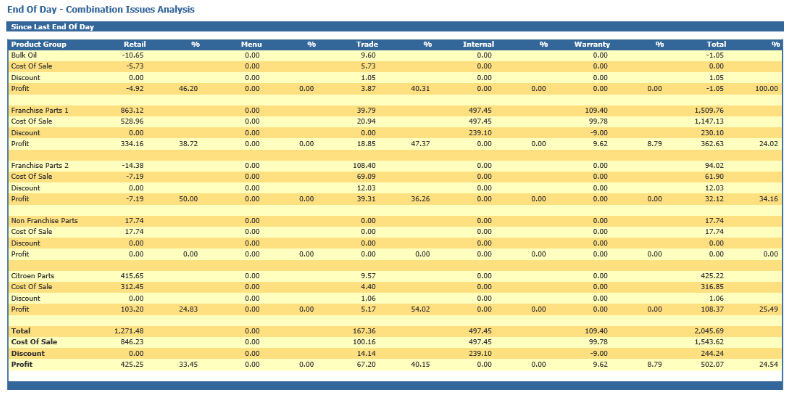
Select ‘Monthly Report’ to view a report detailing invoice transactions and workshop issues since the last end of month.
Select ‘Yearly Report’ to view a report detailing invoice transactions and workshop issues since the last end of month.
Once all required reports have been printed the ‘Accept button can be selected.
If the ‘Accept’ button is not available, please refer to Cash On Delivery.
After selecting the ‘Accept’ the window below is displayed.
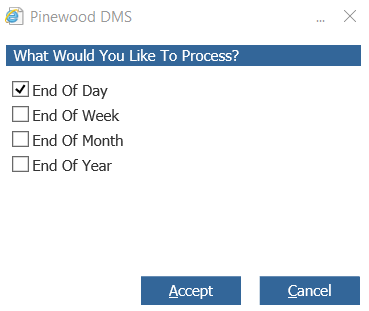
End Of Day will zero daily reports.
End Of week will zero weekly and daily reports.
End Of Month will zero monthly, weekly and daily reports.
End Of Year will zero ALL REPORTS
After deciding what to process pressing the ‘Accept’ button will display the window below.
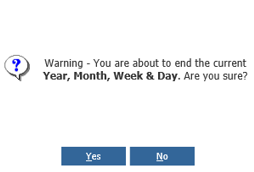
Before selecting ‘Yes’ ensure all required reports have been printed.
At this point selecting ‘No’ will allow the reports to be revisited and reprinted.
After selecting ‘Yes’ the selected process will be complete.
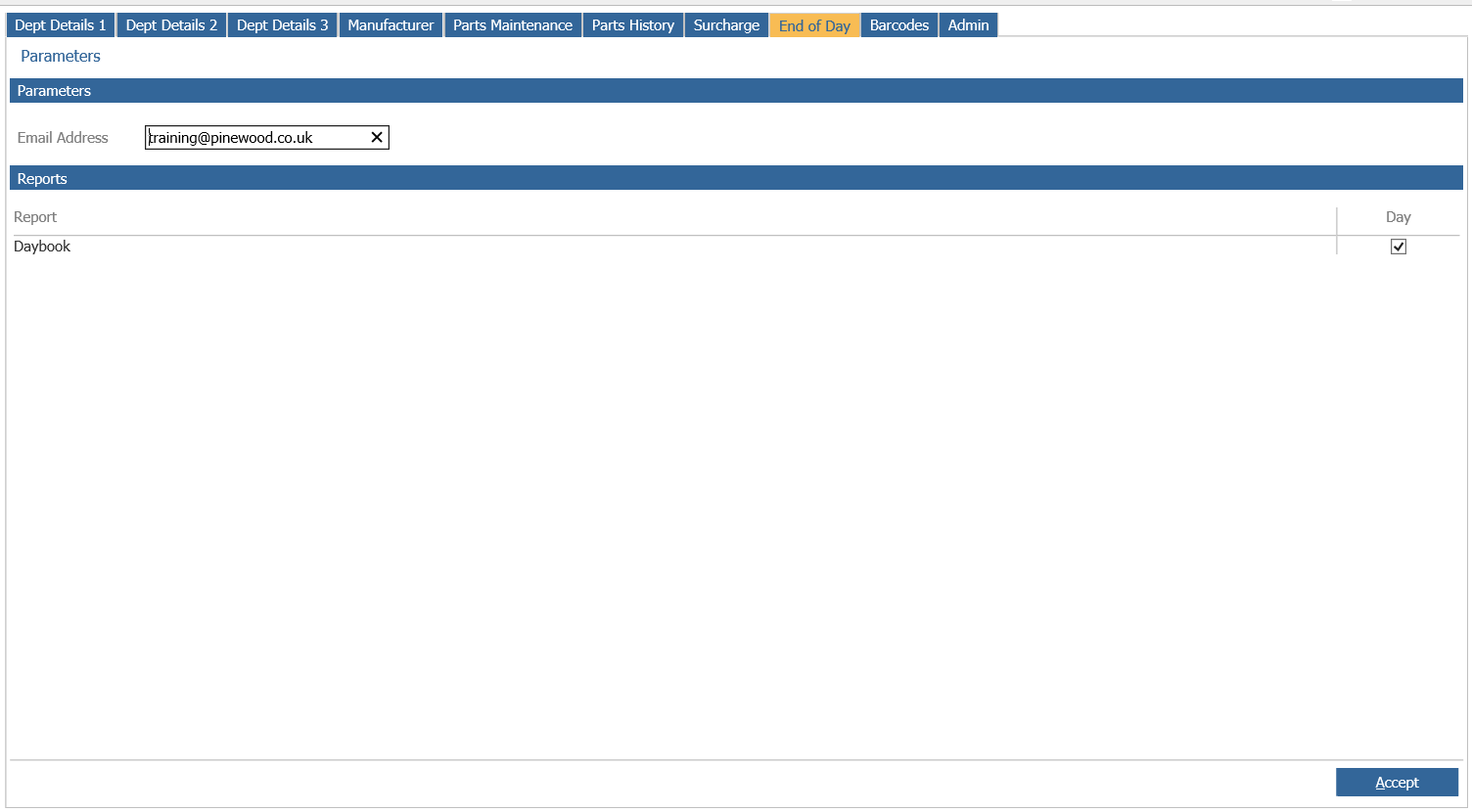
A copy of the Daybook can be emailed. For this you will need to add the recipients email address within Parts > Parameters > Department Details >End of Day