
Accounts > Cash Book > Payments > Vehicles
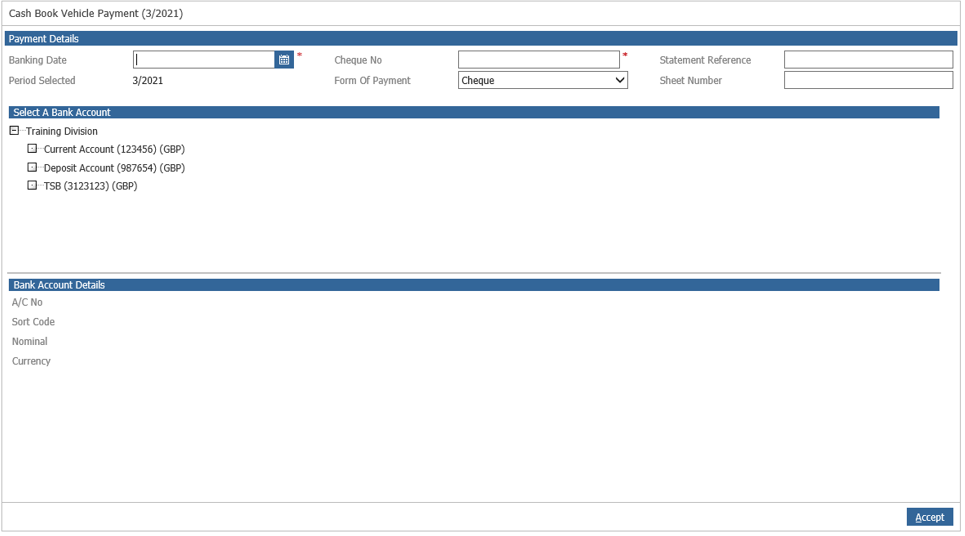
Select the Vehicle Payments option from the main menu.
Select the correct accounting period from the company structure screen.
Enter the date and payment reference (cheque number or Direct Debit reference), select the bank account that the payment is to be taken from and choose the ‘Form of Payment’ i.e.; cheque, DD, Standing Order etc. and click ‘Accept’ to continue.
Search for the correct vehicle using one of the criteria fields.
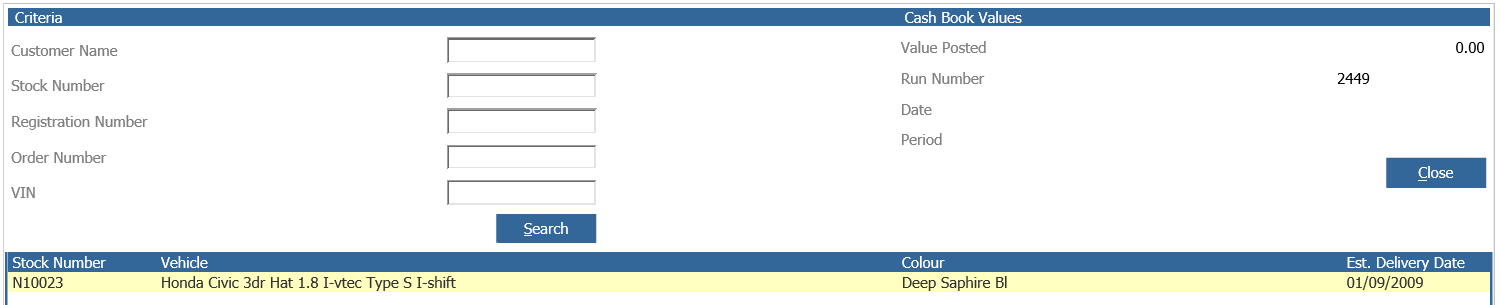
Double click on the vehicle details and the vehicle creditor screen will appear.
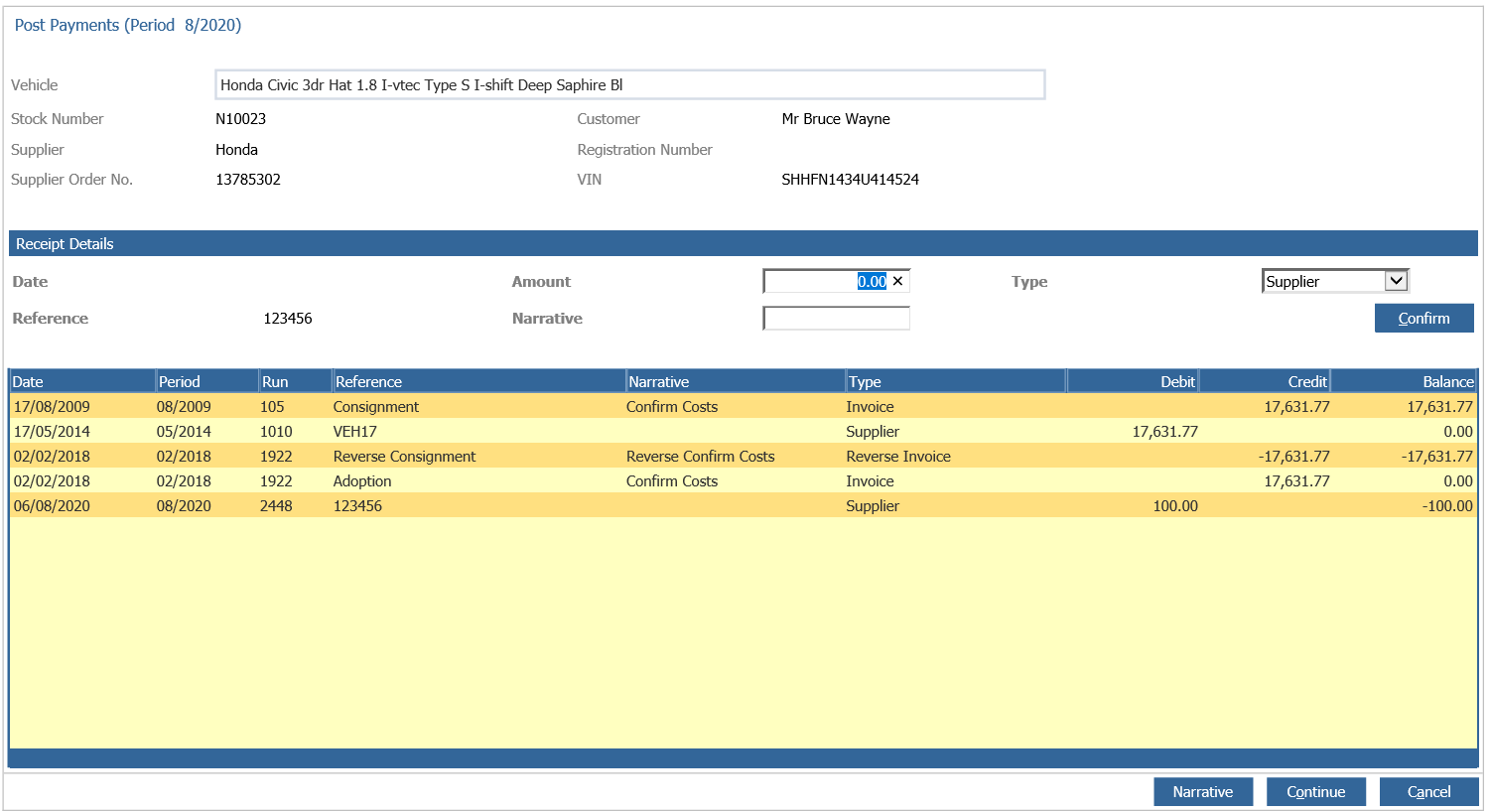
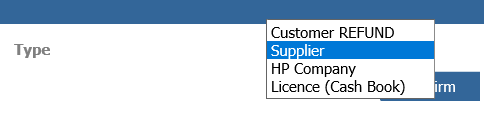
Enter the correct amount to be paid against the vehicle. Payment Type may be identified as to the Supplier (Vehicle), HP Company (Settlement), Licence (RFL) or a Customer Refund via the drop down box. The correct type should be selected to ensure the vehicle creditor’s reports provide meaningful information.
A narrative can be entered.
Click ‘Confirm’ to post the payment onto the creditor screen.
Note: Payments made against the ‘Customer Refund’ type post to the debtor screen of the vehicle so will not be seen on the creditor screen when the ‘Confirm’ option is taken.
Click ‘Continue’ to return to the vehicle selection screen. If more than one vehicle has been paid on one payment, continue selecting each vehicle to be included in the payment.
When all the vehicles have been selected, the payment value appears in the top right hand side of the screen.
Click ‘Close’ to complete.
A daybook may be printed if required.