
To reconcile the Cash book to the Bank Statements, tick in the ‘Without Statement Reference’ field, and click ‘Search’ to display all unpresented items.
Identify a transaction that is unpresented and also appears on the bank statement. To make the transaction a presented item, double click on the transaction and a pop up box appears enabling a statement and sheet reference to be entered.
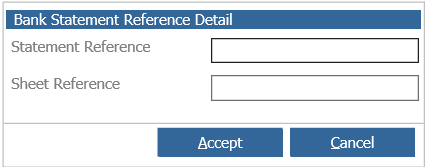
Click ‘Accept’ to return to the main screen. The transaction will no longer be visible on the screen as, due to the ‘Without Statement Reference’ box being ticked, un-presented transactions only are displayed. Also, the balance of un-presented and presented items will have increased accordingly.
To change a previously presented item back to being un-presented, search for the transaction, ensuring that the ‘Without Statement Reference’ box is un-ticked. The presented date and time will appear in the ‘Reconciled’ column.
Highlight the transaction by single clicking on it. Select the ‘Clear Statement Detail’ option.
A pop up box will appear to confirm continuation of the process. Click ‘Yes’ and the details in the ‘Reconciled’ column will clear, the un-presented balance will increase and the presented balance will change accordingly. At the end of reconciling a page of the bank statement, the presented balance should agree with the balance as per the bank statement and the cashbook balance should agree with the Bank Account nominal balance. ‘Print’ will allow the filtered list of transactions to be printed.
To exit from the screen, select a new option from the side menu.