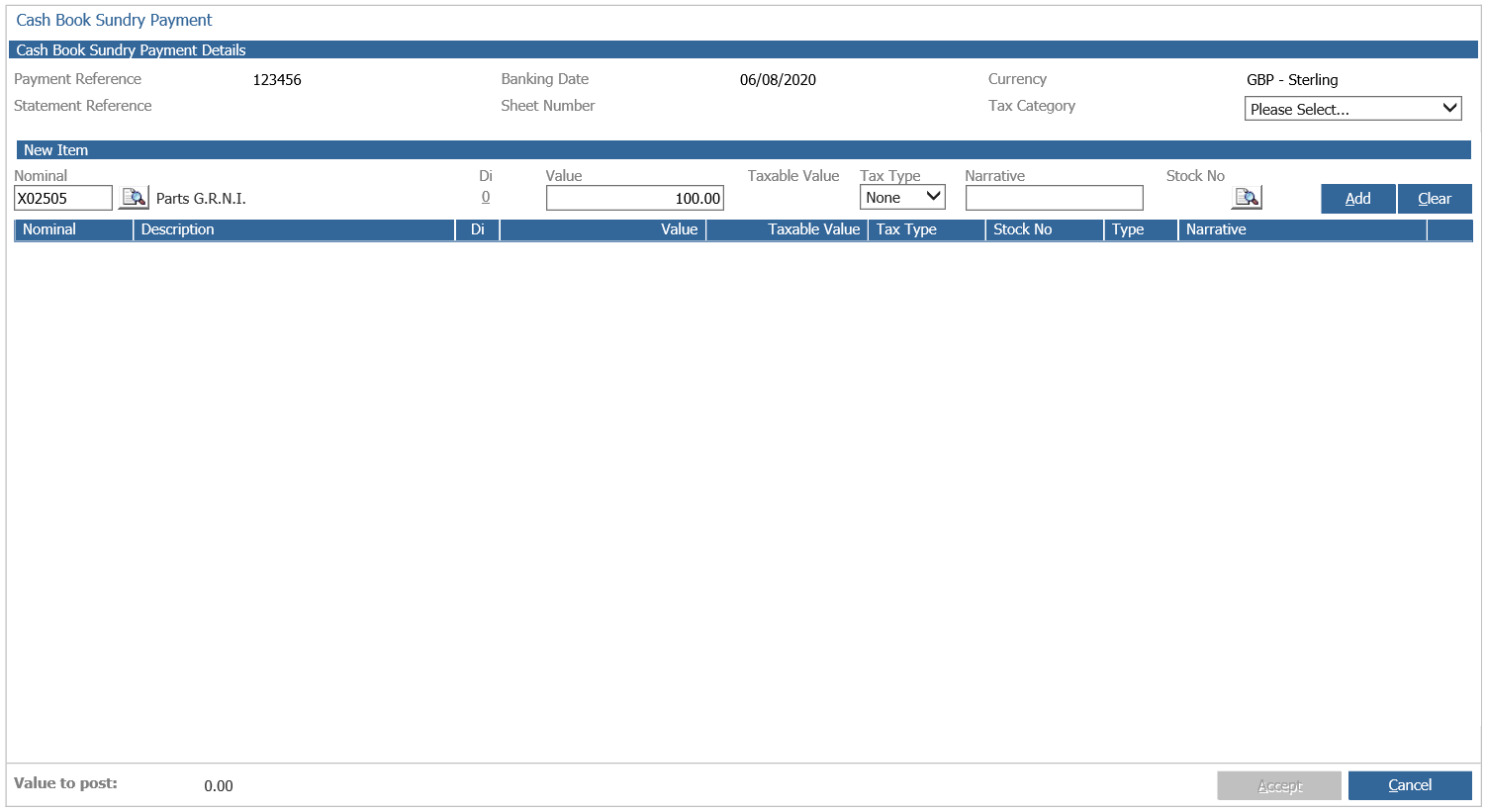
Postings that are to be made directly to the nominal are processed through Sundry Payments on the main menu. This is accessed through the following steps; Accounts > Cash Book > Payments > Sundry.
Enter the date and payment reference (cheque number or direct debit reference).
After selecting the payment method, click ‘Accept’.
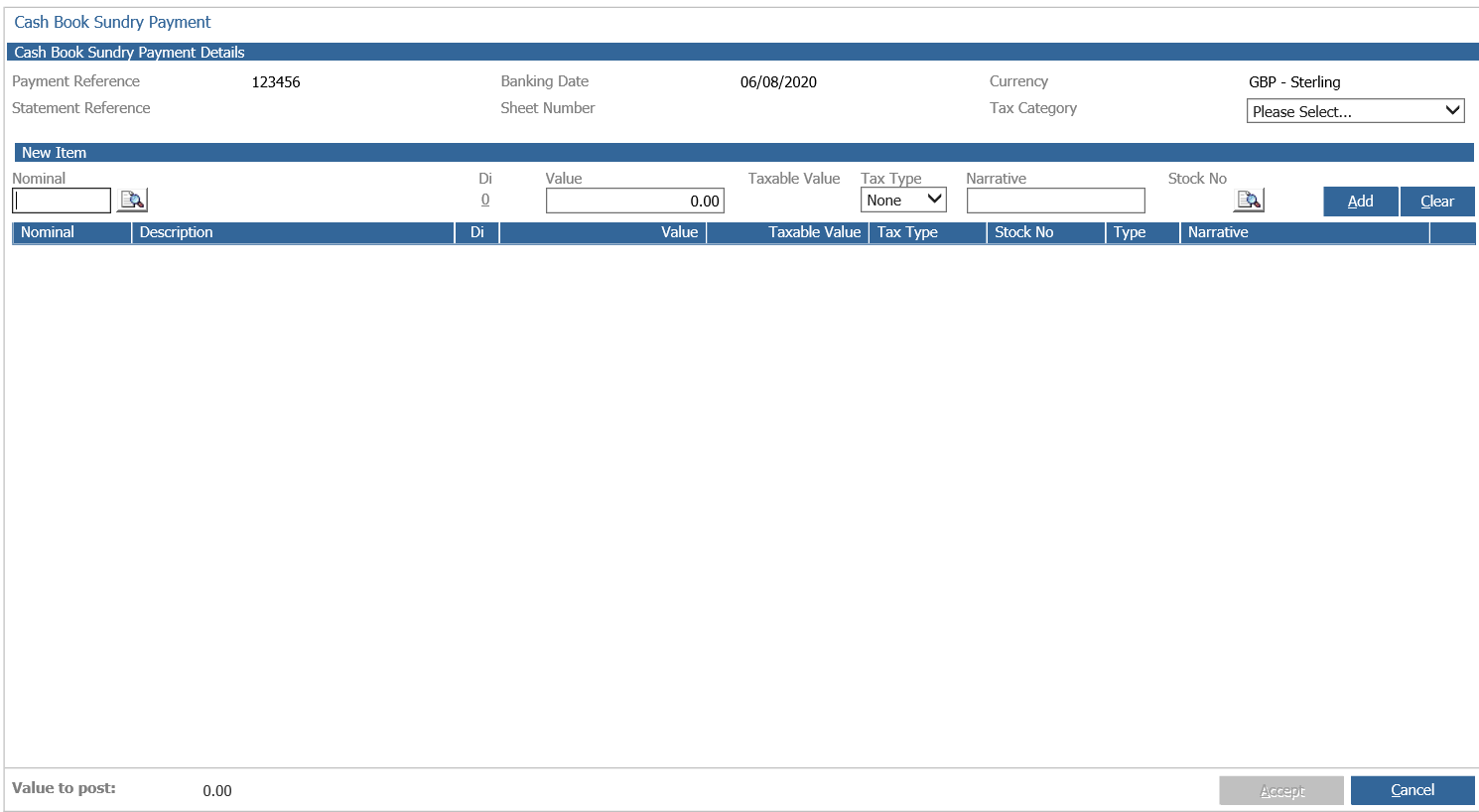
Enter the correct nominal code or select a nominal code using the search icon. Enter the value to be posted to the nominal and enter a narrative if required. If the posting relates to a stock vehicle, then you can link the posting to a vehicle using a stock number by using the ‘Stock No’ search to the right.
Click ‘Add’ at the end of the line and continue selecting codes until the full value has been posted.
For Tax postings, choose the correct tax category and the tax code will automatically be selected. Enter the amount of VAT that needs paying in the ‘Value’ box, and the total taxable net amount in the ‘Taxable Value’ box then click add.