
Parts > Purchase > Recommended Order
The recommended order generated will be based on either parameters set up against the supplier chosen (Please refer to Supplier Maintenance) or values set against the individual part records (Please refer to Create/Amend).
After a supplier has been chosen a window will be displayed.
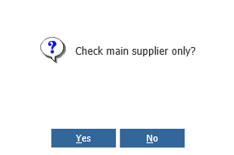
Individual part records can have up to three suppliers attached with one being the main supplier.
If ‘Yes’ is selected, only part records where the chosen supplier is the main supplier, will be included.
Once the order has been generated it is displayed on screen.
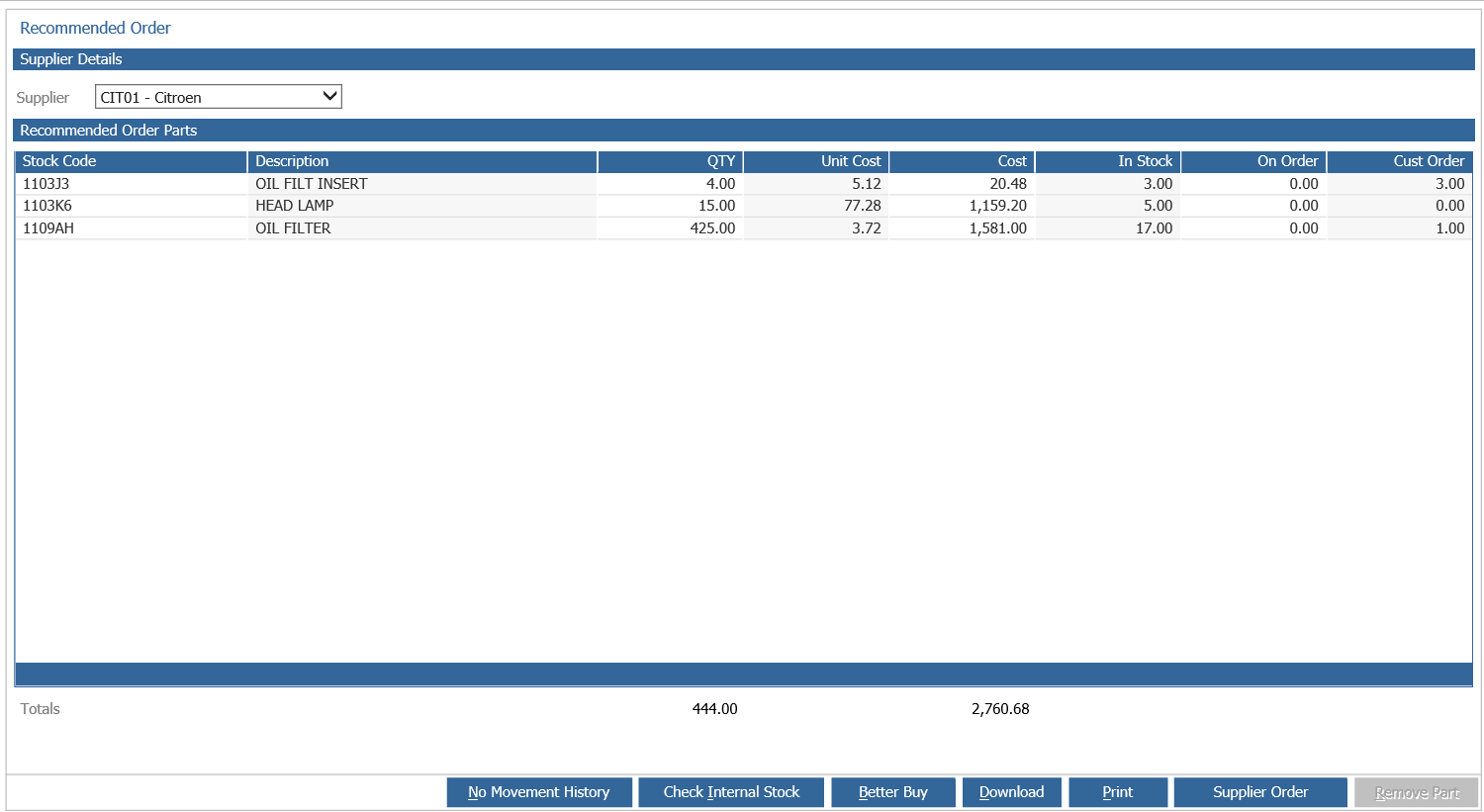
Pressing ‘Print’ will print the order with more information, including sales history.

Pressing the ‘Download’ will produce the order in a spreadsheet format.
At this stage the order is only an on screen recommendation, if not needed it can be ignored.
For information on “Manufacturer Bonus Codes” please refer to Manufacturer Bonus Codes.
When returning to the recommended order page and selecting the same supplier where recommended order data already exists, the window below is shown.
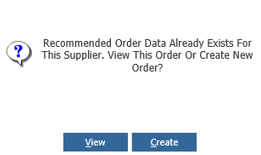
Selecting ‘Yes’ will load the last recommendation that was generated including any amendments that were made.
Selecting ‘Create’ will generated a new order and look at the present stock situation.
Amendments can be made from within the recommended order page. Double clicking a part shows the parts details window.
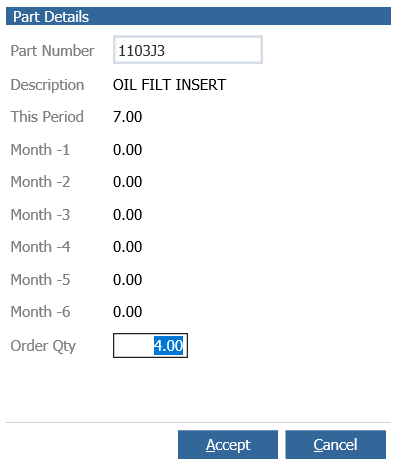
In the part details window the current month and another six previous months sales history is available.
Clicking the part number will open the part record where more part movement can be viewed (Please refer to Create/Amend).
After amendments have been made ‘Accept’ must be selected to update the order.
An order quantity of zero can also be done, removing the part from the order.
After single clicking a part line the ‘Remove Part’ button is available.
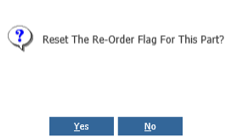
If ‘Yes’ is selected, the part will be removed and the re-order value set to Never.
Selecting ‘No’ will remove the part from this order only.
Selecting the ‘No Movement History’ button gives the option to remove parts with a zero movement within the period selected.
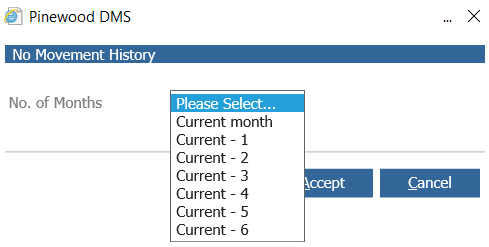
Selecting the required period and pressing ‘Accept’ will remove the parts from the order.
The ‘No Movement History’ button can be enabled in Parts > Parameters > Department Details 1 > Review Sales History On Re-Order.
After all amendments have been made pressing ‘Supplier Order’ will process the order to Supplier Orders, where the order can be amended more or deleted in full. (Please refer to Supplier Orders).